
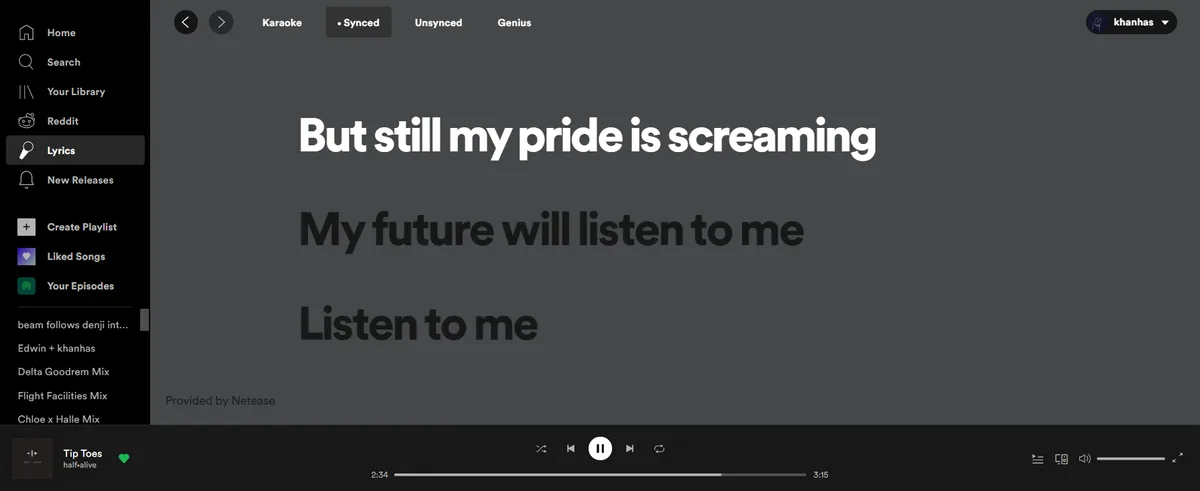
Spicetify lyrics means adding a lyric-focused Custom App to the Spotify desktop client. It does not turn Spicetify into a web player, a mobile Spotify modification, or a song downloader. Start with Lyrics Plus because it is the example covered by the official Custom Apps documentation; treat Beautiful Lyrics and Spicy Lyrics as community-maintained alternatives whose source and maintenance should be checked before enabling them.
For most users, open Spicetify Marketplace, install one lyric item, close Spotify, and run `spicetify apply`. If you already have the documented Lyrics Plus folder, configure it with `spicetify config custom_apps lyrics-plus`, apply the change, then open the new sidebar page while a song is playing. Add only one lyric app at a time so a blank panel has a clear cause.
Which Spicetify lyrics option should you choose?
All three names target lyrics, but they should not be treated as interchangeable official features. Compare the scope, source, and maintenance burden before installing.
Lyrics Plus is the safest reference point for understanding the Custom Apps workflow because the official Spicetify documentation uses it as an example. Its actual providers, display options, and compatibility can still change with Spotify and the app source, so verify the current project instructions before applying a change.
Beautiful Lyrics and Spicy Lyrics are useful search terms for alternative lyric experiences, but a familiar name is not proof of official status, current maintenance, or a safe installer. Prefer a visible repository, a recent history, clear removal steps, and an installation path that does not ask for a Spotify password outside Spotify.
| Option | Best fit | Setup path | Decision rule |
|---|---|---|---|
| Lyrics Plus | A documented Custom Apps starting point | Marketplace or `custom_apps` | Choose first when you want the clearest official workflow. |
| Beautiful Lyrics | A community alternative with a different presentation | Use the maintainer's current source | Use only after checking source, compatibility, and removal instructions. |
| Spicy Lyrics | Another community lyrics implementation | Use the maintainer's current source | Do not install two lyric apps at once while diagnosing a problem. |
| No lyric app | Mobile Spotify or unsupported desktop setups | Keep the base client unchanged | Choose this when the desktop Custom Apps layer is not available or stable. |
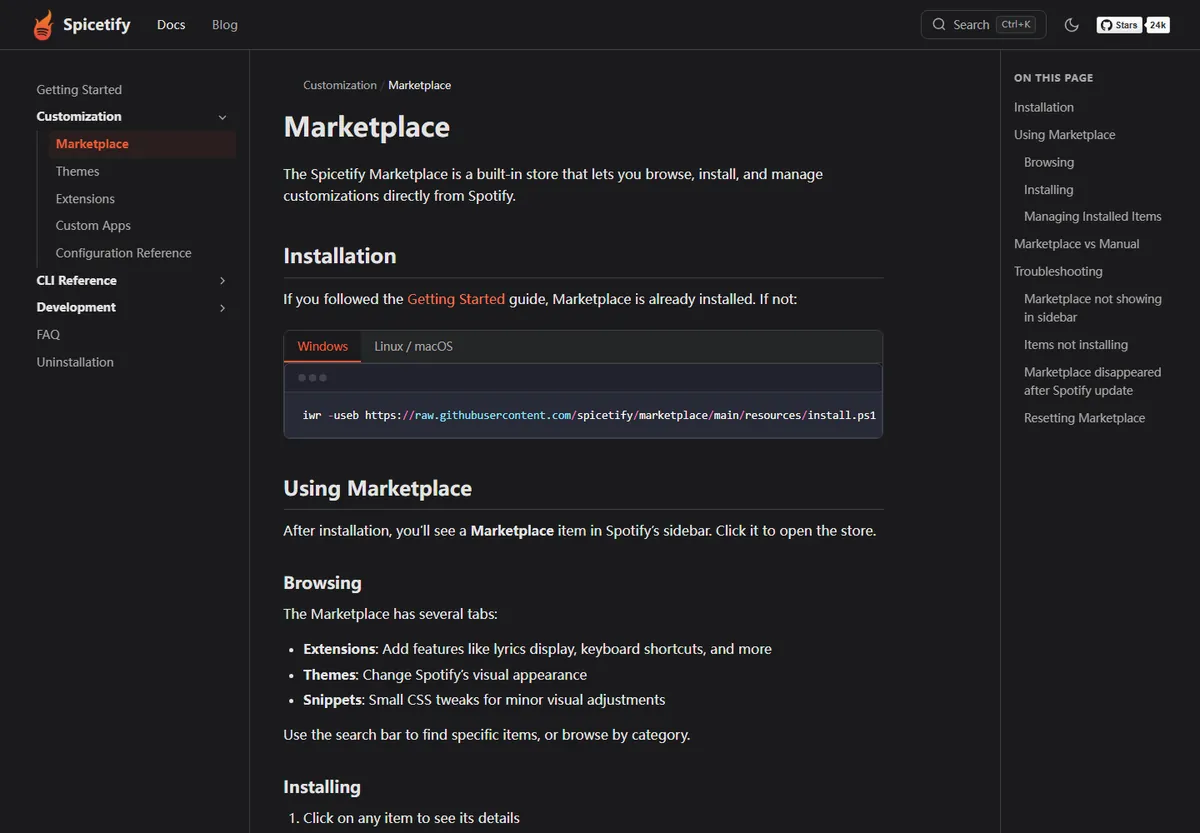
Install a lyrics app through Spicetify Marketplace
Marketplace is a catalog and installation shortcut; it does not make every community item an official Spicetify feature.
Confirm that the base CLI and Spotify desktop client already work before adding a lyric app. If `spicetify --version` fails, repair the installation first. If Spotify is open, close it completely before applying a new Custom Apps configuration. This keeps an app problem separate from a missing backup, path error, or unsupported Spotify version.
Use the Marketplace item that matches the lyric app you intend to test. Read the displayed source, maintainer, update history, permissions, and removal instructions. Do not paste a random PowerShell command from a search result when the item provides a documented source and setup path.
- 1
Verify the base setup
Open a new terminal, confirm the active CLI, and make sure Spotify desktop can start normally before adding a lyric app.
spicetify --version - 2
Open Marketplace
Use the site's Marketplace guide and the official Marketplace documentation to install or open the catalog. Search for one lyric option only.
- 3
Review the item
Check the source repository, maintainer, recent activity, compatibility notes, and how to remove the item before enabling it.
- 4
Apply and test
Close Spotify, apply the change if Marketplace asks for it, reopen the desktop client, and open the lyric page while a track is playing.
spicetify apply
Marketplace helps you discover and manage community code, but the listing does not replace source review. Keep the first test reversible and never enter your Spotify password into a separate installer or lyric panel.
Configure Lyrics Plus manually with the Spicetify CLI
Manual setup is useful when you already have the documented folder or need to understand exactly what the `custom_apps` setting changes.
The folder name must match the installed Custom Apps directory exactly. On Windows, the documented location uses `%appdata%\spicetify\CustomApps\`; on macOS and Linux, use `~/.config/spicetify/CustomApps/`. Do not replace the folder name with a display title, and do not add a second lyric app until the first one works.
After the folder is present, configure the name, apply the customization with Spotify closed, and restart Spotify. The lyric page should appear in the desktop sidebar. Select a track with available lyrics and test the panel before changing providers or adding CSS and extensions.
spicetify config custom_apps lyrics-plus
spicetify apply
- 1
Check the folder
Confirm that the documented Lyrics Plus folder contains the expected app files and is inside the active CustomApps directory.
- 2
Add the exact folder name
Use the CLI configuration command; the setting is a folder list, not a human-readable app title.
spicetify config custom_apps lyrics-plus - 3
Apply with Spotify closed
Run apply, then reopen Spotify desktop and look for the lyric page in the sidebar.
spicetify apply - 4
Test one song
Play a track with known lyrics, wait for the panel to load, and record the first error before changing another customization.
Choose and maintain a Spicetify lyrics setup
A small, traceable configuration is easier to update than a stack of overlapping lyric apps, extensions, and CSS snippets.
Choose Lyrics Plus when you want the clearest route from official Custom Apps documentation to a working lyric page. Consider a community alternative only when its presentation or provider coverage solves a specific need and its source has enough maintenance information for you to reverse the change.
Keep the base workflow separate from optional lyrics. First verify Spotify, the CLI, the backup, and `spicetify apply`; then add one lyric app. If Spotify updates and the panel disappears, record the Spotify and Spicetify versions before reinstalling anything. A post-update reapply or compatibility check may be the correct fix, not a new download.
- Install and test one lyric app before adding another Custom App, extension, or theme.
- Keep the source URL, folder name, version notes, and removal command with your local setup notes.
- Close Spotify before changing `custom_apps` and run `spicetify apply` after the change.
- Use the site's update and backup-apply guides when a Spotify update replaces customized resources.
- Remove the newest lyric item first; do not erase the whole Spicetify installation to diagnose one panel.

Troubleshoot Spicetify lyrics that are missing or blank
Use the smallest test that explains the symptom before reinstalling the CLI or adding another lyrics package.
If the lyric page is missing from the sidebar, check whether Spotify is the desktop client, whether the CustomApps folder is in the documented path, and whether the exact folder name is present in `spicetify config custom_apps`. Apply again with Spotify closed and restart Spotify. A mobile client or an unsupported Spotify package will not behave like the documented desktop workflow.
If the page opens but lyrics are empty, test a different track and wait for the provider response. Some songs have no available lyrics, some providers can be unavailable, and a community app may have changed its endpoint. Record the app version, Spotify version, and visible error before switching to another lyric app.
If the panel is blank after a Spotify update, stop adding packages. Check the current compatibility information, use the update or backup-apply recovery sequence, and then reintroduce the lyric app only after the base Spicetify customization works.
- Missing sidebar entry: verify the desktop client, CustomApps path, exact folder name, and active `custom_apps` value.
- Blank panel: test another song, preserve the console error, and check the app source for a provider or Spotify change.
- Stopped after an update: compare Spotify and Spicetify versions and run the documented recovery order before reinstalling.
- Several lyric apps installed: remove the newest one and test with only one lyric implementation enabled.
- Lyrics load but look wrong: separate provider data from theme or CSS changes by testing a clean baseline.
Save the exact error and current configuration before removing files. A lyric Custom App can be disabled from the `custom_apps` list without uninstalling the Spicetify CLI.
Update or remove a lyrics app safely
A lyric app is one optional Custom Apps entry. Removing that entry is different from uninstalling Spicetify.
Update through the source or Marketplace route that originally installed the app, and read the maintainer's notes before applying a new version. Keep a working baseline when possible. If the update introduces a blank page, remove the app entry, apply again, and confirm that the rest of Spotify still works.
For a manual configuration, subtract the exact folder name from the active list, apply with Spotify closed, and restart Spotify. Only delete the local folder after you have decided that you no longer need its settings or want to restore it later.
spicetify config custom_apps -lyrics-plus
spicetify apply
- 1
Record the current state
Save the app source, version, folder name, Spotify version, and the error or symptom you want to reverse.
- 2
Remove the configuration entry
Use the minus-prefixed folder name, then apply with Spotify closed.
spicetify config custom_apps -lyrics-plus - 3
Restart and verify
Open Spotify again and test search, playback, the sidebar, and the remaining customizations before deleting local files.
A safe Spicetify lyrics checklist
The best lyrics setup is the one you can explain and undo. Start with the official Custom Apps workflow, choose one implementation, preserve its source and folder name, and test it with a known track before changing the rest of the Spotify client.
When the result changes after a Spotify update, treat that as a compatibility and recovery question first. The site's update, backup-apply, Marketplace, and Custom Apps guides cover the neighboring steps without turning every lyrics symptom into a full reinstall.
- Use the desktop Spotify client and a working Spicetify CLI first.
- Prefer Lyrics Plus when you want the clearest documented starting path.
- Review community source and maintenance before enabling Beautiful Lyrics or Spicy Lyrics.
- Apply one change at a time and keep the configuration reversible.
- Check official compatibility and recovery guidance after Spotify updates.
Spicetify Lyrics: Frequently Asked Questions
How do I use Spicetify to view lyrics?
Install one lyric Custom App, configure its exact folder name, close Spotify, run spicetify apply, restart the desktop client, and open the app's sidebar page while a song is playing. Lyrics availability depends on the app and provider.
Is Lyrics Plus an official Spicetify feature?
Lyrics Plus is used as an official Custom Apps example in Spicetify documentation. It is still an optional app layered onto the CLI, so check the current source and compatibility notes before installing or updating it.
Are Beautiful Lyrics and Spicy Lyrics official Spicetify apps?
Do not infer official status from a name or search result. Treat them as community alternatives unless the current Spicetify documentation explicitly says otherwise, and review the maintainer, source, compatibility, and removal path first.
Why does my Spicetify lyrics panel not show up?
Check that you are using Spotify desktop, the CustomApps folder is correct, the exact folder name is in spicetify config custom_apps, and you applied the change with Spotify closed. Restart Spotify before reinstalling anything.
How do I update Spicy Lyrics in Spicetify?
Use the source or Marketplace method documented by its maintainer, record the current version first, and test only that app after updating. If the panel breaks, disable the app, apply the change, and follow the site's update or backup-apply recovery guide.
Does Spicetify provide popout lyrics?
Spicetify itself is a customization CLI and does not promise one universal popout lyrics feature. A particular Custom App may offer a layout or panel option, but verify that feature in its current documentation rather than assuming it is part of Spicetify.
Official sources used
- Official Spicetify Custom Apps documentation — Defines Custom Apps, the Lyrics Plus example, folder configuration, applying changes, and removal boundaries.
- Official Spicetify Marketplace documentation — Supports the catalog installation and management path for optional community customizations.
- Official Spicetify Extensions documentation — Separates extensions that modify existing Spotify behavior from Custom Apps that add standalone pages.
- Spicetify CLI v2.44.0 release — Official release source checked on August 16, 2026; no newer CLI release was found during the freshness check.