
Open PowerShell, run iwr -useb https://raw.githubusercontent.com/spicetify/cli/main/install.ps1 | iex, close Spotify, and then run spicetify backup apply. Most Windows 10 and Windows 11 computers use the x64 archive when a manual download is required.
Prepare Spotify on Windows
Install the Spotify desktop client and sign in before installing Spicetify. On a fresh Spotify installation, keep the app open for at least 60 seconds so the preferences file and local client resources are created. Then exit Spotify completely, including its tray process, before the first apply operation.
Spicetify v2.44.0 officially lists support for Spotify 1.2.14 through 1.2.93 on Windows, including the Microsoft Store version. The release notes warn that Store users may need to apply Spicetify every time Spotify is closed, so the desktop installer from Spotify.com may provide a more predictable workflow for users who encounter that behavior.
It is not automatically the wrong Spotify build. The current release supports it, but the official notes document a possible need to reapply after closing the Store version.
Install Spicetify with PowerShell
PowerShell is the recommended Windows installation method in the official documentation. Run it as your normal user first. The command downloads the maintained installer script from the spicetify/cli repository and installs the matching CLI release.
If your network filters raw.githubusercontent.com, the command may fail even when GitHub.com opens. Do not substitute a random mirror. Inspect the script in a browser, check your proxy or DNS configuration, or use one of the official package-manager methods below.
iwr -useb https://raw.githubusercontent.com/spicetify/cli/main/install.ps1 | iex
- 1
Open PowerShell
Use Windows Search, type PowerShell, and open the normal terminal session.
- 2
Paste the command
Paste the official command and press Enter. Read any prompt before accepting it.
- 3
Open a new terminal
After installation, start a fresh PowerShell window so updated PATH values are available.
- 4
Verify the CLI
Confirm the installed version before modifying Spotify.
spicetify --version
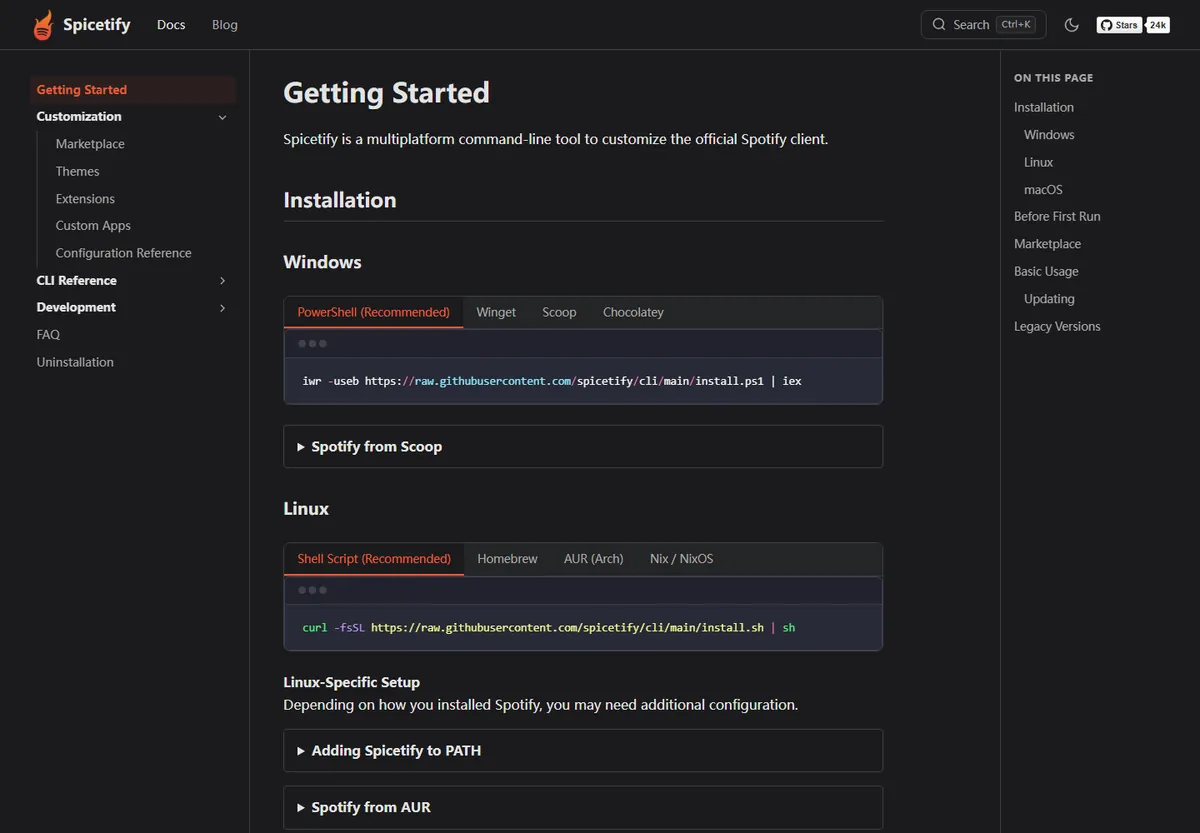
Winget, Scoop, Chocolatey, and manual downloads
Package managers are useful when you already use one to maintain developer tools. Keep the installation and update method consistent: a Scoop install should normally be updated through Scoop, while a Winget install should be updated through Winget. Mixing package-manager and script installs can leave two spicetify executables on PATH.
Manual ZIP files are best for advanced users who understand PATH and architecture. Windows x64 is correct for most Intel and AMD PCs. ARM64 is for Windows on ARM hardware, and x32 is only for an actual 32-bit Windows installation.
| Method | Command or file | Best for |
|---|---|---|
| Winget | winget install Spicetify.Spicetify | Built-in Windows package management |
| Scoop | scoop install spicetify-cli | Users already managing CLI tools with Scoop |
| Chocolatey | choco install spicetify-cli | Existing Chocolatey environments |
| Manual | windows-x64.zip / ARM64 / x32 | Portable or inspected release setup |
Apply Spicetify to Spotify on Windows
Close Spotify and run spicetify backup apply. The backup records clean client resources before Spicetify applies its configuration. Start Spotify again only after the command finishes. If the client updates later and your customization disappears, run the same command again before redownloading anything.
Marketplace is optional. Add it after the base command succeeds so a Marketplace issue does not get confused with a CLI installation issue.
spicetify backup apply
Fix common Windows installation problems
- Command not found: close PowerShell, open a new window, and run spicetify --version again. Check for duplicate or missing PATH entries if it still fails.
- Script download fails: verify access to raw.githubusercontent.com and avoid third-party script mirrors.
- Spotify path is missing: open Spotify for at least 60 seconds, close it, and retry. Confirm which Spotify installation source you use.
- Changes disappear after closing Microsoft Store Spotify: this behavior is documented in the v2.44.0 release notes; run spicetify backup apply again or consider the Spotify desktop installer if the repeated apply is disruptive.
- Antivirus warning: do not disable protection blindly. Confirm the URL is under the official Spicetify GitHub organization and review GitHub attestations for manual release files.
- Wrong architecture: open Settings, System, About and check System type. Most machines report a 64-bit operating system with an x64-based processor; Windows on ARM explicitly reports an ARM-based processor.
- Duplicate command versions: use Get-Command spicetify -All to see whether multiple installers placed executables on PATH. Remove the unwanted copy through Winget, Scoop, Chocolatey, or the method that created it.
- Successful install but unchanged Spotify: installing the CLI is only the first phase. Close Spotify and run spicetify backup apply before expecting a visible customization.
Spicetify download Windows verification checklist
A reliable Spicetify download Windows process ends with more than a completed PowerShell script. Open a new PowerShell window and run spicetify --version so Windows reloads the updated PATH. Confirm that the result shows one current CLI version. If Get-Command spicetify lists an unexpected location, remove the older copy through the installer or package manager that created it before changing environment variables manually.
Next, verify the Spotify desktop client rather than the web player. Sign in once, leave the app open long enough to create its local preferences, and exit Spotify from both the window and system tray. Run spicetify backup apply as your normal user. Elevation is not a substitute for the correct Spotify path, a supported client version, or access to the official GitHub source.
For a manual Spicetify download Windows archive, match the file to the device architecture. Most Intel and AMD systems use x64, Windows on ARM uses ARM64, and x32 is only for a genuine 32-bit installation. Keep the ZIP source URL and release notes with your setup record. When an update is needed, use the same installation channel instead of layering PowerShell, Winget, Scoop, and Chocolatey copies.
- Check the downloaded file comes from github.com/spicetify/cli.
- Verify the active executable and Spotify version before applying.
- Reapply after Spotify updates before downloading the CLI again.
Windows Spicetify download FAQ
Which Spicetify Windows download should I choose?
Most Windows 10 and 11 PCs use x64. Choose ARM64 only for Windows on ARM and x32 only for a 32-bit Windows installation.
Can I use Microsoft Store Spotify with Spicetify?
Yes, v2.44.0 lists Microsoft Store Spotify as supported. The official notes warn that you may need to reapply Spicetify after closing that version.
Do I need to run PowerShell as administrator?
Start with a normal user PowerShell session. Elevated access should only be used for a documented permission requirement, not as a default fix.
Does Spicetify work on Windows 11?
Yes. Use the same official PowerShell, Winget, Scoop, or Chocolatey methods as on Windows 10.
Official sources used
- Official Getting Started — Windows installer and package-manager commands.
- Spicetify v2.44.0 release — Windows files, Spotify compatibility, and Microsoft Store note.