
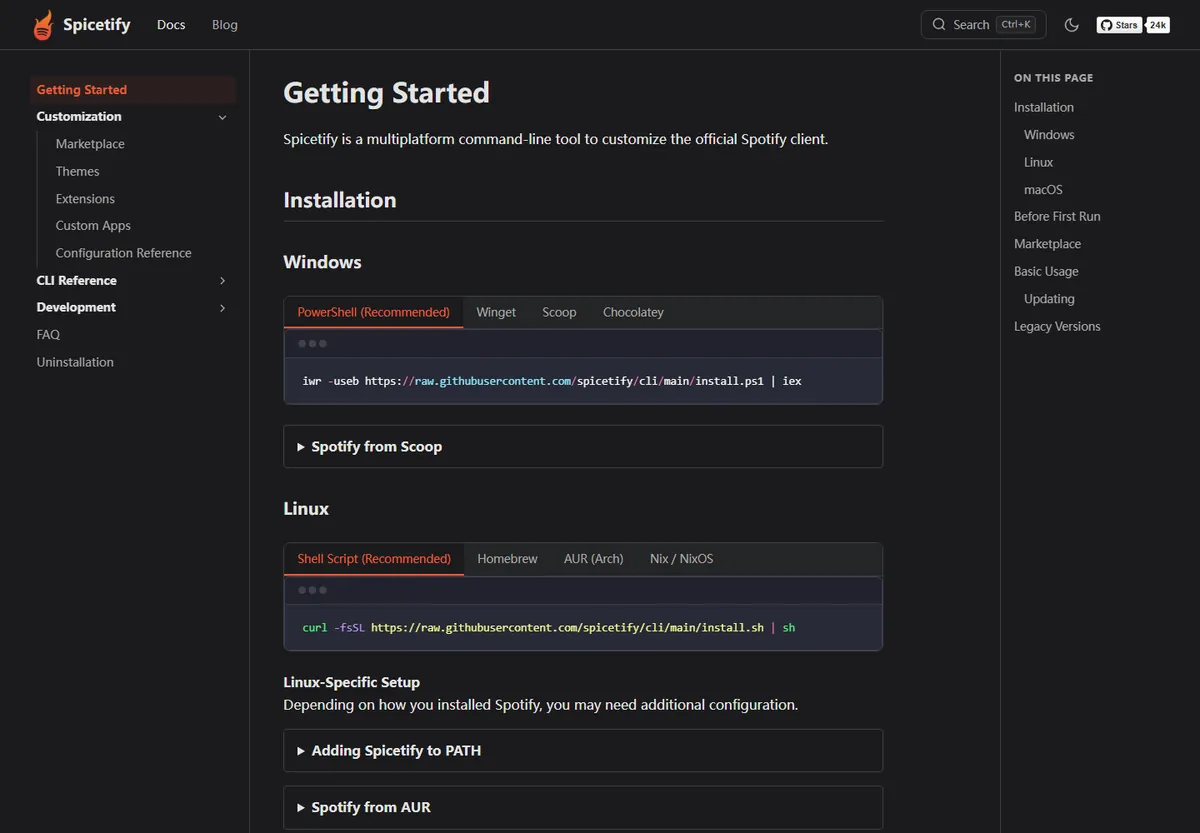
Open Terminal and run curl -fsSL https://raw.githubusercontent.com/spicetify/cli/main/install.sh | sh. Homebrew users can run brew install spicetify-cli, then set the Spotify path to /Applications/Spotify.app/Contents/Resources before the first backup and apply.
Prepare Spotify and identify your Mac chip
Install the Spotify desktop application in the Applications folder, open it, sign in, and let it run for at least 60 seconds. Then quit Spotify completely. Spicetify cannot customize the Spotify web player and does not replace the desktop application.
Apple Silicon Macs use ARM64. This includes M1, M2, M3, M4, and later Apple chips. Older Intel Macs use AMD64. The official install script detects the system, so chip selection matters mainly for manual archive downloads. You can open About This Mac to identify the chip before choosing a release file.
| Mac hardware | Official release file | Package label |
|---|---|---|
| Apple Silicon | spicetify-2.44.0-darwin-arm64.tar.gz | ARM64 |
| Intel Mac | spicetify-2.44.0-darwin-amd64.tar.gz | AMD64 |
Install Spicetify on Mac with Terminal
The cross-platform shell script is the direct method shown by the official project. It downloads from the Spicetify GitHub organization and installs the CLI for your user. You can inspect install.sh at the raw GitHub URL before executing it.
After the script finishes, open a new Terminal window and run spicetify --version. If the shell cannot find the command, the installer may have added ~/.spicetify to a profile that your current session has not reloaded. Start a new shell before editing PATH manually.
curl -fsSL https://raw.githubusercontent.com/spicetify/cli/main/install.sh | sh
Install Spicetify with Homebrew
Homebrew is a good choice when it already manages your command-line tools. Run brew install spicetify-cli, and use brew upgrade spicetify-cli for future package updates. Avoid installing through Homebrew and the shell script at the same time because two executables can make version checks confusing.
The official guide instructs Homebrew users to set Spotify's resource path explicitly. Use the full absolute path shown below. Spicetify configuration values should not rely on a tilde shortcut when the documentation asks for an absolute path.
- 1
Install the package
Install the CLI from Homebrew.
brew install spicetify-cli - 2
Set Spotify resources
Point Spicetify at the standard macOS Spotify resource directory.
spicetify config spotify_path "/Applications/Spotify.app/Contents/Resources" - 3
Back up and apply
Quit Spotify, create a clean backup, and apply the configuration.
spicetify backup apply
Complete the first macOS apply
Quit Spotify, run spicetify backup apply, and wait for the command to finish. Then launch Spotify normally. If macOS asks for access related to the Applications folder, read the prompt and confirm that the command is operating on the expected Spotify application path.
Install Marketplace only after the CLI and first apply work. That order separates a base path or permission issue from a Marketplace extension issue.
spicetify backup apply
Fix common Spicetify Mac problems
- spicetify command not found: open a new Terminal session, run echo $SHELL, and confirm the installer-added path is loaded by that shell profile.
- Spotify path not found: confirm Spotify.app is inside /Applications and use the full /Applications/Spotify.app/Contents/Resources path.
- Wrong manual file: Apple Silicon requires darwin-arm64; Intel requires darwin-amd64.
- Customization vanished after Spotify updated: run spicetify backup apply, then update the CLI if the current release does not support the new Spotify build.
- Marketplace is missing: reapply Spicetify first, then use the official Marketplace guide if the sidebar item remains absent.
- Gatekeeper or security prompt: verify the downloaded archive or script belongs to the official Spicetify GitHub organization. Do not bypass macOS protections for an unknown mirror.
- Homebrew and script versions conflict: run which -a spicetify to identify every executable, then uninstall the method you no longer intend to maintain.
- Terminal profile confusion: zsh is the default shell on current macOS releases, while older setups may still use bash. Add PATH changes to the profile the active shell actually loads.
- Before reporting a problem, record the Mac chip, macOS version, Spotify version, Spicetify version, installation method, exact command, and complete terminal message. Those details separate an architecture issue from a path, permission, or compatibility issue.
Verify a successful Spicetify Mac installation
A successful setup has four observable results. A new Terminal session returns one Spicetify version, the configured Spotify path resolves to the application under /Applications, spicetify backup apply finishes without a permission or prefs error, and Spotify launches normally afterward. Check those results before installing themes or extensions.
If the CLI works but the interface looks unchanged, remember that installation alone does not choose a theme. First confirm the apply command completed, then install Marketplace or configure a theme. If Spotify fails to open, restore the original resources and test the unmodified client before adding the customization again.
Keep the installer method consistent for updates. Homebrew users should use brew upgrade spicetify-cli. Script users can use the built-in updater documented by the project. When switching methods, uninstall the previous copy cleanly and confirm which -a spicetify lists only the executable you intend to maintain.
Spicetify download Mac verification checklist
Complete a Spicetify download Mac setup by checking the executable, Spotify path, and first apply separately. Start a new Terminal session and run spicetify --version. Script installations may need the new shell to load the PATH update, while Homebrew installations should resolve to the Homebrew-managed binary. If two locations appear, remove the method you no longer intend to maintain.
Confirm that Spotify is the desktop application under /Applications and has been opened and signed in at least once. Quit it completely before running spicetify backup apply. Apple Silicon and Intel affect manual archive selection, but the official shell installer detects the architecture automatically. A permissions prompt should reference the expected Spotify application path; stop if it points to an unrelated directory.
A successful Spicetify download Mac result is a CLI version in a fresh shell, a clean apply without prefs or path errors, and a Spotify client that opens normally afterward. Add Marketplace, themes, and extensions one stage at a time. For updates, Homebrew users should stay with brew upgrade spicetify-cli, while script users should follow the official updater so a stale duplicate does not shadow the current release.
Spicetify Mac download FAQ
Can I download Spicetify on an M-series Mac?
Yes. M1, M2, M3, M4, and later Apple Silicon Macs use the darwin-arm64 build.
Which file is for an Intel Mac?
Choose the darwin-amd64 archive. The official shell script can detect the platform automatically.
Should I use Homebrew or the install script?
Both are official documented options. Use Homebrew when it already manages your tools; otherwise the shell script is the simplest direct method.
Can Spicetify download liked songs on Mac?
No. Spicetify customizes the desktop client and does not export liked songs, playlists, or MP3 files.
Official sources used
- Official Getting Started — macOS shell, Homebrew, Spotify path, and first-run guidance.
- Spicetify v2.44.0 release — Apple Silicon and Intel archive files.