
To update Spicetify, check the active CLI with spicetify --version, then run spicetify update when the CLI itself is outdated. If Spotify updated and only customizations disappeared, close Spotify and run spicetify backup apply first.
Do you need to reinstall Spicetify after a Spotify update?
Usually no. Spotify updates can replace the client files that Spicetify modified, which removes visible customizations while leaving the Spicetify CLI installed. That is an apply problem, not automatically a download problem. Confirm the CLI with spicetify --version and reapply before reinstalling anything.
Redownload or reinstall only when the executable is missing, damaged, or installed through a method you are intentionally replacing. Repeatedly running multiple installers can create duplicate CLI paths and make the active version harder to identify.
Run spicetify backup apply after Spotify updates
Close Spotify completely and run spicetify backup apply. This creates a backup aligned with the updated Spotify resources and applies the current configuration. Open Spotify after the command completes and check whether your theme and extensions return.
Microsoft Store users should note the official v2.44.0 warning: you may need to apply Spicetify every time you close the Store version of Spotify. That documented behavior is different from a failed installation.
spicetify backup apply
Run the Spicetify update command
Run spicetify update when the official script installed the CLI and the command is available. If Winget, Scoop, Chocolatey, Homebrew, AUR, or Nix installed Spicetify, update through that package manager so it remains the source of truth.
After the CLI update, restore clean Spotify resources, create a new backup, and apply. This three-part command is useful when a simple apply does not repair a mismatched backup.
- 1
Check the active version
Confirm which executable your terminal sees.
spicetify --version - 2
Update the CLI
Use the built-in updater or the original package manager.
spicetify update - 3
Restore and rebuild
Restore clean resources, make a fresh backup, and apply again.
spicetify restore backup apply
Know when to wait for compatibility
Spicetify depends on Spotify's desktop structure. A new Spotify release can change class names or application resources before the project publishes compatible mappings. If the latest release notes do not support your Spotify version, no reinstall command can create compatibility that has not been released.
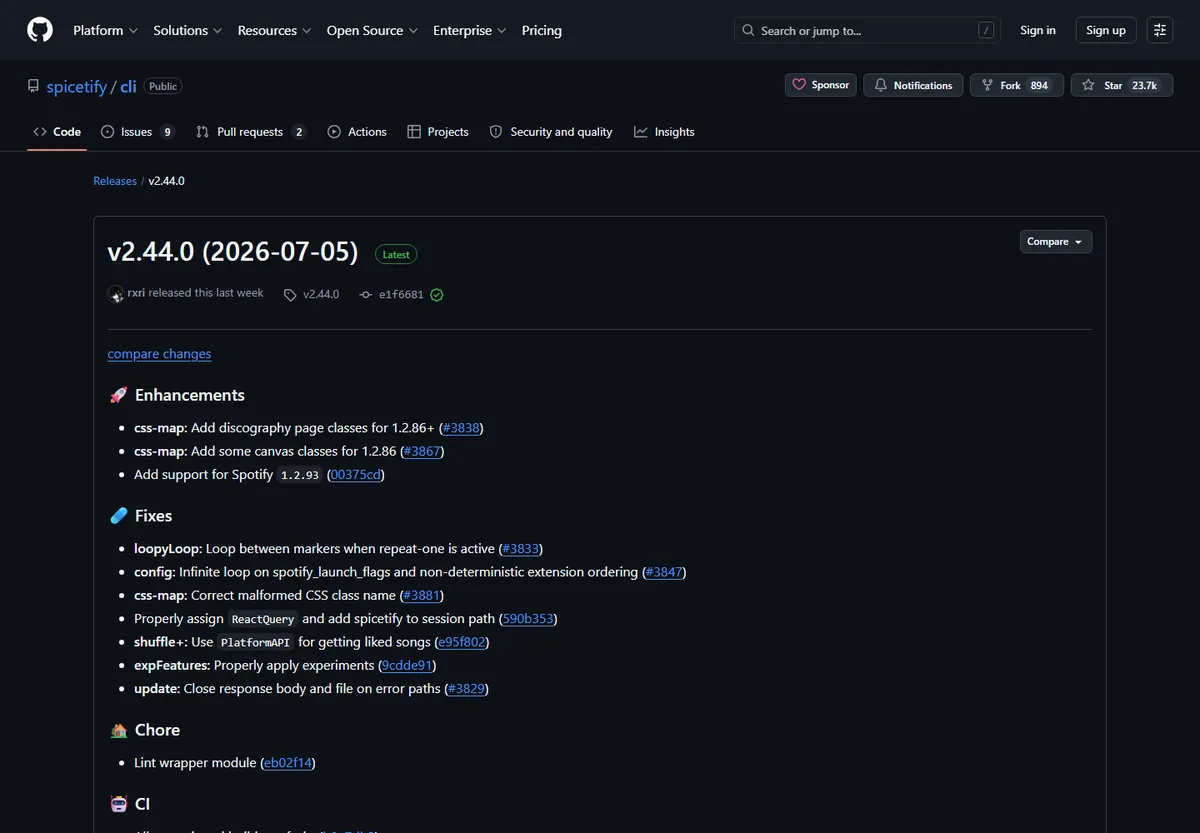
Spicetify v2.44.0 lists Spotify 1.2.14 through 1.2.93 on Windows, macOS, and Linux. Check the newest GitHub release rather than copying version claims from an old tutorial.
Older Spotify and Spicetify combinations can carry their own bugs or security issues. Use legacy versions only when the official project documents that route and you understand the tradeoff.
Update Marketplace after the CLI works
Reapply the CLI before reinstalling Marketplace. The sidebar entry and installed customizations depend on Spicetify injection, so a Spotify update can hide them without deleting every Marketplace selection.
If Marketplace still does not appear after a successful apply, use the official Marketplace installer and verify its current release. Avoid downloading extensions that promise song ripping, Premium unlocking, or other behavior outside the official customization scope.
Keep a short update record when the setup matters to you: the Spotify version, Spicetify version, Marketplace version, installation method, active theme, and critical extensions. That snapshot makes it easier to identify whether a break followed a Spotify update, a CLI update, or one community item.
If the client becomes unstable after Marketplace returns, disable recently added extensions one at a time rather than reinstalling the entire stack. A clean CLI apply followed by a minimal Marketplace configuration provides a useful baseline. Add themes and extensions back gradually until the conflicting item is clear.
Package-manager users should also confirm which update mechanism owns the CLI. The built-in updater, Homebrew, Winget, Scoop, Chocolatey, AUR, and Nix should not all be used interchangeably. A terminal that resolves an older duplicate executable can make a correct Marketplace installation appear broken.
Spicetify update checklist
Before a planned update, note the current Spotify and Spicetify versions and close Spotify. Update the CLI through its owning installer, verify the new version in a fresh terminal, restore clean Spotify resources when required, create a new backup, and apply. Open Spotify before restoring Marketplace items so the base client is tested first.
After the update, check the active theme, Marketplace sidebar entry, and extensions that change important controls. If one item fails, disable it while keeping the working CLI baseline. This is faster and safer than removing every customization or downloading a second copy of Spicetify.
When the error follows a new Spotify build and the latest Spicetify release does not list that build, stop the repair loop. Preserve the clean client, watch the official release page, and apply again after support arrives.
| Stage | Check | Expected result |
|---|---|---|
| Before | Record both versions | Known working baseline |
| CLI update | Use the owning installer | One active Spicetify executable |
| Reapply | Restore, backup, apply | Clean resources and current config |
| Customization | Add Marketplace items gradually | Conflicts remain identifiable |
How to update Spicetify: reapply, update, or wait
Use a simple decision order for every Spicetify update problem. First run spicetify --version to confirm that the CLI still exists. If Spotify updated and only the visual customizations disappeared, close the client and run spicetify backup apply. That is a reapply operation, not a reason to download a second copy. Test the base client before reinstalling Marketplace or every extension.
Run a Spicetify update when the installed CLI is behind a current compatible release. Script users can follow the official updater, while Winget, Scoop, Chocolatey, Homebrew, AUR, and Nix users should upgrade through the package manager that installed the executable. After the CLI changes, restore clean resources when required, create a backup for the current Spotify build, and apply the configuration again.
Wait when the newest Spotify client is outside the compatibility range published in the latest Spicetify release notes. Reinstalling the same CLI, using random patches, or repeatedly changing permissions cannot add missing support. Keep Spotify in a clean usable state, monitor the official release page, and retry after a compatible Spicetify update arrives. This distinction protects themes and extensions while keeping the recovery path understandable.
Spicetify update FAQ
How do I update Spicetify?
Run spicetify --version first. Use spicetify update for a script-installed CLI, or update through the package manager that installed it; use spicetify backup apply when Spotify changed the client files.
What is the Spicetify update command?
For a script-installed CLI, the command is spicetify update. After Spotify changes its files, the recovery command is usually spicetify backup apply instead.
Why did Marketplace disappear after an update?
Spotify likely replaced modified files. Reapply Spicetify before reinstalling Marketplace or individual customizations.
What if the newest Spotify version is unsupported?
Wait for a compatible Spicetify release or follow official legacy guidance. Reinstalling the same incompatible build will not solve the mismatch.
Official sources used
- Official Getting Started update section — Reapply, update, and restore commands.
- Latest CLI release — Current compatibility and release changes.