
When Spicetify is not working after a Spotify update, close Spotify completely, open PowerShell or Terminal as your normal user, and run spicetify backup apply. Reopen Spotify only after the command finishes. This is the correct first repair when Spotify replaced resources that Spicetify had modified.
Do not reinstall immediately. If the command reports an unsupported Spotify version, a missing backup, a permission problem, or a command-not-found error, use the matching section below. The verified Spicetify CLI release is v2.44.0 as of August 2, 2026; wait for an official compatibility update when your Spotify build is newer than the documented range.
Why Spicetify is not working after a Spotify update
A Spotify update can replace the application files that Spicetify patched. The visible symptom tells you whether you need a normal reapply, a version check, a clean restore, or a permission fix.
| What you see | Likely cause | First action | Do not do first |
|---|---|---|---|
| Spotify opens with the default look | Updated resources replaced the custom files | Close Spotify and run spicetify backup apply | Do not download another archive |
| Themes, extensions, or Marketplace disappeared | The client was replaced or the customization was not reapplied | Run the backup apply step, then reopen Spotify | Do not reinstall every theme |
| Spicetify says the Spotify version is unsupported | The CLI has not mapped the new Spotify build yet | Check the official release notes and compatibility range | Do not force an old CSS map |
| A black or blank window appears | Files may have been changed with admin or root privileges, or the build is incompatible | Use a normal user shell and restore clean resources if needed | Do not run every command as administrator |
| The command is not recognized | PATH or the installation is damaged | Run spicetify --version and repair the install path | Do not change Spotify files manually |
| Apply fails while copying raw assets | The resource path, permissions, or Spotify package changed | Follow the path and permission checks in the error section | Do not disable security software blindly |
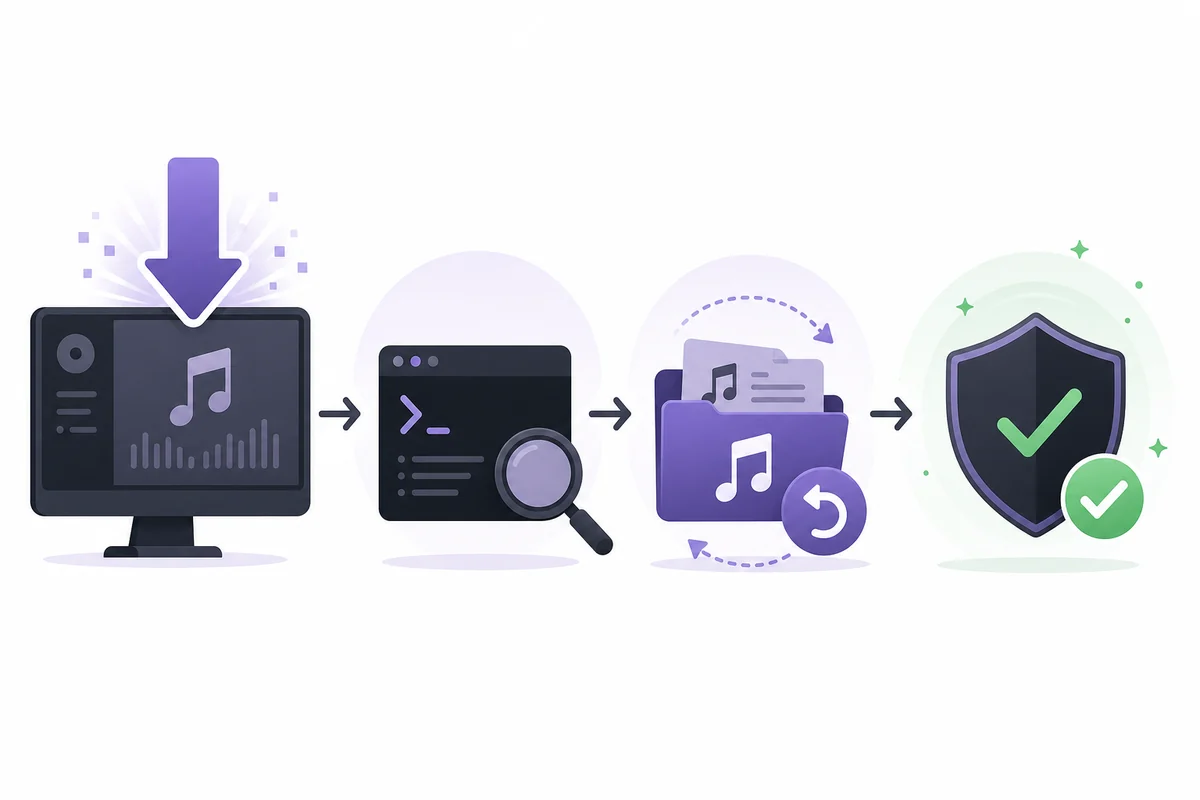
Follow this recovery order before reinstalling
The order matters because each step preserves a possible rollback path. Stop when the current step solves the problem instead of running every command in sequence.
- 1
Close Spotify completely
Exit Spotify from the tray or menu, then confirm that no Spotify process is still running. Commands that modify application resources can fail or produce a blank window while the client is open.
- 2
Check that the CLI is available
Run spicetify --version in a normal user PowerShell or Terminal. A version response means PATH is working; a command-not-found message means you should repair the CLI installation before applying anything.
- 3
Reapply the saved resources
Run spicetify backup apply and wait for it to finish. This creates or uses a clean backup and applies the current configuration to the compatible Spotify files.
spicetify backup apply - 4
Reopen Spotify and test one feature
Test the library, search, queue, and now-playing views before restoring every theme or extension. If the client works but looks plain, the base repair succeeded and only customization needs attention.
- 5
Use restore only for a damaged state
If the application is broken or the backup apply state is invalid, restore the clean resources and then make a fresh backup before applying again. Do not use restore as a routine replacement for update.

Recover themes, extensions, and Marketplace
A successful command-line repair does not always make optional customization visible immediately. Restore the base client first, then add one customization at a time so you can identify the item that fails.
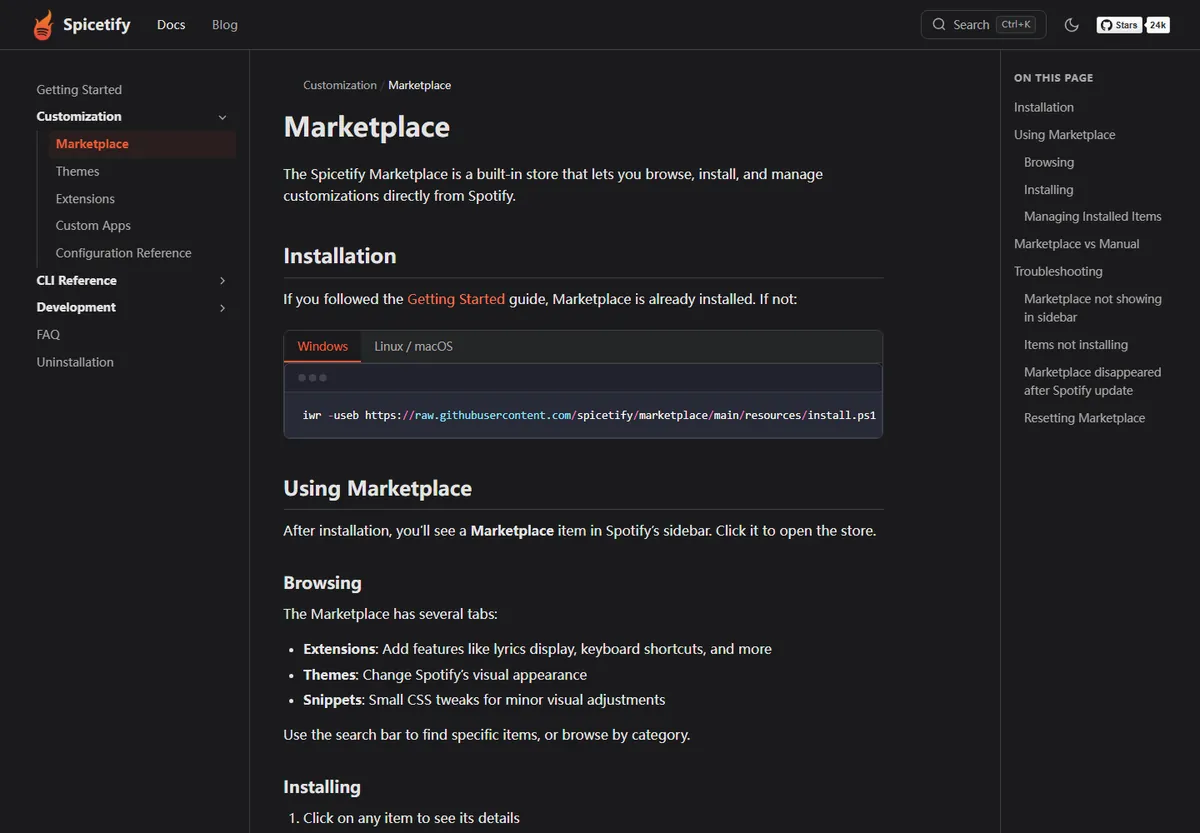
If Marketplace disappears after Spotify updates, reapply Spicetify before reinstalling Marketplace. Marketplace is an optional catalog for themes, extensions, custom apps, and snippets; it is not a replacement for the Spicetify CLI. Once the base client works, use the official Marketplace command and restart Spotify only when the installer finishes.
If a theme or extension still fails, disable the newest item, return to a known-good theme, and test the default library, search, queue, lyrics, and now-playing screens. A single outdated CSS selector or extension can make the whole customization look broken even though the CLI itself is healthy. Keep official file names and source links intact when you reinstall an item.
- 1
Confirm the base repair
Open Spotify with the default appearance and verify that navigation and playback work before adding optional components.
- 2
Restore Marketplace only when needed
Use the official Marketplace documentation and command for your platform. Do not use an unverified repackaged installer.
- 3
Add one item at a time
Apply a single theme or extension, restart Spotify, and test the affected view. This keeps the rollback decision clear.
Check Spotify and Spicetify compatibility
When a Spotify update arrives before Spicetify has a matching release, repeated reapply attempts cannot create compatibility that is not present in the CLI.
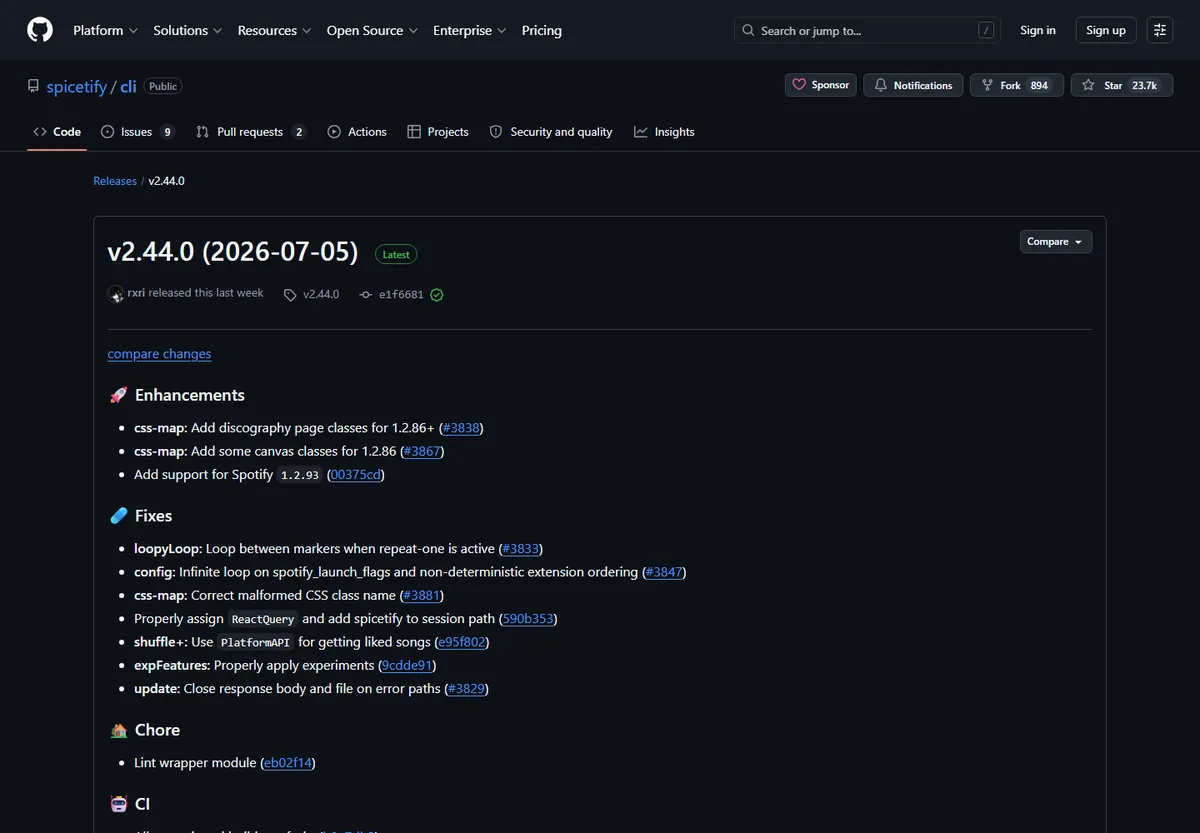
The official v2.44.0 release lists support for Spotify 1.2.14 through 1.2.93 on Windows, macOS, and Linux, with additional notes for the Microsoft Store build. Compare the Spotify version, installation source, and operating system with the release notes before considering a downgrade or manual file change.
A compatibility mismatch is different from a missing command. If spicetify --version works but backup apply reports an unsupported build or cannot find an update endpoint, keep Spotify clean, save your current configuration, and wait for an official release that maps the new client. A forced old CSS map can cause broken layouts or a blank window.
| Check | Why it matters | Safe next step |
|---|---|---|
| Spotify version | The CSS map and resource paths can change between releases | Compare it with the official CLI release notes |
| Install source | Microsoft Store, desktop installer, Flatpak, and package managers use different paths | Open the matching platform guide |
| Spicetify version | Older CLI builds may not know the new Spotify structure | Run the official update method or wait |
| Recent customization | A theme or extension can fail independently of the CLI | Test the default appearance before restoring items |
Fix command, permission, and blank-window errors
The error text usually points to the correct branch. Read the first meaningful line instead of treating every failure as a download problem.
If the message says Spicetify should not be run with administrator or root privileges, close the elevated shell and repeat the command as the same normal user who runs Spotify. Files changed by an administrator or root can become inaccessible to the ordinary Spotify process and may lead to a black or blank window.
If the command cannot find Spotify, check whether the client came from the Microsoft Store, Flatpak, AUR, Homebrew, or a normal desktop installer. The package path and permission model can differ. Use the platform-specific guide before changing a path manually. If a raw asset copy fails, check that Spotify is closed, the install directory is writable by the correct user, and the CLI release supports the client.
spicetify restore backup apply
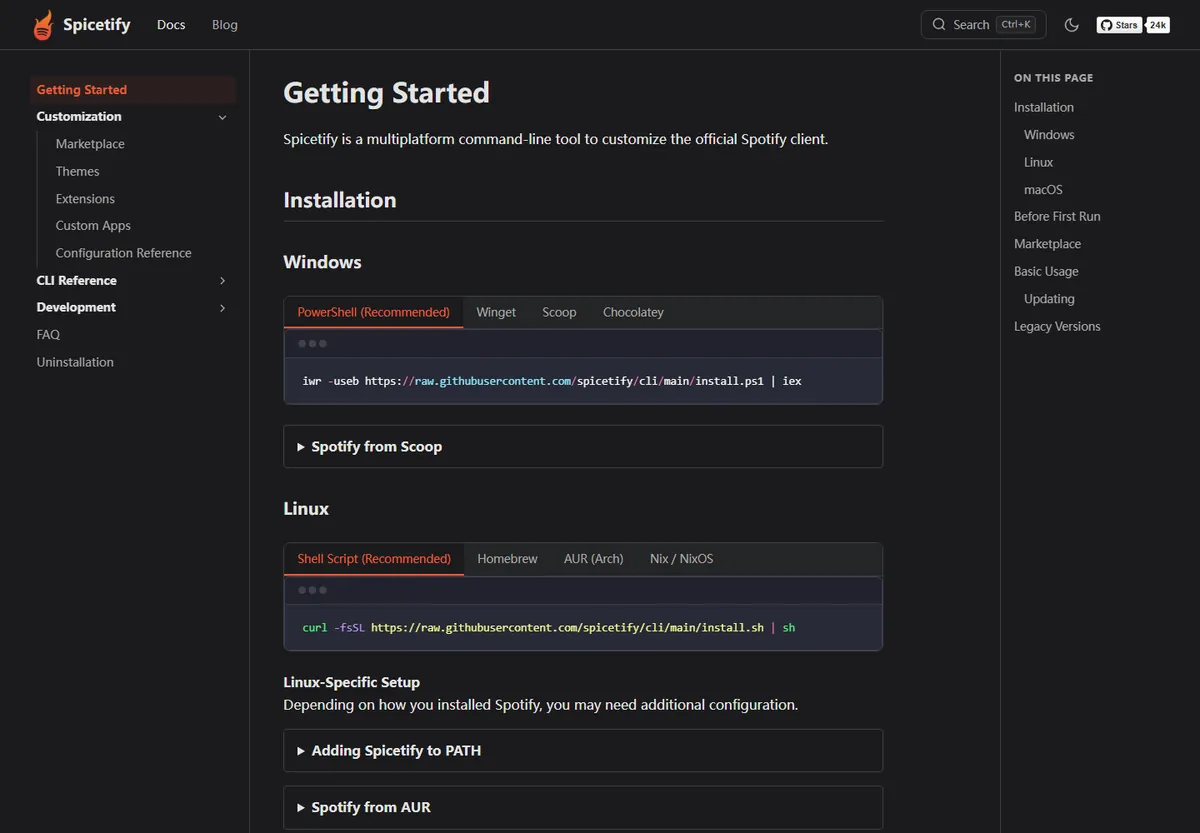
- Command not found: repair PATH or reinstall the CLI from the official source, then confirm spicetify --version.
- Spotify not found: identify the package source and use its documented path rather than guessing a folder.
- Permission denied: use the normal account that owns the Spotify installation and close the client first.
- Blank window after apply: restore clean resources, reopen Spotify, and wait for a compatible release if the version is unsupported.
- Marketplace or theme missing: repair the base client first, then reinstall one optional component at a time.
Avoid deleting Spotify data, running every command as administrator, disabling antivirus without a specific diagnosis, or downloading binaries from mirrors that are not the official Spicetify project sources.
When to wait instead of forcing an old build
Waiting is the safer choice when the upstream client has changed and the Spicetify project has not published a compatible map yet.
Use the official release page to check whether a newer Spicetify version exists. The current verified stable release is v2.44.0, published July 5, 2026, and its notes include Spotify 1.2.93 support. If your Spotify build is newer than the documented range, do not promise that a reinstall or an old archive will fix it.
You can keep Spotify unmodified while waiting, export or note your theme and extension choices, and reapply them after the official compatibility update. If you must test a different Spotify build, use a documented official path and keep a clean rollback option. Do not present unofficial downgrades, patched binaries, or random mirrors as safe downloads.
Verify the recovery and keep a rollback point
A recovery is complete when the base Spotify client is stable, the command works as a normal user, and each optional customization has been tested separately.
- 1
Check the base client
Open Spotify, browse the library, search for a track, play music, and open the queue. These checks catch a broken resource patch that a successful command message might not reveal.
- 2
Check the customization layer
Restore the theme, extension, or Marketplace item that you actually need. Do not restore an entire collection before the first item is known to work.
- 3
Record the working versions
Note the Spotify version, Spicetify version, package source, and working theme or extension names. This makes the next update easier to diagnose.
- 4
Keep official source links
Use the official documentation and GitHub release page for future updates. This site links to those sources and does not host repacked binaries.
Short recovery checklist
For most post-update failures, the safe sequence is: close Spotify, run spicetify --version as a normal user, run spicetify backup apply, test the base client, and only then restore Marketplace, themes, or extensions.
If the CLI works but the Spotify build is unsupported, stop changing files and wait for the official compatibility update. A clean, unmodified Spotify client is easier to recover than a forced patch with an unknown result.
- Primary repair: spicetify backup apply
- Clean rollback when needed: spicetify restore backup apply
- Compatibility check: official Spicetify release notes
- Avoid: admin/root shells, random mirrors, and blind downgrades
Spicetify post-update troubleshooting FAQ
Do I need to download Spicetify again after every Spotify update?
Usually no. Close Spotify and run spicetify backup apply first. Download or update the CLI only when the installed version is incompatible, missing, or damaged.
Why did Spicetify stop working after Spotify updated?
Spotify can replace files that Spicetify modified. The CLI may still be installed, but the customization must be reapplied and the new Spotify build must be supported.
What should I run when Spicetify themes disappear?
Run spicetify backup apply, reopen Spotify, and test the default client. Then restore one theme at a time. If the version is unsupported, wait for an official compatible release.
When should I use spicetify restore backup apply?
Use it when the modified resources are damaged or backup apply cannot recover the client. Restore the clean resources first, then create a fresh backup and apply again.
Can I run Spicetify as administrator or root to fix the problem?
Do not use an elevated shell as a general fix. Administrator or root ownership can prevent the normal Spotify process from reading the modified files and may cause a blank window.
What if the newest Spotify version is not supported?
Keep Spotify clean, check the official Spicetify release notes, and wait for a compatible release. Avoid forcing an old CSS map or using an unverified patched binary.
Is Spicetify a Spotify song downloader?
No. Spicetify customizes the Spotify desktop client. It does not export ordinary MP3 files, bypass Premium rules, or provide instructions for bypassing access controls.
Official sources used
- Official Getting Started — Official installation, backup, apply, update, and recovery guidance.
- Official CLI latest release — Current stable version, release notes, assets, and compatibility changes.
- Official Marketplace documentation — Marketplace installation and customization management guidance.