
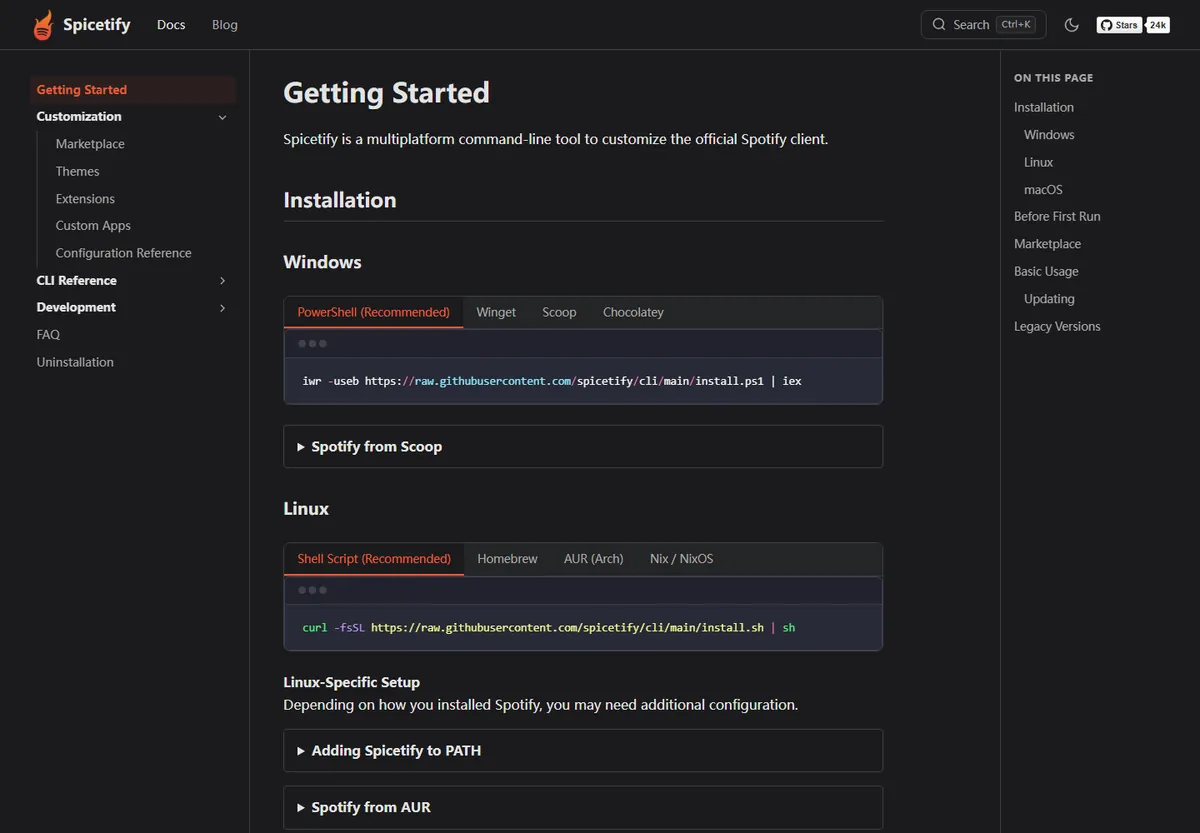
Close Spotify completely, open a normal terminal, run spicetify backup apply, and reopen Spotify only after the command finishes.
Use spicetify restore when you want to return Spotify resources to their unmodified state; use spicetify backup apply again after a Spotify update or when Spicetify says no backup exists.
What does spicetify backup apply do?
The command combines two stages. Backup saves the original Spotify resources Spicetify needs for recovery, while apply copies and patches the working files using your current config, theme, extensions, custom apps, and snippets. It does not back up playlists, downloaded music, account data, or every Marketplace add-on.
The command combines two stages. Backup saves the original Spotify resources Spicetify needs for recovery, while apply copies and patches the working files using your current config, theme, extensions, custom apps, and snippets. It does not back up playlists, downloaded music, account data, or every Marketplace add-on.
A successful run proves that the CLI can find a supported Spotify desktop installation and write to the required paths. If Spotify is open, installed from an unsupported package, or newer than the CLI supports, the command can stop before applying changes.
How to run spicetify backup apply safely
Update Spicetify from its original official source first, then close every Spotify process. Run spicetify --version to confirm the shell finds one current CLI, and run spicetify config to inspect detected paths when troubleshooting.
Update Spicetify from its original official source first, then close every Spotify process. Run spicetify --version to confirm the shell finds one current CLI, and run spicetify config to inspect detected paths when troubleshooting.
Run spicetify backup apply without administrator or sudo privileges unless the official installation method specifically requires them. Elevated runs can create files owned by another account and make later updates harder. Reopen Spotify only after the terminal returns a completed result.
- 1
1. spicetify --version
Close Spotify completely, open a normal terminal, run spicetify backup apply, and reopen Spotify only after the command finishes.
spicetify --version - 2
2. spicetify backup apply
Use spicetify restore when you want to return Spotify resources to their unmodified state; use spicetify backup apply again after a Spotify update or when Spicetify says no backup exists.
spicetify backup apply - 3
3. spicetify config
The “You have not backed up” message means the required baseline is missing or no longer valid. Close Spotify and run spicetify backup apply. If the CLI cannot find Spotify, check prefs_path and spotify_path, confirm the desktop client was opened once, and avoid the web player.
spicetify config
When should you run backup apply again?
Run it after Spotify replaces its app files, after installing Spicetify for the first time, after clearing or restoring resources, or when the CLI reports that you have not backed up. A theme-only change usually needs spicetify apply rather than a new backup.
Run it after Spotify replaces its app files, after installing Spicetify for the first time, after clearing or restoring resources, or when the CLI reports that you have not backed up. A theme-only change usually needs spicetify apply rather than a new backup.
Do not repeatedly rebuild a backup while Spotify is partially updated or visibly broken. First update Spotify completely, open it once, close it, verify the current Spicetify release, and then create the fresh backup.

How to restore Spotify and rebuild the backup
Run spicetify restore to remove applied modifications and restore the saved clean resources. This is useful before uninstalling, isolating an extension problem, or checking whether a blank window comes from customization.
Run spicetify restore to remove applied modifications and restore the saved clean resources. This is useful before uninstalling, isolating an extension problem, or checking whether a blank window comes from customization.
After Spotify works normally, close it and run spicetify backup apply to create a new baseline. Restore is not the same as uninstall: the CLI and configuration can remain installed until you follow the separate uninstall steps.

Fix common spicetify backup apply errors
The “You have not backed up” message means the required baseline is missing or no longer valid. Close Spotify and run spicetify backup apply. If the CLI cannot find Spotify, check prefs_path and spotify_path, confirm the desktop client was opened once, and avoid the web player.
The “You have not backed up” message means the required baseline is missing or no longer valid. Close Spotify and run spicetify backup apply. If the CLI cannot find Spotify, check prefs_path and spotify_path, confirm the desktop client was opened once, and avoid the web player.
Permission errors usually mean Spotify or a helper process still holds files, or earlier commands created mismatched ownership. Path errors often follow a store-package change or moving Spotify. Compatibility errors require checking official release notes instead of forcing an old CLI against a new client.
| Message | Meaning | Action |
|---|---|---|
| You have not backed up | Missing clean baseline | Close Spotify and run spicetify backup apply |
| Cannot find Spotify | Path or package mismatch | Check prefs_path and spotify_path |
| Permission denied | Locked files or ownership mismatch | Close processes and avoid unnecessary elevation |
Backup apply on Windows, macOS, and Linux
The command itself is the same across platforms, but the shell and package source differ. Windows users commonly use PowerShell; macOS and Linux users commonly use Terminal. Keep the same installation source for updates so an older executable earlier in PATH does not run by mistake.
The command itself is the same across platforms, but the shell and package source differ. Windows users commonly use PowerShell; macOS and Linux users commonly use Terminal. Keep the same installation source for updates so an older executable earlier in PATH does not run by mistake.
On every platform, save the terminal output before changing paths or reinstalling. The first clear error line is more useful than repeatedly applying themes, deleting directories, or downloading unofficial packages.
FAQ
Does spicetify backup apply back up my playlists?
No. Spotify stores playlists and account data in its services. The command backs up local desktop resources used by Spicetify.
Should I run backup apply after every theme change?
Usually no. Run spicetify apply for ordinary configuration changes. Rebuild the backup after Spotify replaces resources or when the CLI explicitly requires it.
What is the difference between restore and backup apply?
Restore returns saved clean Spotify resources. Backup apply creates or refreshes the clean baseline and applies the current customization.
Can I run the command while Spotify is open?
Close Spotify first. Open processes can lock files and produce incomplete or permission-related failures.
Does it work with Spotify Web Player or mobile?
No. Spicetify targets the supported Spotify desktop client.
Is administrator or sudo required?
Normally no. Follow the official installation method and avoid elevation unless official troubleshooting specifically calls for it.
Official sources used
- Spicetify Getting Started — Official installation and first apply workflow.
- Spicetify CLI commands — Official CLI command reference.
- Spicetify v2.44.0 — Latest verified release, published July 4, 2026 UTC.