
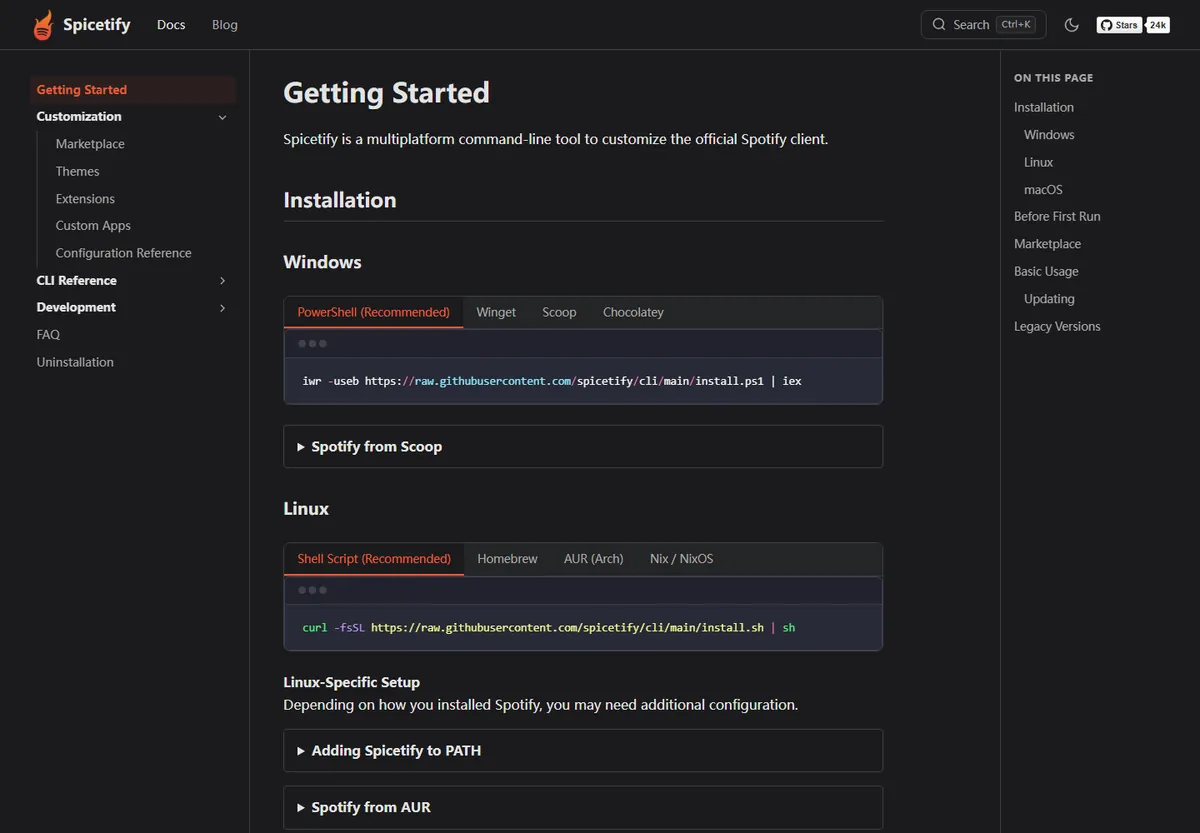
To use Spicetify after installation, open a new terminal, confirm the CLI with spicetify --version, close Spotify completely, run spicetify backup apply, and reopen Spotify. Add Marketplace, a theme, an extension, or a custom app only after the base client works.
Spicetify is primarily a command-line interface that changes the supported Spotify desktop client; there is no separate Spicetify window to launch. If you searched for how to open Spicetify after installing, use the commands below and verify the result inside Spotify.
What Spicetify does after installation
Installation puts the CLI on your system, but using Spicetify is a sequence of small checks rather than one large launch step.
Spicetify reads the configuration for the Spotify desktop client, keeps a clean backup of the resources it needs to restore, and applies your selected themes, extensions, custom apps, or snippets. The CLI normally runs from PowerShell, Terminal, or another shell and then changes what you see when Spotify opens.
That separation matters for troubleshooting. Spotify is the application you open every day; Spicetify is the command-line layer that prepares and patches the supported desktop client. Marketplace is an optional catalog on top of that layer, not a replacement for the CLI and not a separate music player.
- Use the desktop Spotify client, not Spotify Web Player or the mobile app.
- Keep one installation source for the CLI so PATH does not select an old duplicate.
- Test the base backup and apply workflow before adding community-maintained customizations.
Run the first verification
A new terminal gives you a clean PATH lookup and makes it easier to tell whether the command you installed is the one being used.
Open PowerShell on Windows or Terminal on macOS and Linux. Run the version command first. It should return one clear Spicetify version instead of a command-not-found error or an unexpected executable from an older package manager. If the result is not the version you expect, stop and clean up the duplicate before applying anything.
You can also run spicetify config to inspect the detected Spotify and preferences paths. Do not change paths just because they look unfamiliar: first confirm that Spotify is the supported desktop build, that it has been opened once, and that the client is closed before any apply operation.
- 1
Open a new terminal
Start a fresh PowerShell or Terminal session so the current PATH is loaded.
- 2
Check the active CLI
Confirm that the shell finds one intended Spicetify executable.
spicetify --version - 3
Inspect paths only when needed
Use the configuration view when a later command cannot find Spotify or its preferences.
spicetify config - 4
Close Spotify completely
Exit the desktop client and its tray process before creating a backup or applying changes.
Create a backup and apply your first configuration
The first successful apply creates a recoverable baseline and proves that Spicetify can reach the supported Spotify files.
Installing the CLI does not immediately modify Spotify. With Spotify closed, run spicetify backup apply. The backup stage saves the clean resources required by restore, and the apply stage writes the current configuration. A stock-looking Spotify window after this command can still be a successful result because a theme or extension is not required for the base check.
When the command finishes, open Spotify normally and confirm that it starts without a repair prompt or blank window. Save the terminal output if anything fails. The first meaningful error line usually tells you more than repeatedly running apply, deleting folders, or installing a second copy of the CLI.
spicetify backup apply
- 1
Confirm the version
Run spicetify --version in the same terminal and keep the output for troubleshooting.
- 2
Back up and apply
With Spotify closed, create the clean baseline and apply the current configuration.
spicetify backup apply - 3
Reopen and observe
Launch Spotify again before installing optional themes or extensions. If you need to undo the applied changes, use spicetify restore and then investigate the cause.
A known clean baseline makes later updates and recovery predictable. If files were changed manually first, restore Spotify to a clean state before creating a new backup.
Open Marketplace and add one customization
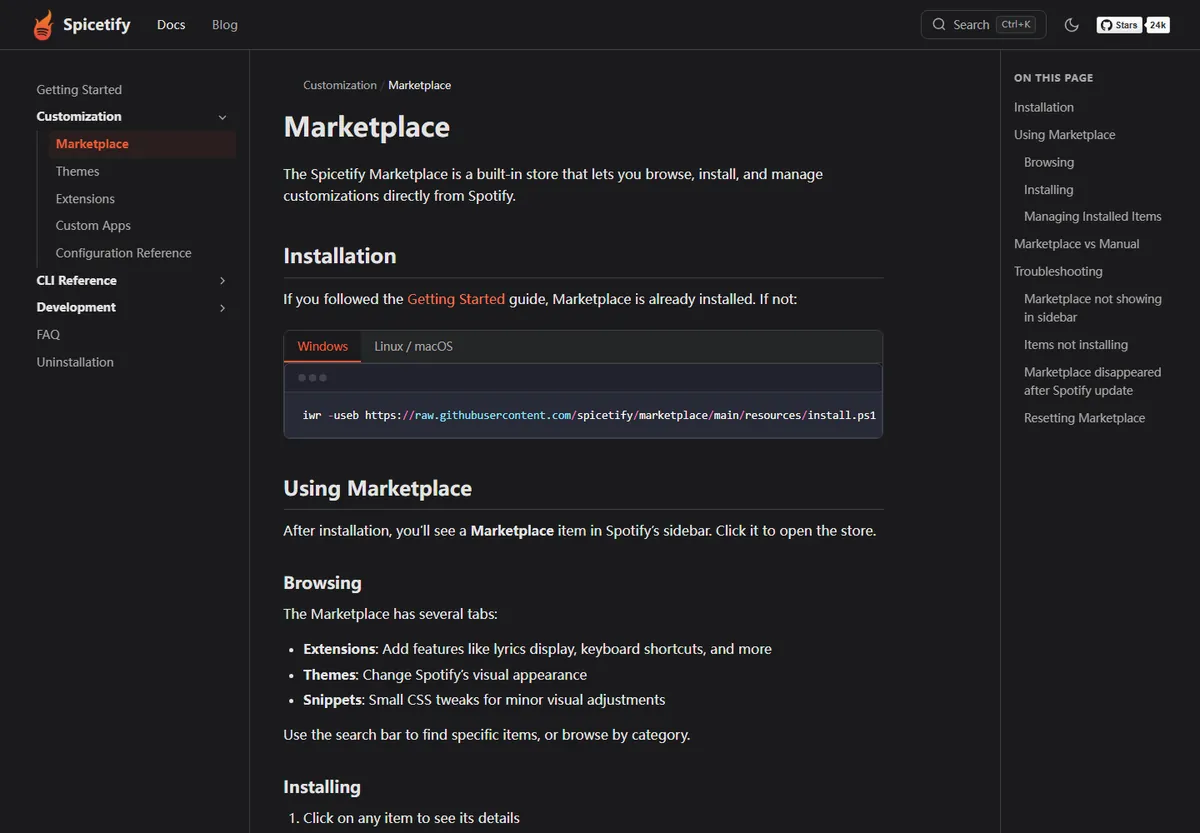
Once the base CLI works, Marketplace is the simplest way to browse themes, extensions, custom apps, and snippets.
Open Spotify and look for the Marketplace entry in the desktop sidebar. If it is not present, follow the official Marketplace installation path rather than downloading an unrelated bundle. A missing sidebar item can be caused by a stale apply, an unsupported Spotify package, a locked process, or an incomplete Marketplace layer, so keep the basic CLI test separate from this optional step.
For the first test, choose one small customization and record its name. Apply it, restart Spotify if the item asks you to, and confirm that the change is visible. Installing many items at once makes it difficult to identify which theme, extension, or custom app caused a blank panel or broken layout.
spicetify apply
- 1
Open Marketplace
Use the Marketplace entry inside the supported Spotify desktop client.
- 2
Choose one item
Start with one theme, extension, or custom app and read its source and compatibility notes.
- 3
Apply the configuration
Run the apply command after the item is configured.
spicetify apply - 4
Test before adding more
Open a few Spotify views, then keep a note of the last working change.
Choose themes, extensions, or custom apps
These names describe different kinds of changes. Knowing the difference helps you pick the smallest test and the right recovery path.
Themes mainly change appearance, extensions alter or add behavior to existing Spotify views, and custom apps add a separate page or destination in the sidebar. Snippets are smaller CSS or configuration adjustments. Marketplace can make these options easy to browse, but the code may still be community-maintained, so check the repository, update history, and removal instructions before enabling an item.
- Keep a short list of enabled items and their source URLs.
- Apply one meaningful change at a time and test the main Spotify views.
- If a change breaks the client, remove or disable that item before blaming the CLI.
| Type | What changes | Good first test |
|---|---|---|
| Theme | Colors, layout, or visual style | Apply one theme and reopen Spotify |
| Extension | A feature or behavior in an existing view | Enable one extension and test its named control |
| Custom app | A separate page in the Spotify sidebar | Open the new page before installing another app |
| Snippet | A small CSS or configuration adjustment | Change one setting and keep the previous value |
What to do after a Spotify update
A Spotify update can replace the resources that Spicetify customized without removing the CLI from your system.
If a theme or Marketplace item disappears immediately after Spotify updates, do not download Spicetify again as your first response. Close Spotify, check the active CLI version, and run spicetify backup apply. This refreshes the clean baseline and reapplies the current configuration when the installed CLI supports the new Spotify build.
If the command reports a compatibility problem, use the official release notes and the existing update guide to decide whether spicetify update, the original package manager, or a waiting period is appropriate. Avoid forcing an old build onto a newly changed Spotify client.
If the base client opens but one customization is broken, restore or remove that item and test Spotify without it. A post-update failure is often an optional extension or theme problem rather than proof that the whole CLI must be reinstalled.
- 1
Close Spotify
Exit the desktop client and wait for its processes to stop.
- 2
Check the CLI
Confirm which Spicetify executable and version the terminal is using.
spicetify --version - 3
Reapply from a clean baseline
Run backup apply when the release is supported.
spicetify backup apply - 4
Isolate optional items
If only one theme or extension fails, disable it and test the stock client before changing the installation.
The installed CLI can remain healthy while Spotify replaces customized files. Check versions and compatibility before downloading another copy.
How to tell your setup is working
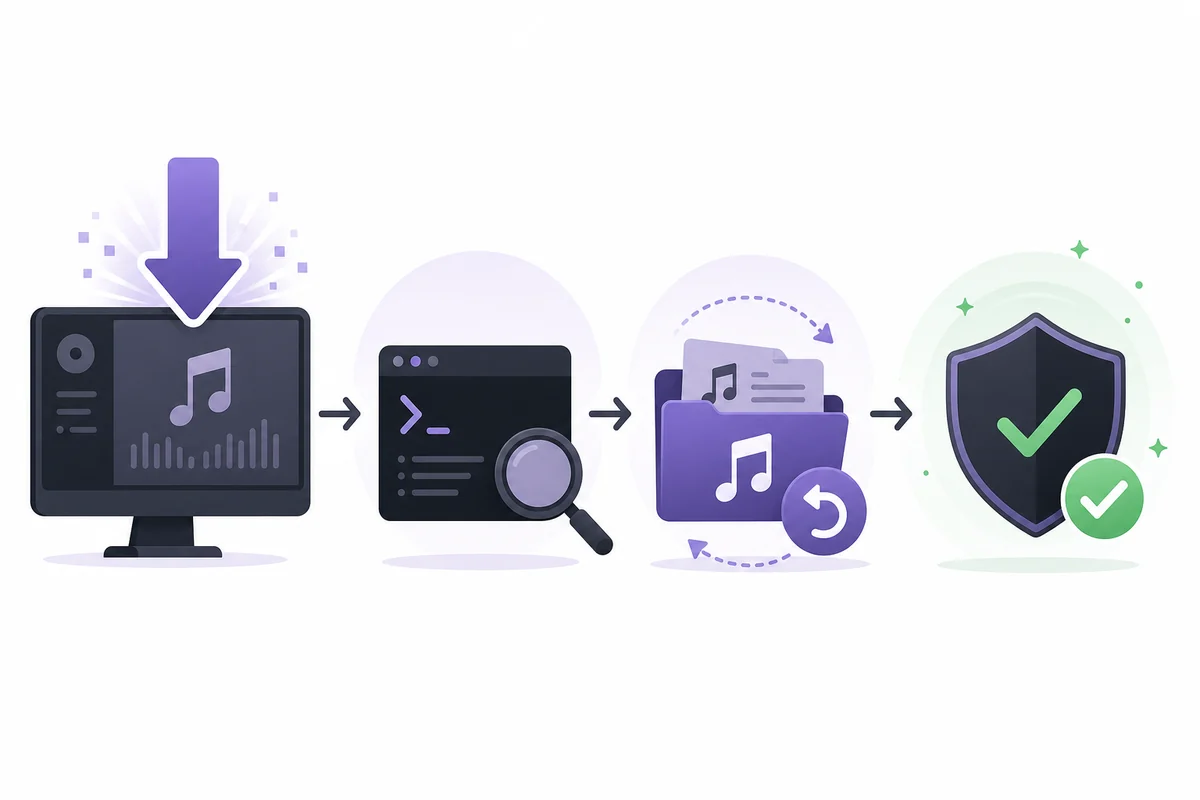
A working setup is a repeatable sequence, not just a visible theme.
You should be able to open a new terminal and receive one clear version, close Spotify, complete backup apply without a path or permission error, and reopen the desktop client normally. The base client may still look close to stock Spotify; that is acceptable until you add an intentional customization.
Keep your installer method, active version, Spotify package source, and last known-good customization in a short note. This turns the next update into a controlled check instead of a guess about which command, package, or folder was used.
- One active CLI is found on PATH.
- Spotify desktop opens after backup and apply.
- The Marketplace layer is added only after the base check passes.
- Each customization has a known source and a reversible removal path.
- The recovery order is clear: check version, reapply if supported, then isolate optional items.
A clean beginner routine for using Spicetify
The safest first session is deliberately boring: verify the CLI, confirm Spotify desktop, close the client, create a clean backup, apply the default configuration, and reopen Spotify. Only then add Marketplace and one customization. This order gives every failure a clear boundary between PATH, Spotify resources, backup, apply, and optional code.
When you use Spicetify commands regularly, keep the command reference nearby and copy official commands from the project documentation instead of old social posts. Use spicetify apply for ordinary configuration changes, backup apply when Spotify resources have been replaced or the CLI says a backup is missing, and restore when you need to return to the clean baseline.
This workflow also explains why downloading the same program again is often the wrong fix. The executable can still be installed while Spotify has changed underneath it. A version check, a supported release, a clean backup, and one-item-at-a-time testing make the installation easier to maintain across Windows, macOS, and Linux.
- Verify first, customize second.
- Keep one package or installer source in control of the CLI.
- Record the last working item before making another change.
How to Use Spicetify FAQ
How do I open Spicetify after installing it?
There is no separate Spicetify desktop window. Open PowerShell or Terminal, run spicetify --version to verify the CLI, then use commands such as spicetify backup apply. The visible result appears inside the supported Spotify desktop client.
What command should I run first after installation?
Run spicetify --version in a new terminal, close Spotify completely, and then run spicetify backup apply. Reopen Spotify only after the command finishes.
Does installing Spicetify also install Marketplace?
Some guided workflows may offer Marketplace, but Marketplace is an optional layer. Confirm that the CLI and base apply workflow work before installing or troubleshooting Marketplace.
What is the difference between apply and backup apply?
spicetify apply applies the current configuration, while spicetify backup apply creates or refreshes the clean backup and then applies the configuration. Use backup apply after Spotify replaces its resources or when a backup is missing.
What should I do if my theme disappears after a Spotify update?
Close Spotify, check the active Spicetify version, and run spicetify backup apply if the installed release supports the Spotify client. If one item remains broken, disable or remove that item before reinstalling the CLI.
Does Spicetify work with Spotify Web Player or mobile?
Spicetify targets the supported Spotify desktop client. It does not open or modify the Spotify Web Player or mobile application.
Official sources used
- Spicetify Getting Started — Official installation, first-run, Marketplace, and update workflow.
- Spicetify CLI command reference — Official meanings and usage for configuration, apply, backup, restore, and update commands.
- Spicetify Marketplace documentation — Official Marketplace installation and customization guidance.
- Spicetify CLI v2.44.0 release — Official release page checked on August 22, 2026 for version and compatibility context.