
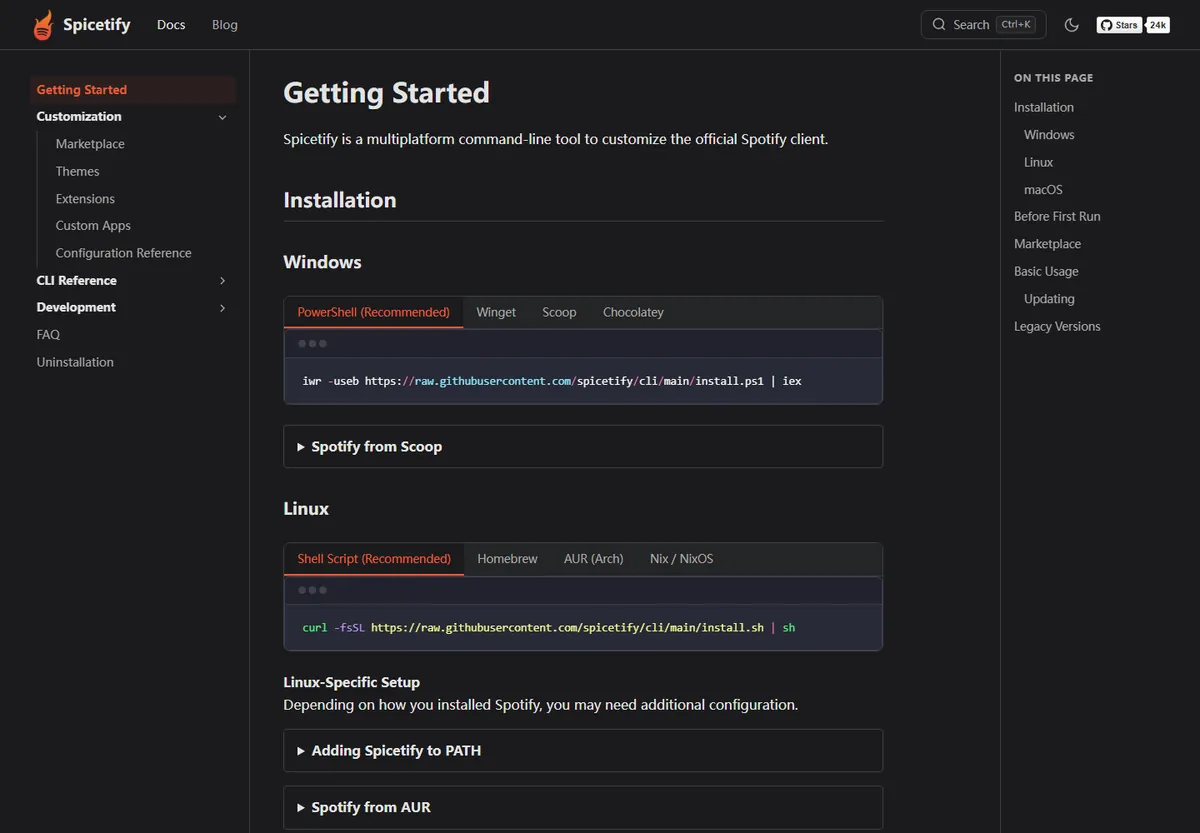
Run curl -fsSL https://raw.githubusercontent.com/spicetify/cli/main/install.sh | sh, then configure the Spotify path and permissions required by your package source. On Zorin or Ubuntu, Spotify installed through the official APT repository is usually the most straightforward option. Snap Spotify cannot be modified by Spicetify.
Install the Spicetify CLI on Linux
The official shell script is the general Linux installation method. It downloads the maintained CLI from the Spicetify project. Homebrew on Linux, the Arch User Repository, and spicetify-nix are also documented options. Use one method and keep future updates with the same package source.
After installation, open a new shell and run spicetify --version. If the command is missing, check which shell you use with echo $SHELL. The official guide documents adding ~/.spicetify to zsh, bash, or fish PATH when a package-manager installation does not expose the command automatically.
curl -fsSL https://raw.githubusercontent.com/spicetify/cli/main/install.sh | sh
Choose a Spotify package Spicetify can modify
Spicetify modifies Spotify desktop resources, so Linux sandboxing and package locations matter. Spotify from APT or AUR normally places files in a system directory that may require explicit write permissions. Flatpak can work when you set the exact spotify_path and prefs_path for the active installation.
Snap applications cannot be modified in the way Spicetify requires. The official instructions say to remove Snap Spotify and switch to the APT version. Zorin OS is Ubuntu-based, so the official Spotify APT repository is the clearest starting point for most Zorin users.
| Spotify source | Spicetify status | Main action |
|---|---|---|
| APT | Supported with permissions | Grant write access to /usr/share/spotify and Apps |
| AUR | Supported with permissions | Grant write access to /opt/spotify and Apps |
| spotify-launcher | Supported with custom path | Set the full user install path |
| Flatpak | Supported with path setup | Set spotify_path, prefs_path, and permissions |
| Snap | Not modifiable | Remove Snap and use a supported package source |
Use only the exact Spotify directories documented for your package. Avoid recursive permission changes outside the Spotify application path.
Ubuntu and Zorin OS setup
Zorin OS follows the Ubuntu package ecosystem. Install Spotify through its official Debian repository rather than Snap when you intend to use Spicetify. After Spotify is installed, open it, sign in for at least 60 seconds, close it, and grant write access only to the documented Spotify directory and Apps subdirectory.
Run spicetify backup apply as your normal user. If the command reports a path error, verify the package source before copying commands from a guide written for another distribution. A Flatpak path, APT path, and AUR path are not interchangeable.
- 1
Confirm the package source
Check whether Spotify came from APT, Flatpak, Snap, or another launcher.
- 2
Open Spotify once
Sign in and leave the desktop client open for at least 60 seconds.
- 3
Set precise permissions
For APT, follow the official /usr/share/spotify permission commands only.
- 4
Back up and apply
Close Spotify and apply the clean backup.
spicetify backup apply
Configure Flatpak Spotify paths
Flatpak may install Spotify system-wide under /var/lib/flatpak or per-user under ~/.local/share/flatpak. Find the active installation with flatpak --installations, then set spotify_path to the full active files/extra/share/spotify directory. Do not use a shortened tilde path inside Spicetify configuration values when the official instructions require an absolute path.
The preferences file can appear under ~/.config/spotify/prefs or ~/.var/app/com.spotify.Client/config/spotify/prefs. Check which exists, set that full path, and grant permissions only to the active Spotify resource folder.
Apply and update Spicetify on Linux
After paths and permissions are correct, close Spotify and run spicetify backup apply. If a Spotify update removes the customization, run the same command again. Update the CLI using the method that installed it: Homebrew, AUR, Nix, or the built-in updater for a script installation.
If a new Spotify version is outside the range in the latest Spicetify release notes, wait for compatibility instead of repeatedly changing permissions or downloading older packages.
Before changing anything, capture the distribution, desktop architecture, Spotify package source, Spotify version, Spicetify version, spotify_path, prefs_path, and the exact error. A command written for APT can be actively wrong for Flatpak, and a system-wide Flatpak path can be wrong for a per-user installation. Precise package information prevents unnecessary chmod commands.
After a successful apply, confirm that Spotify launches as the same user who ran Spicetify. Mixing root-owned configuration with a normal desktop session can create recurring permission failures. If you accidentally ran configuration commands with sudo, restore ownership only for the affected Spicetify configuration and Spotify paths rather than applying a broad recursive ownership change to your home directory.
spicetify backup apply
Spicetify download Linux verification checklist
A Spicetify download Linux installation is only complete when the CLI and the active Spotify package point to compatible locations. Record the distribution, CPU architecture, shell, Spotify package source, and whether the package is installed system-wide or per user. Then open a fresh shell, run spicetify --version, and confirm that only the intended script, Homebrew, AUR, or Nix installation owns the executable.
Check the Spotify source before changing permissions. APT, AUR, spotify-launcher, Flatpak, and Nix layouts use different resource and preferences paths. Snap Spotify cannot provide the modifiable resources that Spicetify requires. On Ubuntu or Zorin, the official Spotify APT package is usually easier to configure than a sandboxed package. Flatpak users must identify the active installation and use full paths for both spotify_path and prefs_path.
Finish the Spicetify download Linux process as the same desktop user who launches Spotify. Close the client, apply only the documented permission changes to its real resource directory, and run spicetify backup apply without sudo unless the official package instructions require a specific elevated operation. Confirm Spotify starts normally, then add Marketplace. After updates, reapply first and update through the same channel that installed the CLI.
Spicetify Linux download FAQ
How do I install Spicetify on Zorin OS?
Use the official shell installer for Spicetify and preferably Spotify from the official APT repository. Configure the APT Spotify directory permissions before applying.
Does Spicetify work with Flatpak Spotify?
Yes, but you must set the active Flatpak spotify_path and prefs_path and grant write access to the exact resource directory.
Does Spicetify work with Snap Spotify?
No. The official guide states that Snap apps cannot be modified and recommends switching to the APT version.
Why is the Spicetify command not found on Linux?
Open a new shell and check your PATH. Package-manager installations may require adding ~/.spicetify to the profile used by zsh, bash, or fish.
Official sources used
- Official Getting Started — Linux install methods, paths, package-specific permissions, and Snap limitation.
- Spicetify v2.44.0 release — Current Linux archive and Spotify compatibility.