
The best starting combination for most users is Keyboard Shortcut plus Trash Bin: one speeds up navigation and playback, while the other avoids songs or artists you do not want in generated queues. Add Shuffle+ for queue variety, Full App Display for a visual listening mode, and Auto Skip Video for an audio-first workflow.
These are built-in Spicetify extensions, not random browser add-ons. Enable one feature at a time, keep the official file names exactly as shown, and confirm Spotify still starts normally after every change.
Which Spicetify extension should you install first?
Choose by the problem you want to solve rather than installing every extension at once.
A smaller extension set is easier to troubleshoot after Spotify updates. Start with one or two additions and confirm that Spotify still launches, searches, and plays normally. Keyboard Shortcut and Trash Bin offer the broadest everyday value; the other three are strongest when you have a specific display or playback need.
| Extension | Best for | What it changes | Setup impact |
|---|---|---|---|
| Full App Display | Visual listening | Large artwork-focused player | Low |
| Keyboard Shortcut | Fast control | Keyboard navigation and playback | Medium |
| Shuffle+ | Queue variety | Alternative shuffle behavior | Low |
| Trash Bin | Filtering | Avoids unwanted tracks and artists | Medium |
| Auto Skip Video | Audio-first use | Skips supported video content | Low |
1. Full App Display for an artwork-first player
The strongest visual pick for a second monitor, television, or desk display.
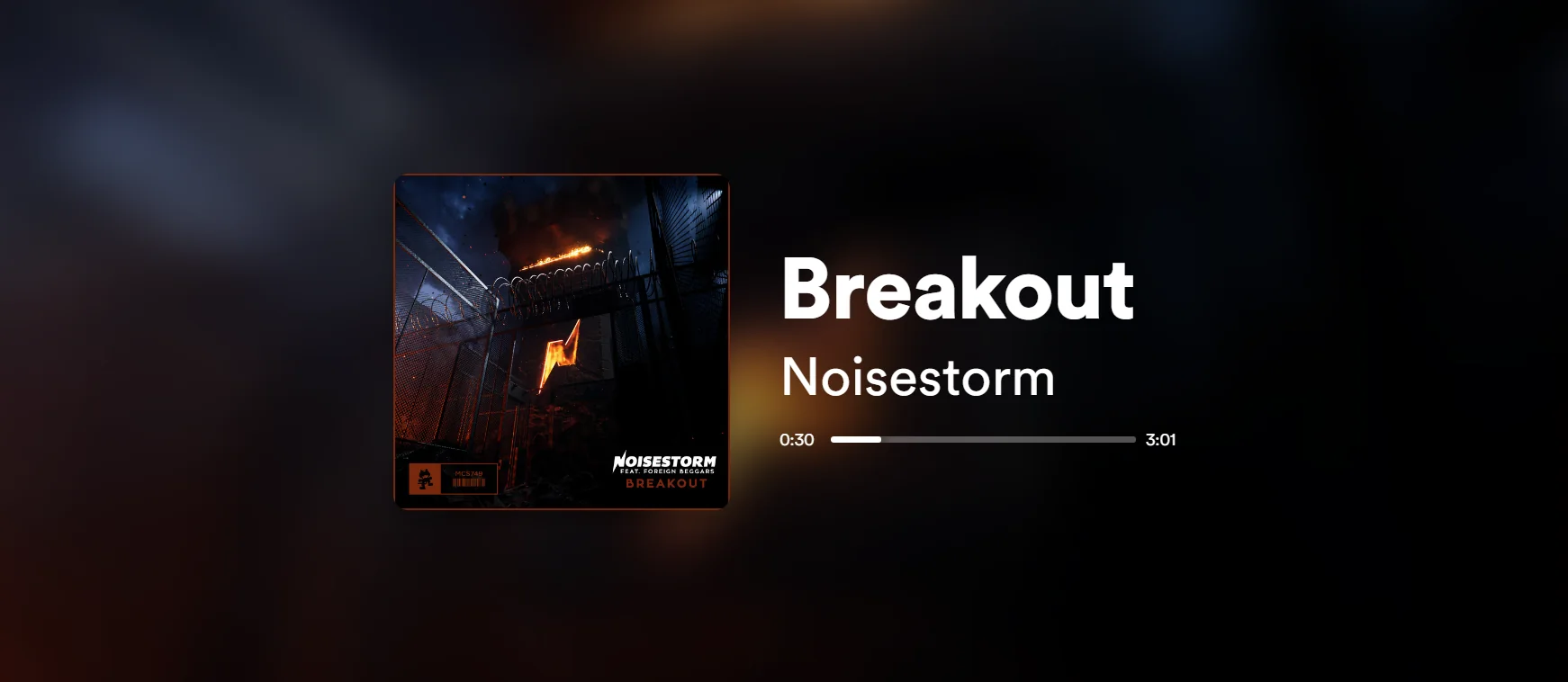
It replaces the busy library view with a large cover, track title, artist, progress bar, and blurred background. It works well for parties, focus sessions, and living-room playback because the current track remains readable at a distance. Return to the normal interface when editing playlists or browsing recommendations.
2. Keyboard Shortcut for faster Spotify control
The best productivity extension for people who prefer keys to repeated mouse movement.
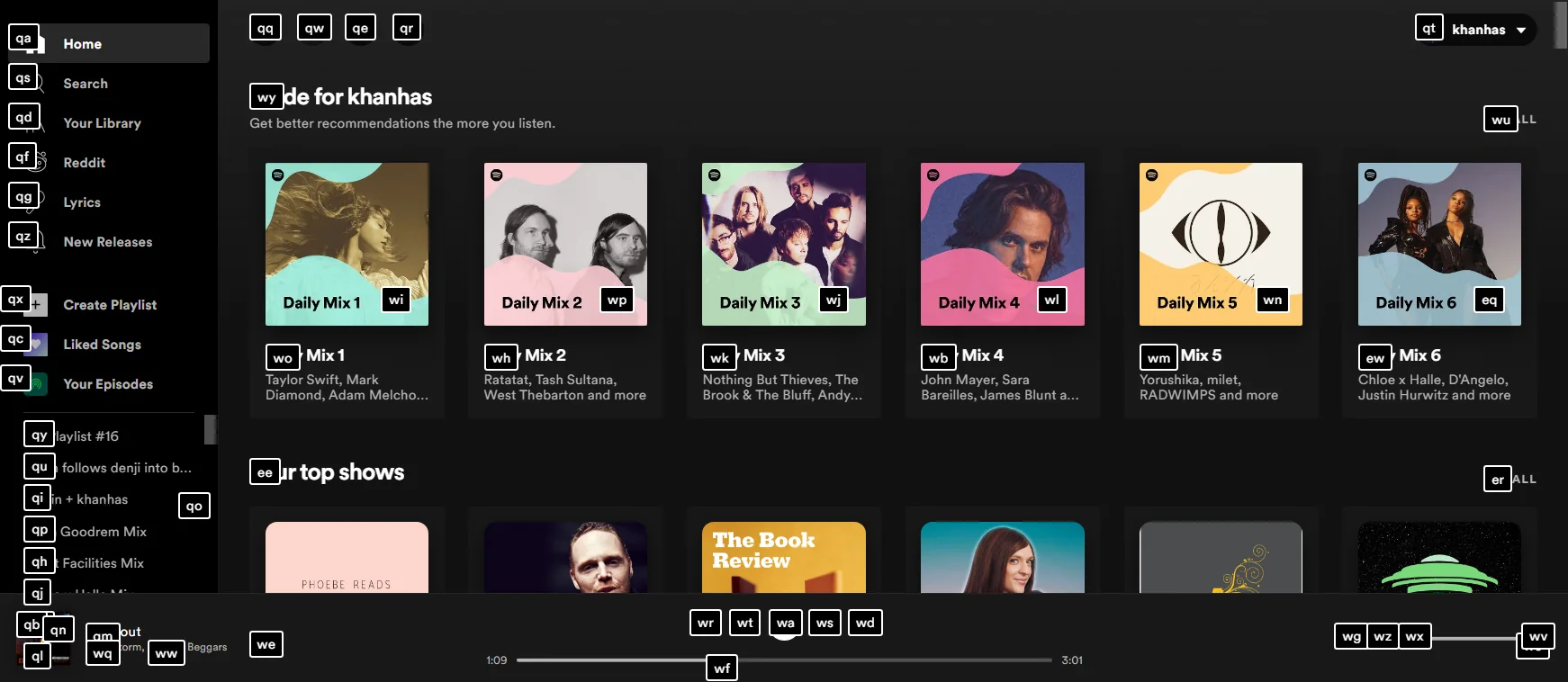
It overlays short key labels on navigation, playlists, playback controls, and other interactive elements. Learn a few high-value actions first instead of memorizing every label. If a Spotify interface update changes an element, verify the current official extension documentation before assuming the whole Spicetify installation is broken.
3. Shuffle+ for more deliberate queue variety
Useful when standard Spotify shuffle repeatedly surfaces the same part of a playlist or library.
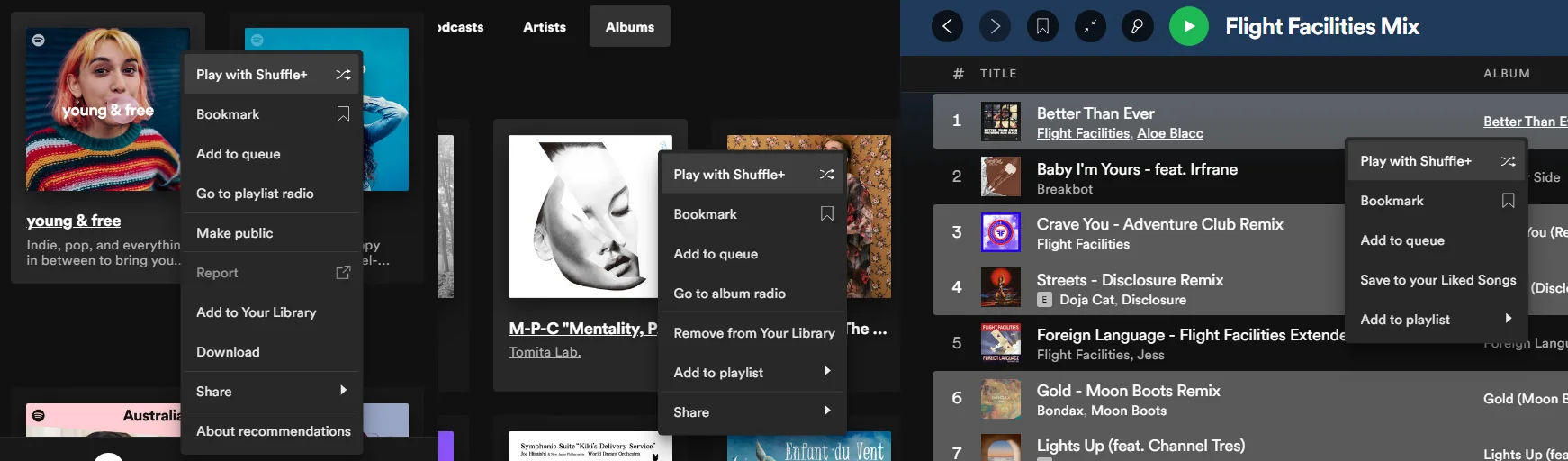
Shuffle+ adds alternative ways to rebuild a queue from the selected source. It is practical for long playlists, saved albums, and large libraries. It does not change recommendations, account history, audio quality, or Spotify licensing; it only changes how the current collection is arranged for playback.
4. Trash Bin for tracks and artists you want to avoid
The best filtering extension when unwanted songs keep returning in radio, playlists, or generated queues.
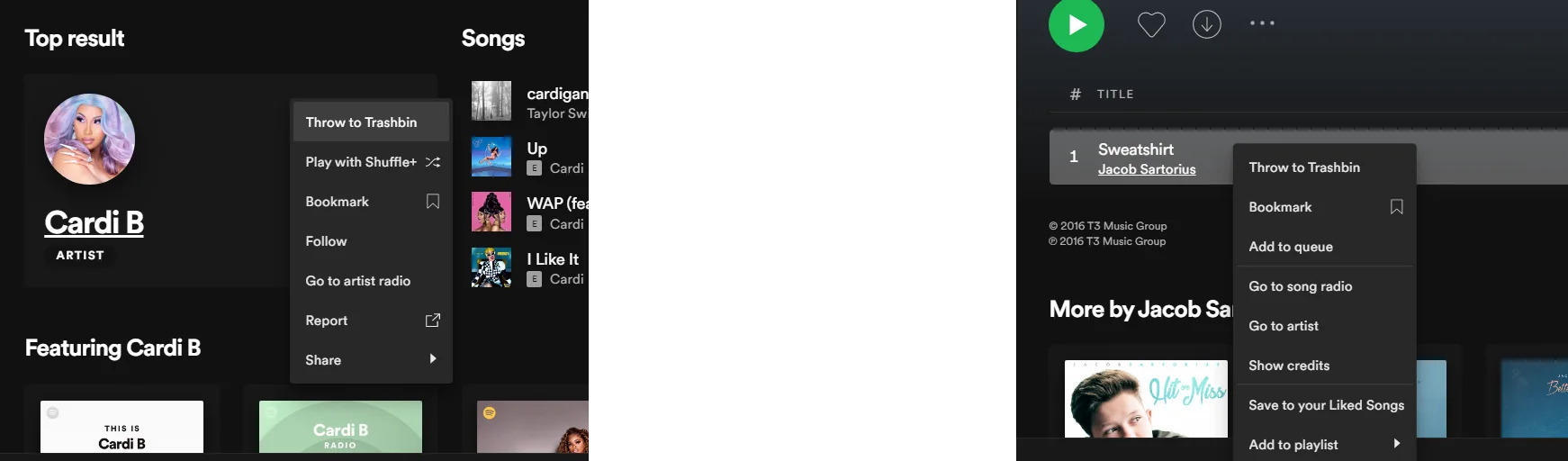
Trash Bin lets you mark tracks or artists so they can be skipped when they appear. It is useful for repetitive recommendations, disliked remixes, seasonal songs, or shared listening. Its block list belongs to the local Spicetify setup rather than a universal Spotify account rule, which matters when moving to another computer.
5. Auto Skip Video for an audio-first session
A focused choice for background listening or low-bandwidth setups where supported video content is inconvenient.
The extension keeps an audio-first session moving when supported video content would otherwise interrupt it. It does not download media, remove ads, unlock Premium, or convert Spotify content into local files. If its behavior changes, disable only this extension first and reapply before changing the rest of the setup.
Recommended extension combinations by listening style
The best setup is usually a small combination that solves two related problems without making troubleshooting difficult.
For everyday desktop listening, pair Keyboard Shortcut with Trash Bin. Keyboard Shortcut reduces repeated pointer movement, while Trash Bin gives you a direct response when a track or artist keeps returning. For a living-room or second-screen setup, combine Full App Display with Shuffle+ so the current track is visually clear while a long playlist receives a refreshed queue.
Auto Skip Video is better as a targeted addition than a default choice. Add it when podcasts or video content interrupt a background audio workflow, but leave it disabled when you intentionally watch video episodes. Avoid installing several overlapping community extensions that change the same player controls until the official built-in combination is stable.
- Productivity: Keyboard Shortcut + Trash Bin
- Visual playback: Full App Display + Shuffle+
- Background audio: Auto Skip Video + one control extension
- Troubleshooting baseline: one extension only
Performance, privacy, and maintenance tradeoffs
An extension can be useful without being necessary, so compare its ongoing cost with the problem it solves.
The five built-in extensions in this guide run inside the customized Spotify desktop client. They do not require a separate browser profile or a third-party download mirror, but every added script increases the number of moving parts that can react to a Spotify interface update. A visual extension may also use more screen and graphics resources than a simple filtering extension, especially on older hardware.
Review community Marketplace items more carefully than built-in files. Check the maintainer, source repository, recent update activity, requested behavior, and open issues before enabling code that changes account-facing actions. An extension should never need your Spotify password in a separate form, a random executable, or an administrator command from an unknown site.
- Prefer official or clearly maintained source repositories.
- Remove unused extensions instead of leaving a large inactive list.
- Do not treat popularity as a security review.
- Keep a record of the file names you enabled.
How to test, disable, and recover after updates
A repeatable test sequence prevents a small extension problem from turning into a full reinstall.
After enabling an extension, reopen Spotify and test the exact area it modifies: playback controls for Keyboard Shortcut, queue behavior for Shuffle+, excluded content for Trash Bin, the now-playing screen for Full App Display, or supported video transitions for Auto Skip Video. Then close and reopen Spotify once more to confirm the behavior survives a normal restart.
If a problem appears, remove or disable the newest extension from the Spicetify configuration, run spicetify apply, and test again. When Spotify has just updated, first determine whether all customization disappeared or only one extension failed. The update guide explains when to use spicetify backup apply, when to update the CLI, and when to wait for compatibility instead of forcing an old customization.
- Change one variable at a time.
- Keep the complete terminal error instead of only the final line.
- Do not use administrator or root privileges unless official instructions require them.
- Confirm recovery before adding the next extension.
Official extension file names to use
Spicetify configuration expects the documented JavaScript file names.
Use fullAppDisplay.js, keyboardShortcut.js, shuffle+.js, trashbin.js, and autoSkipVideo.js exactly as written. A typo or renamed file can leave an extension unloaded and make the failure look more complicated than it is.
- 1
Confirm the CLI works
Open a normal terminal and verify the active Spicetify command.
spicetify --version - 2
Add one extension
Use the exact official file name and test one feature first.
spicetify config extensions keyboardShortcut.js - 3
Apply the configuration
Close Spotify completely, apply the change, and reopen Spotify.
spicetify apply - 4
Add another if needed
Repeat with fullAppDisplay.js, shuffle+.js, trashbin.js, or autoSkipVideo.js.
spicetify config extensions trashbin.js
How to enable official Spicetify extensions
Run one configuration command per extension, then apply the updated configuration while Spotify is fully closed.
- Prefer official built-in files and documentation.
- Add extensions one at a time so a failure has a clear cause.
- Keep Spicetify and Spotify version details with bug reports.
- Review Marketplace extensions separately because community items have different maintainers and permissions.
Safety, updates, and troubleshooting
Official built-in extensions reduce source uncertainty, but they still modify the Spotify desktop interface.
If an extension is missing, confirm its file name, close every Spotify process, and run spicetify apply. If customization disappeared after a Spotify update, follow the update guide before reinstalling. For a blank window, remove the most recently added extension first and preserve the complete error output.
Best Spicetify extensions FAQ
Are these Spicetify extensions official?
Yes. The five extensions are shipped or documented by the official project. Marketplace items can be community-maintained.
Can I enable several extensions at once?
Yes, but add them one at a time and run spicetify apply after each change.
Which extensions are best for beginners?
Keyboard Shortcut and Trash Bin are the most broadly useful pair.
Do extensions download songs or unlock Premium?
No. They do not export music, bypass DRM, unlock Premium, or create MP3 files.
Why did extensions disappear after a Spotify update?
Spotify may have replaced customized resources. Close Spotify and use the update guide to reapply safely.
Official sources used
- Official Spicetify extensions documentation — Built-in names, examples, screenshots, and enable commands.
- Official Spicetify CLI repository — Project source, releases, extension files, and issues.