
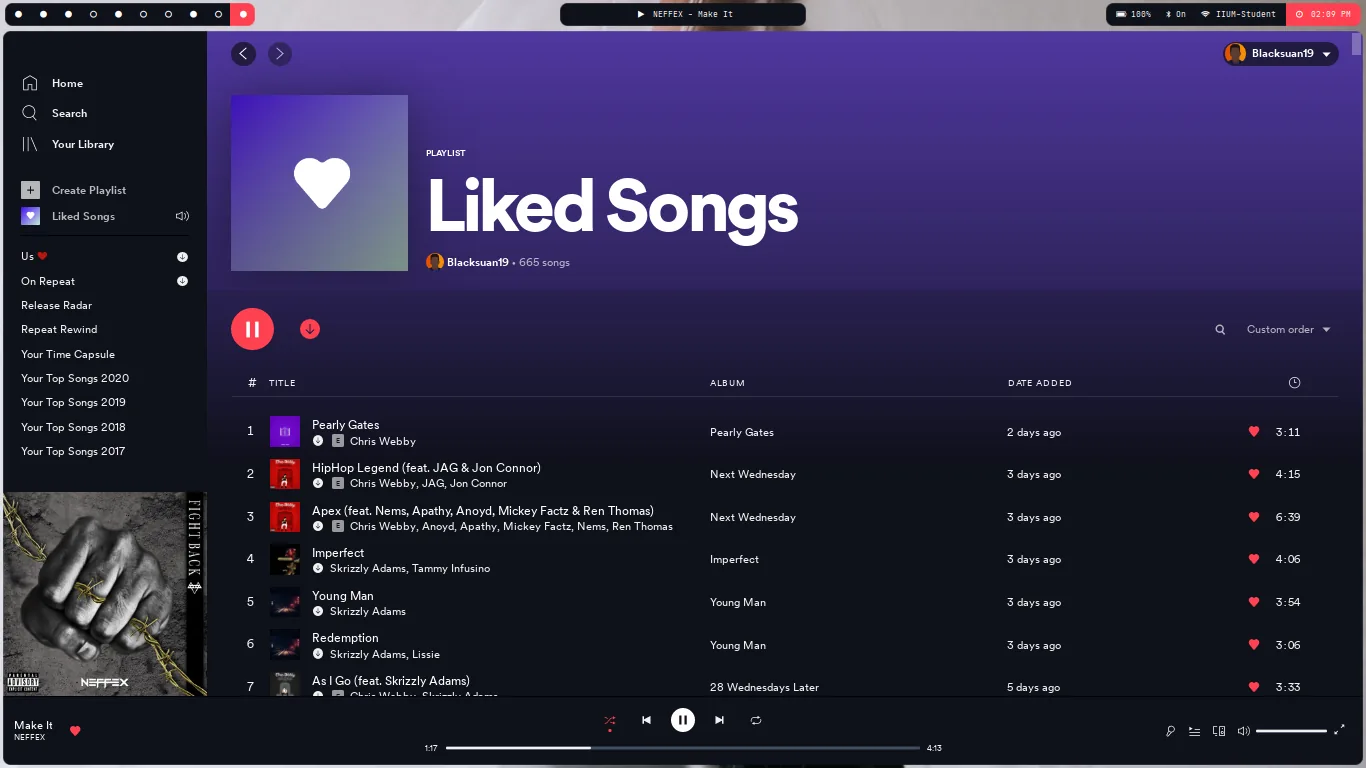
For most users, the best Spicetify themes are themes that keep Spotify readable, document their supported color schemes, and receive recent maintenance. Install through Marketplace when the theme is listed there because removal and updates are simpler. Use a manual GitHub theme only when you need a specific project, variant, or development workflow.
A Spicetify theme changes Spotify desktop CSS, colors, and sometimes layout behavior. It does not change Spotify mobile, the web player, account features, audio quality, or Premium access. Apply one theme at a time, keep a known-good backup, and test the library, search, queue, lyrics, and now-playing views before adding more customizations.
What do Spicetify themes change in Spotify?
Themes control the visual layer; extensions and custom apps control behavior or add pages.
A normal Spicetify theme supplies a user.css file for styling and a color.ini file for named color schemes. Together they can change backgrounds, text colors, accent colors, spacing, card shapes, sidebar density, cover-art treatment, and the appearance of controls. Some projects also include assets or helper scripts, so read the repository instructions instead of copying only one file.
The word “skin” is sometimes used for the same idea, but the official Spicetify ecosystem calls these packages themes. Keep that distinction clear when troubleshooting: a broken button action is more likely related to an extension, while unreadable text, missing spacing, or an oddly positioned panel is more likely related to theme CSS.
Spicetify themes target the installed Spotify desktop client on Windows, macOS, and Linux. They do not theme Spotify on iPhone, Android, a smart television, or the browser player. If your main listening happens outside desktop Spotify, theme installation will not affect those devices.
Which Spicetify theme style is best for you?
Choose the layout category first, then judge individual projects by maintenance and readability.
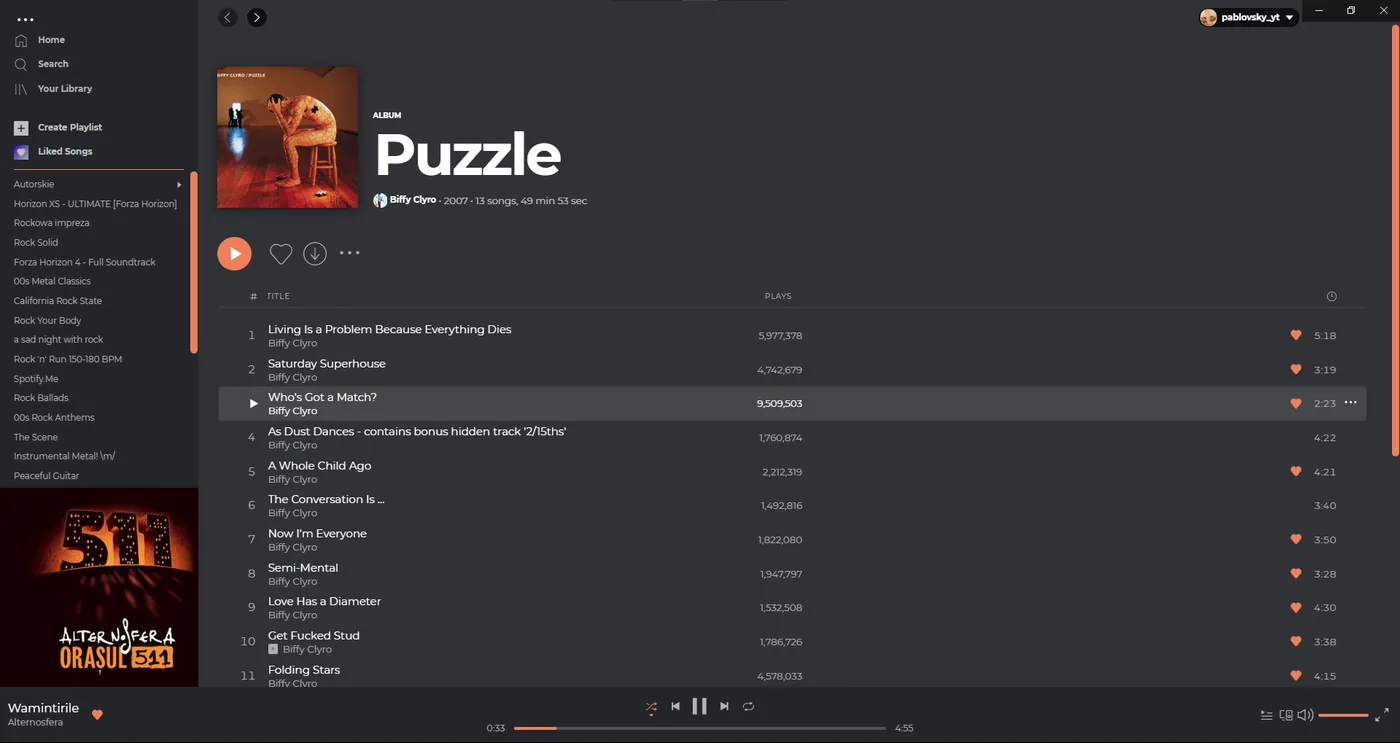
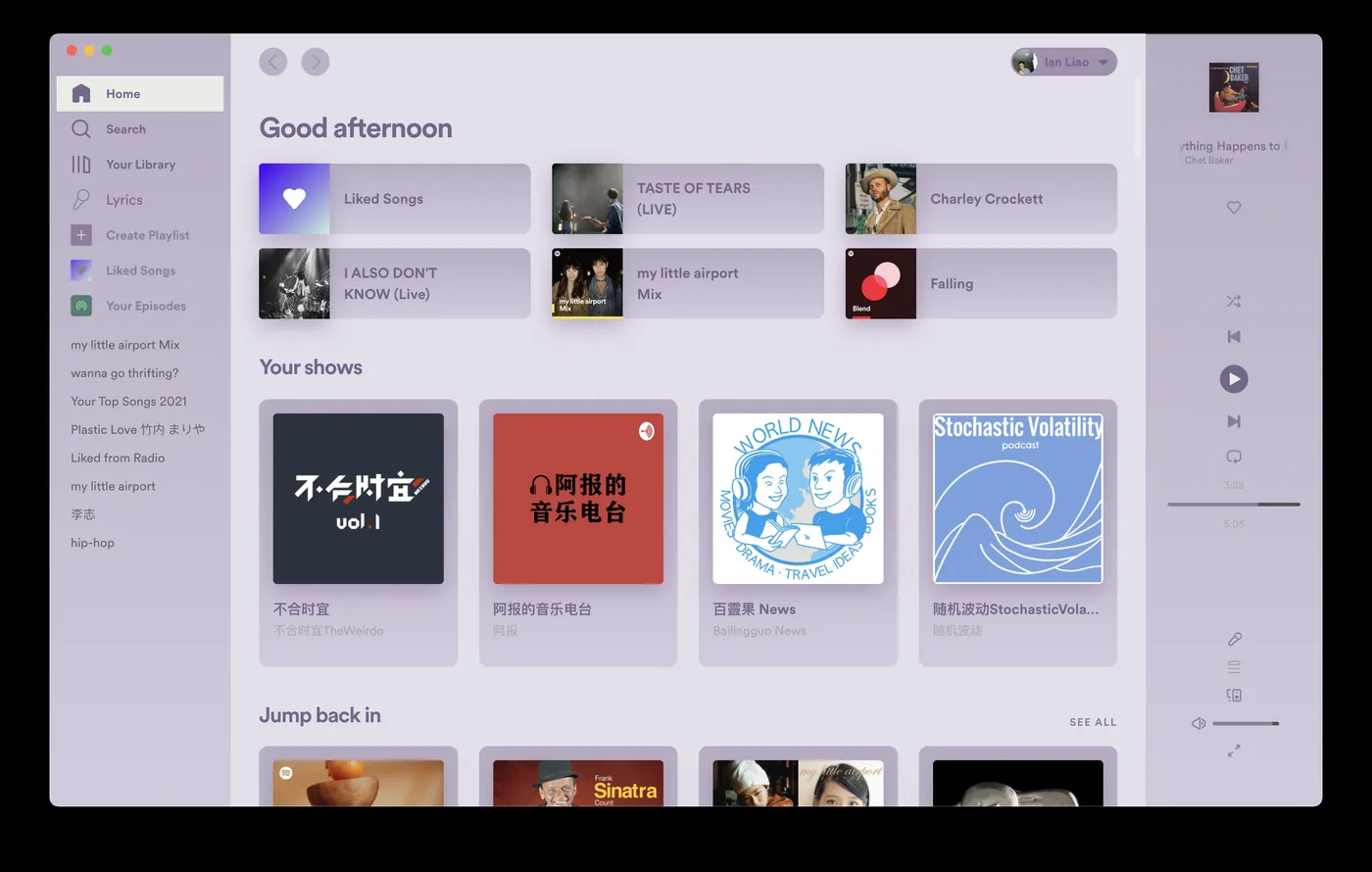
Minimal themes are the safest starting point because they mainly adjust colors, spacing, and surfaces while preserving Spotify's familiar navigation. Artwork-first themes create a stronger visual identity and suit large displays, but they can make dense library tasks slower. Compact themes favor information density for large playlists. Heavily redesigned themes can look impressive yet need more frequent fixes when Spotify changes its interface.
A screenshot should be treated as a preview, not a compatibility guarantee. Check the repository's latest commit, open issues, installation instructions, supported color schemes, and whether the author mentions required extensions. A theme with a modest design and clear maintenance notes is usually a better long-term choice than an abandoned project with dramatic screenshots.
| Theme style | Best for | Main trade-off | Beginner fit |
|---|---|---|---|
| Minimal / color-focused | Daily listening and familiar navigation | Smaller visual change | Excellent |
| Artwork-first | Large displays and visual listening | Less room for dense browsing | Good |
| Compact / information-dense | Large libraries and playlists | Smaller controls and text | Good |
| Full redesign | Distinct desktop appearance | More update sensitivity | Advanced |
How to install Spicetify themes through Marketplace
Marketplace is the simplest workflow when the theme is available in its catalog.
First install Spicetify and confirm the unthemed Spotify client launches correctly. Then install Marketplace through the verified workflow, open Spotify, choose Marketplace from the sidebar, and browse the Themes section. Read the theme description and dependencies before selecting Install. Restart Spotify if the visual change does not appear immediately.
Install only one new theme before testing. Open Home, Search, Your Library, a playlist, the queue, lyrics, settings, and the full-screen player. Switch between a light and dark album page if the theme offers both. This short check catches low-contrast text, missing icons, clipped menus, and layout assumptions before you add snippets or extensions that make diagnosis harder.
Marketplace is a manager, not a safety guarantee. Theme entries are community code and styles. Prefer projects with identifiable repositories, active maintenance, readable source files, and clear issue history. Avoid packages that request unrelated credentials, executables, or manual system changes that are not explained by the theme's function.
- 1
Finish the normal Spicetify installation and verify Spotify opens.
- 2
Install Spicetify Marketplace using the official project instructions.
- 3
Open Marketplace in Spotify and select the Themes category.
- 4
Review screenshots, dependencies, repository activity, and available color schemes.
- 5
Install one theme, restart Spotify if needed, and test the main views.
How to install a Spicetify theme manually from GitHub
Manual installation gives more control but requires exact folder names and configuration values.
Use the manual workflow when a theme is not in Marketplace, when you need a repository branch, or when you are developing your own CSS. Download or clone the trusted theme repository, locate the theme directory that contains user.css and color.ini, and copy that complete directory into the Themes folder inside your Spicetify config path. Do not flatten the folder unless the project's instructions explicitly say to do so.
Set current_theme to the exact folder name. If the project includes multiple named palettes, set color_scheme to a name that exists inside color.ini. A typo, wrong letter case, nested folder, or missing CSS file can make Spicetify report that the theme was not found or can leave Spotify looking unchanged.
After editing the configuration, run spicetify apply. If you also changed Spotify or the CLI recently, use the documented backup/apply sequence rather than repeatedly copying files. Keeping the source repository URL in a note makes future updates and license checks much easier.
spicetify apply
Mixing elevated and normal-user file ownership can leave Spotify unable to read modified files. Use the normal account unless official troubleshooting specifically requires another step.
How color_scheme and theme folders work
Many apparent installation failures are only a folder-name or palette-name mismatch.
The current_theme value selects a directory; color_scheme selects a named palette inside that directory's color.ini file. A single theme can therefore provide several looks without duplicating all CSS. If no scheme is configured, behavior depends on the project. Some themes define a default, while others expect you to choose one of the documented names.
Open color.ini with a text editor and copy the palette name exactly. Do not invent a scheme from the screenshot filename. For example, a screenshot may be called violet.png while the actual scheme key uses a different spelling. Also check whether the project requires a companion extension or a setting such as inject_css, replace_colors, or overwrite_assets.
When comparing themes, test normal, selected, hover, disabled, warning, and progress states. A palette can look attractive on the home screen while producing unreadable queue text or weak contrast in dialogs. Accessibility and legibility matter more than matching a wallpaper perfectly.
Why is a Spicetify theme not working?
Start with the smallest reversible checks before reinstalling Spotify or deleting configuration files.
If the theme never appears, verify the theme directory, user.css, color.ini, current_theme value, color_scheme value, and the output of spicetify apply. A common GitHub ZIP mistake creates an extra repository-name folder, placing the real theme one level deeper than Spicetify expects.
If the theme worked yesterday and broke after Spotify updated, refresh the Spicetify backup and apply the current configuration using the official update guidance. Then check the theme repository for a recent compatibility fix. Do not assume every visual defect is a CLI bug: Spotify class names and layout structures change, so a theme can need its own CSS update even when Spicetify itself applies successfully.
If Spotify opens to a blank or severely broken window, remove the theme setting or restore the backed-up resources before testing again. Disable snippets and extensions temporarily to isolate the layer that caused the problem. Change one variable at a time and keep the command output; random reinstall loops usually erase useful evidence without identifying the cause.
- Theme not found: check folder depth, spelling, and letter case.
- No visible change: confirm current_theme, color_scheme, and spicetify apply output.
- Broken after update: refresh backup/apply and check the theme repository.
- Blank window: restore first, then re-enable theme, snippets, and extensions separately.
- Only one view is broken: report the exact Spotify view and theme version to the maintainer.
How to use community Spotify themes more safely
Treat every theme as maintainable community code, not a permanent Spotify feature.
Use themes from the official Spicetify organization, Marketplace entries with transparent source links, or established projects whose repositories you can inspect. Check the license before redistributing assets or publishing modified versions. Review installation scripts rather than pasting commands you do not understand, and never enter a Spotify password, API secret, payment detail, or unrelated system credential into a theme installer.
Keep a simple maintenance record: theme repository, selected scheme, required extensions, install date, and last known working Spotify and Spicetify versions. This turns recovery into a short checklist instead of a memory test. When changing themes, remove theme-specific snippets and assets that the next project does not use.
The verified CLI release for this review is Spicetify v2.44.0, published as the July 5, 2026 release. The themes page does not distribute a modified installer; software download buttons elsewhere on this site point to verified official release assets or official source pages. Theme availability and compatibility can change independently of the CLI version, so check each theme repository at install time.
How to switch or remove a Spicetify theme cleanly
A reversible exit plan is part of choosing a good theme.
In Marketplace, use the theme's installed-state control to remove or replace it, then restart Spotify if necessary. For manual themes, change current_theme and color_scheme to the next valid project values, or remove the custom theme configuration and apply again. Do not delete your backup merely because you changed the visual package.
If you want to stop using all Spicetify modifications, follow the dedicated uninstall or restore workflow instead of deleting random folders. That process separates theme removal from full CLI removal and helps prevent stale CSS, partially restored resources, or confusing configuration that affects the next installation.
Frequently asked questions about Spicetify themes
What is the best Spicetify theme for beginners?
Start with a maintained minimal or color-focused theme available through Marketplace. It should preserve familiar Spotify navigation, document its color schemes, and work without several required extensions.
How do I install Spicetify themes?
Use Marketplace for the easiest workflow. For a manual GitHub theme, copy the complete theme folder containing user.css and color.ini into the Spicetify Themes directory, set current_theme and color_scheme, and run spicetify apply.
Where is the Spicetify themes folder?
It is inside your Spicetify configuration directory, and the exact base path differs by operating system and installation. Use the official configuration documentation or the CLI output rather than guessing a folder from another user's screenshot.
Why does Spicetify say theme not found?
The usual causes are an extra nested GitHub ZIP folder, a misspelled current_theme value, letter-case mismatch, or a folder that does not contain the expected user.css and color.ini files.
Why did my Spicetify theme stop working after a Spotify update?
Spotify interface changes can invalidate theme CSS. Refresh the Spicetify backup/apply process, update the CLI when required, and check the theme repository for a compatibility release or open issue.
Can I make my own Spicetify theme?
Yes. Begin with the official theme development documentation, use user.css for styling and color.ini for palettes, keep changes under version control, and test every major Spotify view at common window sizes.
Do Spicetify themes work on mobile Spotify?
No. Spicetify normally customizes the installed Spotify desktop client. It does not apply the same theme to iOS, Android, smart-TV apps, or the Spotify web player.
Official sources used
- Official Spicetify theme usage documentation — Documents theme installation, configuration, and the relationship between user.css and color.ini.
- Official Spicetify theme development documentation — Explains theme structure and development practices.
- Official Spicetify Themes repository — Provides the real Ocean, BurntSienna, and Flow Violet screenshots used in this guide.
- Official Spicetify Marketplace project — Provides the maintained theme browsing and installation ecosystem.
- Spicetify v2.44.0 release — Confirms the latest verified CLI release used for the version freshness check on July 23, 2026.