
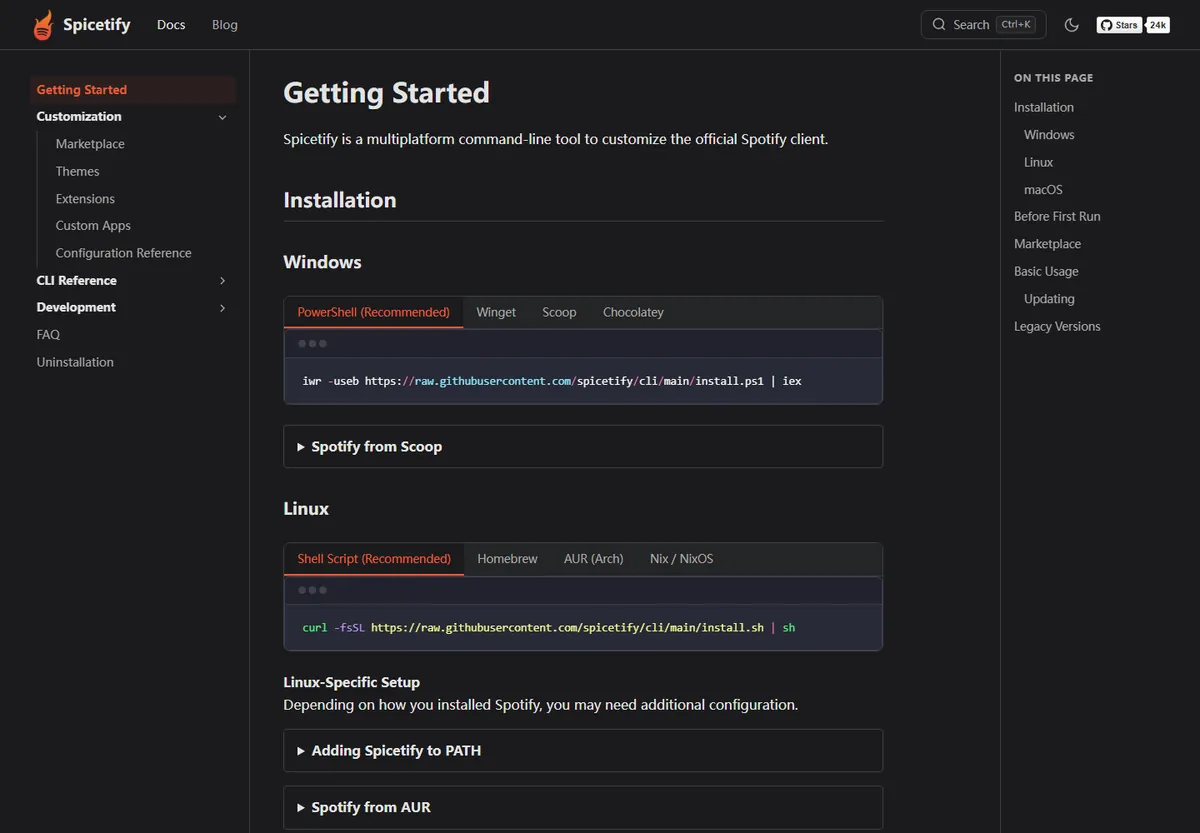
spicetify backup apply는 호환되는 Spotify 데스크톱 리소스의 깨끗한 백업을 만들고 현재 Spicetify 설정을 적용합니다. 안전한 실행, 업데이트 후 복구, 흔한 오류 해결을 설명합니다.
restore는 깨끗한 리소스로 되돌리고 backup apply는 기준을 만들고 설정을 적용합니다.
spicetify backup apply의 역할
spicetify backup apply의 역할 단계에서는 Spotify를 완전히 종료하고 공식 출처의 최신 CLI를 사용해야 합니다. The command combines two stages. Backup saves the original Spotify resources Spicetify needs for recovery, while apply copies and patches the working files using your current config, theme, extensions, custom apps, and snippets. It does not back up playlists, downloaded music, account data, or every Marketplace add-on.
spicetify backup apply의 역할 단계에서는 Spotify를 완전히 종료하고 공식 출처의 최신 CLI를 사용해야 합니다. The command combines two stages. Backup saves the original Spotify resources Spicetify needs for recovery, while apply copies and patches the working files using your current config, theme, extensions, custom apps, and snippets. It does not back up playlists, downloaded music, account data, or every Marketplace add-on.
spicetify backup apply의 역할 단계에서는 Spotify를 완전히 종료하고 공식 출처의 최신 CLI를 사용해야 합니다. The command combines two stages. Backup saves the original Spotify resources Spicetify needs for recovery, while apply copies and patches the working files using your current config, theme, extensions, custom apps, and snippets. It does not back up playlists, downloaded music, account data, or every Marketplace add-on.
안전하게 실행하는 순서
안전하게 실행하는 순서 단계에서는 Spotify를 완전히 종료하고 공식 출처의 최신 CLI를 사용해야 합니다. Update Spicetify from its original official source first, then close every Spotify process. Run spicetify --version to confirm the shell finds one current CLI, and run spicetify config to inspect detected paths when troubleshooting.
안전하게 실행하는 순서 단계에서는 Spotify를 완전히 종료하고 공식 출처의 최신 CLI를 사용해야 합니다. Update Spicetify from its original official source first, then close every Spotify process. Run spicetify --version to confirm the shell finds one current CLI, and run spicetify config to inspect detected paths when troubleshooting.
안전하게 실행하는 순서 단계에서는 Spotify를 완전히 종료하고 공식 출처의 최신 CLI를 사용해야 합니다. Update Spicetify from its original official source first, then close every Spotify process. Run spicetify --version to confirm the shell finds one current CLI, and run spicetify config to inspect detected paths when troubleshooting.
- 1
1. spicetify --version
spicetify backup apply는 호환되는 Spotify 데스크톱 리소스의 깨끗한 백업을 만들고 현재 Spicetify 설정을 적용합니다. 안전한 실행, 업데이트 후 복구, 흔한 오류 해결을 설명합니다.
spicetify --version - 2
2. spicetify backup apply
restore는 깨끗한 리소스로 되돌리고 backup apply는 기준을 만들고 설정을 적용합니다.
spicetify backup apply - 3
3. spicetify config
흔한 오류 해결 단계에서는 Spotify를 완전히 종료하고 공식 출처의 최신 CLI를 사용해야 합니다. The “You have not backed up” message means the required baseline is missing or no longer valid. Close Spotify and run spicetify backup apply. If the CLI cannot find Spotify, check prefs_path and spotify_path, confirm the desktop client was opened once, and avoid the web player.
spicetify config
다시 실행해야 하는 시점
다시 실행해야 하는 시점 단계에서는 Spotify를 완전히 종료하고 공식 출처의 최신 CLI를 사용해야 합니다. Run it after Spotify replaces its app files, after installing Spicetify for the first time, after clearing or restoring resources, or when the CLI reports that you have not backed up. A theme-only change usually needs spicetify apply rather than a new backup.
다시 실행해야 하는 시점 단계에서는 Spotify를 완전히 종료하고 공식 출처의 최신 CLI를 사용해야 합니다. Run it after Spotify replaces its app files, after installing Spicetify for the first time, after clearing or restoring resources, or when the CLI reports that you have not backed up. A theme-only change usually needs spicetify apply rather than a new backup.
다시 실행해야 하는 시점 단계에서는 Spotify를 완전히 종료하고 공식 출처의 최신 CLI를 사용해야 합니다. Run it after Spotify replaces its app files, after installing Spicetify for the first time, after clearing or restoring resources, or when the CLI reports that you have not backed up. A theme-only change usually needs spicetify apply rather than a new backup.

Spotify를 restore하고 백업 다시 만들기
Spotify를 restore하고 백업 다시 만들기 단계에서는 Spotify를 완전히 종료하고 공식 출처의 최신 CLI를 사용해야 합니다. Run spicetify restore to remove applied modifications and restore the saved clean resources. This is useful before uninstalling, isolating an extension problem, or checking whether a blank window comes from customization.
Spotify를 restore하고 백업 다시 만들기 단계에서는 Spotify를 완전히 종료하고 공식 출처의 최신 CLI를 사용해야 합니다. Run spicetify restore to remove applied modifications and restore the saved clean resources. This is useful before uninstalling, isolating an extension problem, or checking whether a blank window comes from customization.
Spotify를 restore하고 백업 다시 만들기 단계에서는 Spotify를 완전히 종료하고 공식 출처의 최신 CLI를 사용해야 합니다. Run spicetify restore to remove applied modifications and restore the saved clean resources. This is useful before uninstalling, isolating an extension problem, or checking whether a blank window comes from customization.

흔한 오류 해결
흔한 오류 해결 단계에서는 Spotify를 완전히 종료하고 공식 출처의 최신 CLI를 사용해야 합니다. The “You have not backed up” message means the required baseline is missing or no longer valid. Close Spotify and run spicetify backup apply. If the CLI cannot find Spotify, check prefs_path and spotify_path, confirm the desktop client was opened once, and avoid the web player.
흔한 오류 해결 단계에서는 Spotify를 완전히 종료하고 공식 출처의 최신 CLI를 사용해야 합니다. The “You have not backed up” message means the required baseline is missing or no longer valid. Close Spotify and run spicetify backup apply. If the CLI cannot find Spotify, check prefs_path and spotify_path, confirm the desktop client was opened once, and avoid the web player.
흔한 오류 해결 단계에서는 Spotify를 완전히 종료하고 공식 출처의 최신 CLI를 사용해야 합니다. The “You have not backed up” message means the required baseline is missing or no longer valid. Close Spotify and run spicetify backup apply. If the CLI cannot find Spotify, check prefs_path and spotify_path, confirm the desktop client was opened once, and avoid the web player.
| 메시지 | 의미 | 해결 |
|---|---|---|
| 백업이 없음 | 깨끗한 기준이 없음 | Spotify를 종료하고 spicetify backup apply 실행 |
| Spotify를 찾지 못함 | 경로 또는 패키지 불일치 | prefs_path와 spotify_path 확인 |
| 권한 거부 | 파일 잠금 또는 소유권 불일치 | 프로세스를 종료하고 불필요한 관리자 실행 피하기 |
Windows·macOS·Linux 차이
Windows·macOS·Linux 차이 단계에서는 Spotify를 완전히 종료하고 공식 출처의 최신 CLI를 사용해야 합니다. The command itself is the same across platforms, but the shell and package source differ. Windows users commonly use PowerShell; macOS and Linux users commonly use Terminal. Keep the same installation source for updates so an older executable earlier in PATH does not run by mistake.
Windows·macOS·Linux 차이 단계에서는 Spotify를 완전히 종료하고 공식 출처의 최신 CLI를 사용해야 합니다. The command itself is the same across platforms, but the shell and package source differ. Windows users commonly use PowerShell; macOS and Linux users commonly use Terminal. Keep the same installation source for updates so an older executable earlier in PATH does not run by mistake.
Windows·macOS·Linux 차이 단계에서는 Spotify를 완전히 종료하고 공식 출처의 최신 CLI를 사용해야 합니다. The command itself is the same across platforms, but the shell and package source differ. Windows users commonly use PowerShell; macOS and Linux users commonly use Terminal. Keep the same installation source for updates so an older executable earlier in PATH does not run by mistake.
자주 묻는 질문
재생목록도 백업되나요?
아니요. 로컬 리소스만 백업하며 계정과 재생목록은 Spotify 서비스에 있습니다.
테마를 바꿀 때마다 필요한가요?
보통 spicetify apply면 충분합니다.
restore와 무엇이 다른가요?
restore는 깨끗한 리소스로 되돌리고 backup apply는 기준을 만들고 설정을 적용합니다.
Spotify를 연 상태로 실행해도 되나요?
파일 잠금을 피하려면 완전히 종료하세요.
웹 플레이어나 모바일에서도 되나요?
아니요. 지원되는 데스크톱 클라이언트용입니다.
관리자 권한이 필요한가요?
공식 지침이 요구하지 않으면 보통 필요하지 않습니다.
사용한 공식 소스
- Spicetify Getting Started — 공식 설치와 첫 적용 절차.
- Spicetify CLI commands — 공식 CLI 명령 참고 문서.
- Spicetify v2.44.0 — 2026년 7월 4일 UTC 공개된 확인 최신 버전.