
Start with spicetify --version. If PowerShell returns a version, the CLI is available in PATH; if the command is not recognized, repair the installation or PATH before running apply or restore commands.
Use spicetify config to inspect settings, spicetify apply for ordinary customization changes, spicetify backup apply after installation or replaced Spotify resources, and spicetify restore to return saved clean resources. Close Spotify before commands that modify its files.
Spicetify command cheat sheet by task
Choose the command by the result you need. A short command is not a substitute for checking the terminal output, current version, Spotify package, and documented recovery path.
| Task | PowerShell command | What it does | Use with care |
|---|---|---|---|
| Check the CLI | spicetify --version | Prints the active CLI version | Confirms which executable PowerShell finds |
| Inspect configuration | spicetify config | Shows current config and paths | Review before changing path values |
| Apply current setup | spicetify apply | Applies configured themes, extensions, apps, and settings | Close Spotify first |
| Create baseline and apply | spicetify backup apply | Backs up supported Spotify resources, then applies | Use after first install or replaced resources |
| Restore clean resources | spicetify restore | Restores the saved Spotify baseline | Does not uninstall the CLI |
| Update installer-based CLI | spicetify update | Updates supported installer-based installations | Use the original package method when required |
| Open help | spicetify --help | Lists commands and flags in the installed release | Prefer this over an old copied list |
The same Spicetify CLI commands usually work in PowerShell, Command Prompt, macOS Terminal, and Linux shells. Installation syntax, paths, permissions, and package managers differ.
Open PowerShell safely and confirm Spicetify
Open a normal PowerShell window from your own user account. Administrator mode is not the default: elevated commands can create ownership or access mismatches between Spotify, Spicetify, and your normal desktop session.
Run spicetify --version before every recovery sequence. The result should match the current installation you expect. If PowerShell says the name is not recognized, do not download an unrelated executable or paste random environment-variable commands. Reopen the terminal after installation, inspect PATH, and follow the platform installation guide.
Run Get-Command spicetify in PowerShell when you suspect duplicate installations. It shows the command PowerShell resolves. An old package-manager binary earlier in PATH can make updates appear successful while apply still uses another version.
- 1
Check the version
Confirm that PowerShell can find the CLI and record the complete version.
spicetify --version - 2
Locate the executable
Use the PowerShell command resolver when duplicate or stale installs are possible.
Get-Command spicetify - 3
Read built-in help
Inspect commands and flags supported by the installed release.
spicetify --help
Inspect and change Spicetify configuration commands
Run spicetify config without extra arguments to inspect current settings. Configuration controls Spotify paths, the active theme and color scheme, extensions, custom apps, and behavior flags. Change one value at a time so a failure remains traceable.
The general form is spicetify config key value. For example, a theme workflow can set current_theme and color_scheme before running spicetify apply. Use exact values documented by the theme or extension. A successful config command saves a preference; it does not necessarily modify Spotify until apply runs.
Paths deserve extra caution. prefs_path should identify Spotify preferences and spotify_path should identify the supported desktop client resources. Copy paths from current official guidance or the detected installation. Do not point Spicetify at the web player, a mobile app, an arbitrary Spotify cache, or an unverified package directory.
spicetify config

Apply, backup, restore, and clear changes
Use spicetify apply for normal changes to an already working installation. Use spicetify backup apply when a clean baseline is missing or Spotify has replaced the resources. Use spicetify restore when you need to return the saved clean resources for testing or removal.
Close Spotify completely before apply, backup, or restore. If Spotify remains open, files can be locked and a command can stop halfway. Save the first error line instead of repeatedly rerunning the same command. Repeated forceful changes make it harder to tell whether the problem is compatibility, paths, permissions, an extension, or stale resources.
Restore is not uninstall. It removes applied modifications from supported Spotify resources but can leave the CLI, config, themes, extensions, and Marketplace data installed. Follow the uninstall guide when you want to remove the command and optional files completely.
| Situation | Command | Next step |
|---|---|---|
| Theme or extension changed | spicetify apply | Reopen Spotify and verify one change |
| First setup or no valid backup | spicetify backup apply | Wait for completion before opening Spotify |
| Need a clean comparison | spicetify restore | Test Spotify without customizations |
| Spotify updated and customization disappeared | spicetify backup apply | First confirm current CLI compatibility |
Use the right Spicetify update command
The correct update method depends on how the CLI was installed. The spicetify update command is appropriate for supported installer-based setups, while package-manager installations should normally be updated with the same package manager.
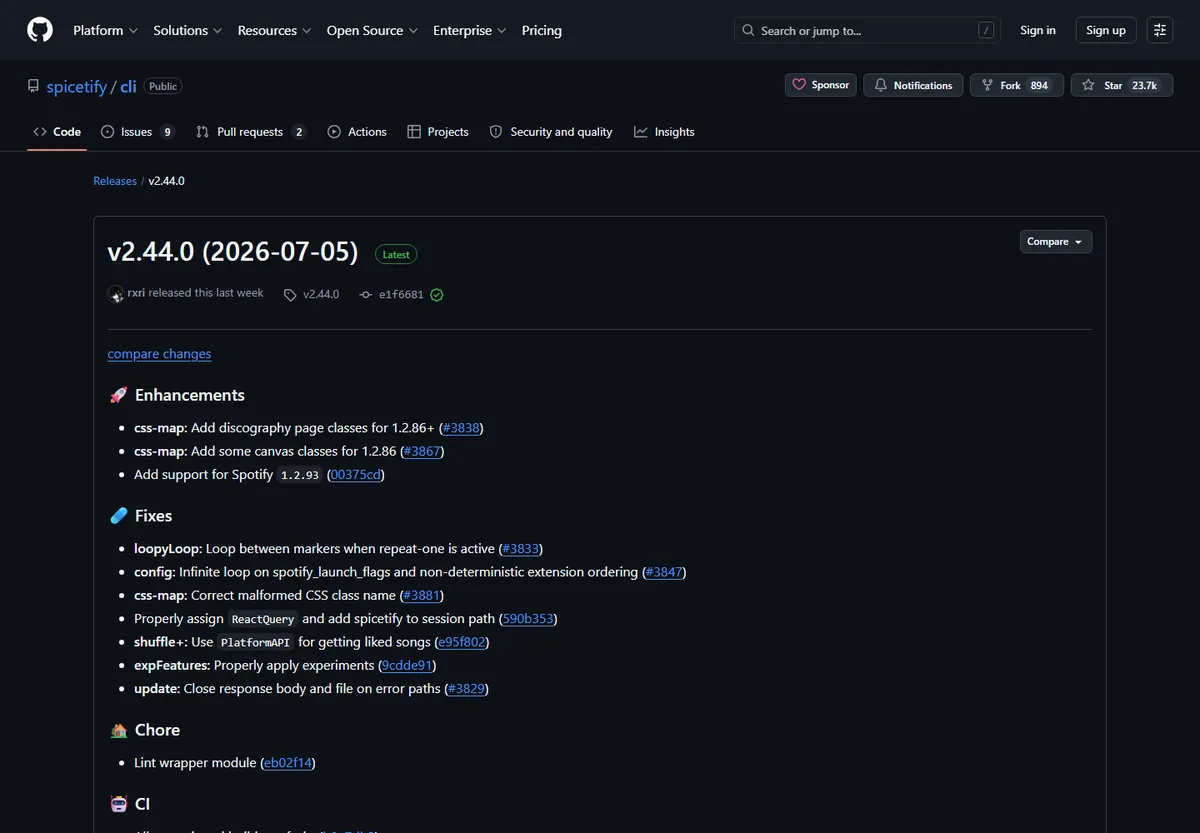
After updating, run spicetify --version and compare the result with the official GitHub release. The latest version verified for this guide is v2.44.0, published July 4, 2026 UTC. The project can release a newer version later, so the official latest-release page remains authoritative.
Do not confuse updating Spicetify with updating Spotify. Spotify can replace resources and require a new backup/apply cycle even when the CLI itself did not change. Check compatibility notes before downgrading, forcing unsupported versions, or downloading old Spotify installers from third-party mirrors.
spicetify update
Fix PowerShell, PATH, admin, and Spotify process errors
Treat the first clear error as evidence. Command-not-found errors point to installation or PATH; admin warnings point to unsafe elevation; access errors usually involve running processes or ownership; compatibility errors require current release notes.
| Symptom | Likely cause | Safe action |
|---|---|---|
| spicetify is not recognized | CLI missing from PATH or terminal not refreshed | Reopen PowerShell, run Get-Command, then repair the official installation |
| Should not be run as administrator | Elevated PowerShell | Close it and use a normal user terminal |
| Permission denied or files in use | Spotify/helper process open or ownership mismatch | Close Spotify processes and avoid repeated elevation |
| Cannot find Spotify | Unsupported package or incorrect paths | Open the desktop client once and inspect spicetify config |
| Customization vanished after update | Spotify resources replaced | Verify compatibility, then run the documented backup/apply sequence |
Flags that bypass admin or compatibility safeguards are for cases where you understand the exact risk. They are not the normal fix for a black window, missing PATH, or locked files.
Spicetify PowerShell command FAQ
What is the first Spicetify PowerShell command to run?
Run spicetify --version. It confirms that PowerShell can find the CLI and shows which version is active.
Should I run Spicetify PowerShell as administrator?
Normally no. Use a regular user PowerShell window unless current official instructions explicitly require elevation for a specific step.
What is the difference between spicetify apply and backup apply?
Apply uses the existing baseline for normal customization changes. Backup apply creates or refreshes the supported clean-resource baseline and then applies the current configuration.
Which command restores Spotify?
Run spicetify restore to restore the saved clean resources. This does not remove the CLI or every configuration file.
How do I see all available Spicetify commands?
Run spicetify --help and use the official CLI reference for the installed release. This is safer than relying on an old cheat sheet copied without version context.
Why is the spicetify command not recognized?
The CLI may not be installed, PowerShell may need to be reopened, or another installation changed PATH. Use Get-Command spicetify and follow the official installation guide.
Official sources used
- Spicetify CLI command reference — Official command and flag documentation.
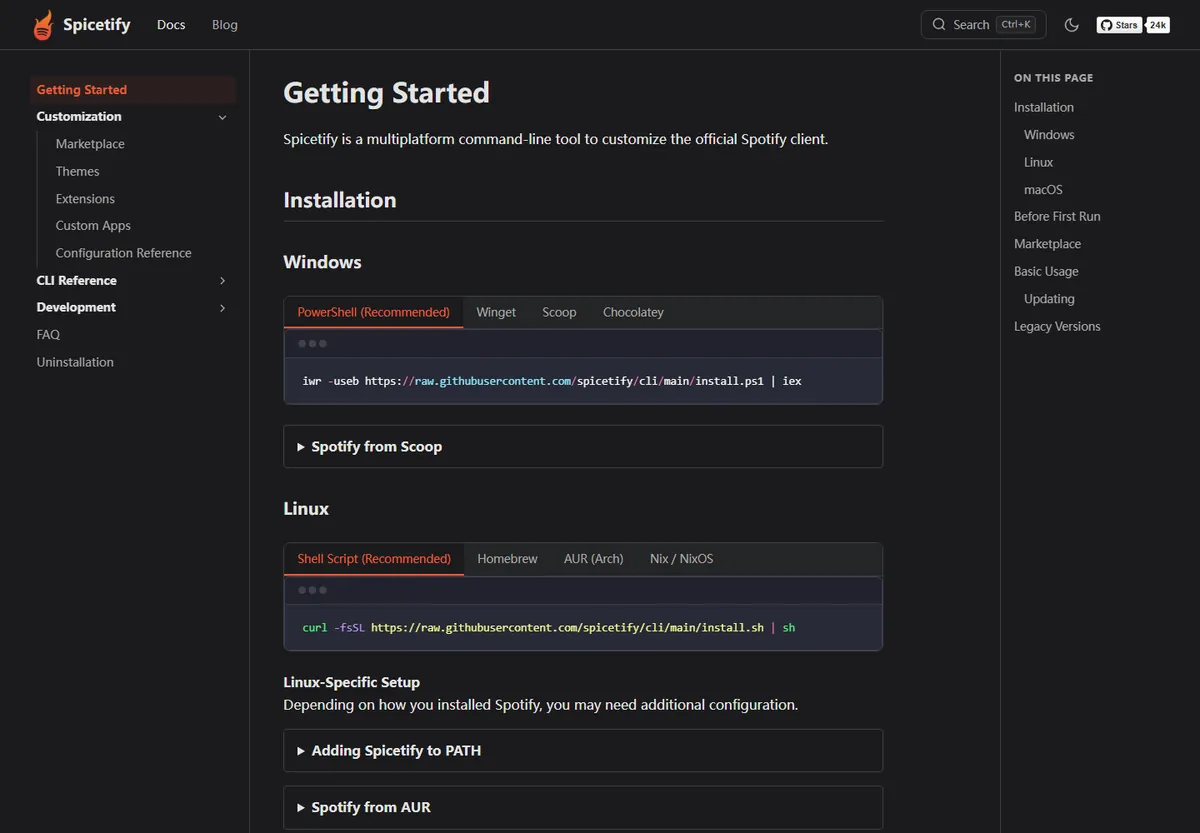
- Spicetify Getting Started — Official installation, update, backup, and apply workflow.
- Spicetify v2.44.0 — Latest verified release, published July 4, 2026 UTC.