
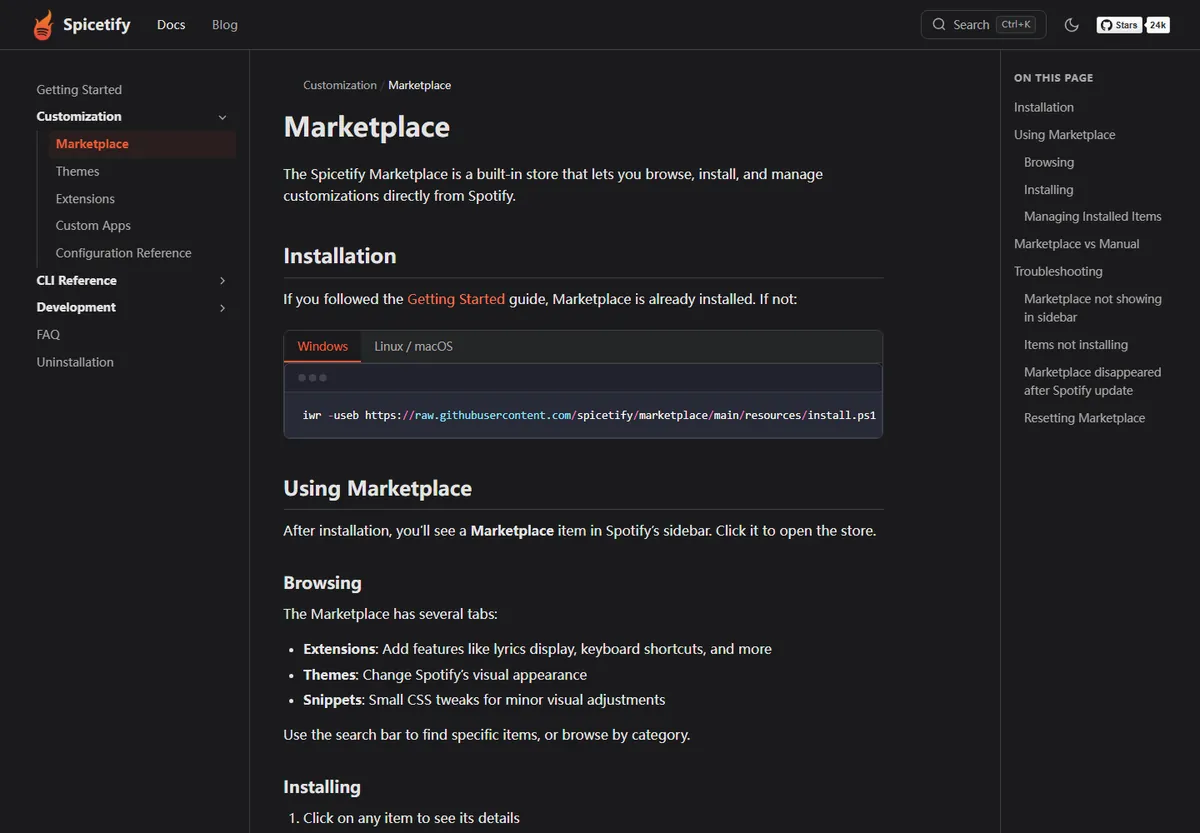
When Spicetify Marketplace is not showing, close Spotify completely and run spicetify --version. If the CLI works, run spicetify backup apply and reopen Spotify before reinstalling Marketplace. This restores the clean Spotify resource baseline and reapplies the current customization in the normal recovery order.
If the sidebar item is still missing, use the official Marketplace installer for your platform, then close and reopen Spotify again. A command-not-found error, a blank Marketplace panel, or a failure that began after a Spotify update points to a different fix; the sections below keep those cases separate.
Identify the Marketplace symptom first
The same phrase—Marketplace is not showing—can describe several different failures. Choose the closest row before changing files or reinstalling a component.
| What you see | Most likely explanation | First move |
|---|---|---|
| No Marketplace item in Spotify's sidebar | Marketplace is not installed, or the current apply did not restore it | Confirm the CLI, then run backup apply |
| Marketplace item opens but content is blank | Spotify is open with stale resources, or the Marketplace panel cannot load its content | Close Spotify, reapply, and test the official source |
| Marketplace appeared once and vanished after Spotify updated | Spotify replaced the modified desktop resources | Check the supported Spotify version and reapply before reinstalling |
| Marketplace is present but a theme or extension is missing | The item itself works; the individual customization may be outdated or disabled | Treat the item as an extension/theme issue, not a missing Marketplace install |
Check the CLI and Spotify desktop client
Marketplace is layered on top of Spicetify. If the executable or the Spotify desktop path is broken, reinstalling Marketplace cannot repair the base problem.
Open a new terminal window so a recent installation or PATH change is loaded. Run the version check and keep the complete output if it fails. A browser tab, Spotify Web Player, or mobile app is not a supported target for Spicetify Marketplace.
Before applying anything, open the desktop client once, sign in, then close Spotify fully. Check Task Manager or Activity Monitor if the process remains alive. A locked Spotify process can make an apply appear successful while leaving the sidebar unchanged.
Do not start by disabling antivirus or running every command as administrator. First confirm that the source is official, the active executable is the one you intended to install, and the Spotify desktop client is the expected installation.
spicetify --version
- 1
Open a new terminal
Use PowerShell on Windows or the shell used by your macOS/Linux installation so the active PATH is tested.
- 2
Confirm the desktop client
Use the supported Spotify desktop application, not the Web Player or a mobile client.
- 3
Close Spotify completely
Quit the application and verify that no Spotify process is still holding its resource files.
Run spicetify backup apply before reinstalling
For a Marketplace sidebar that disappeared after a normal update or an incomplete apply, the clean-baseline command is the lowest-risk next step.
spicetify backup apply creates or refreshes the clean backup of compatible Spotify desktop resources and applies the current Spicetify configuration. It is not a download command, and it does not reinstall the CLI or erase your Spotify account data.
Run it only after Spotify is closed. Wait for the command to finish, reopen Spotify, and check the sidebar before adding themes, extensions, or custom apps again. If the command reports an unsupported Spotify version, stop repeating it and check the compatibility and release guidance instead.
If you intentionally need to return to the saved clean resources first, use the restore workflow documented in the backup/apply guide, then apply again after the version and path checks pass.
spicetify backup apply
- 1
Close Spotify
Do not leave the desktop client or a helper process running while files are being replaced.
- 2
Run the clean apply
Use spicetify backup apply and wait for the final status instead of opening Spotify midway.
- 3
Test the sidebar
Open Spotify again and check Marketplace before reinstalling or layering another customization.
Reinstall Marketplace only when the sidebar stays missing
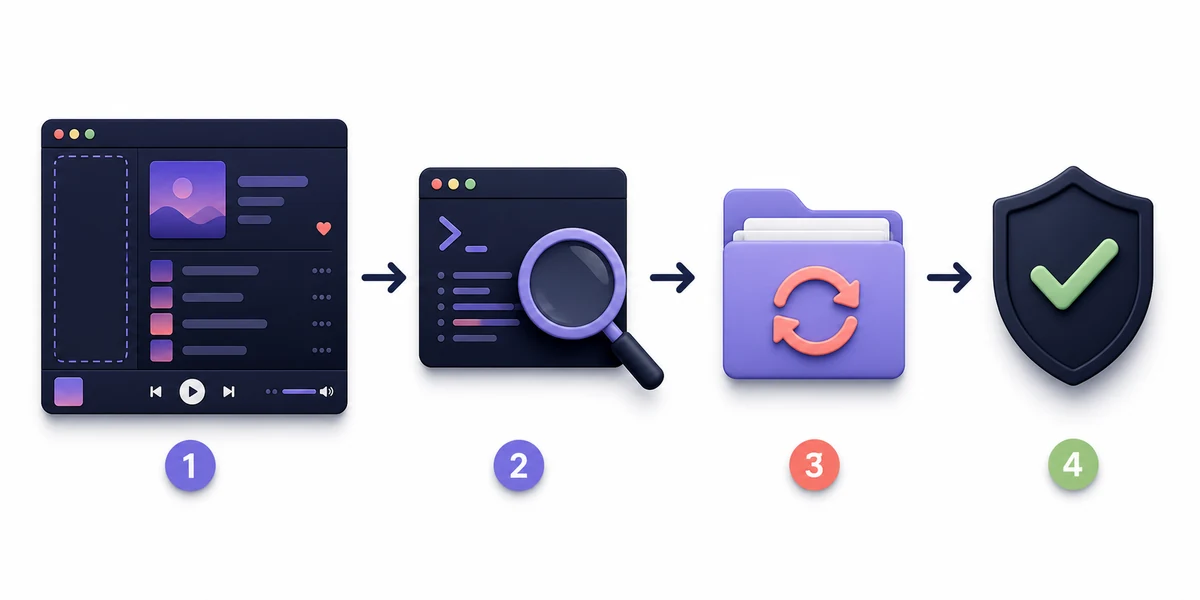
If the CLI works, Spotify is supported, and backup apply completes but the Marketplace item is still absent, reinstall the Marketplace layer from its official project source.
On Windows, the official Marketplace documentation provides the PowerShell installer command below. Copy it from the official source when you work on a different platform; do not substitute a mirror, shortened URL, or a random script from a download site.
After the installer finishes, close and reopen Spotify. If the Marketplace item appears, test one built-in category first. Add one theme or extension at a time so a new failure can be traced to the exact customization rather than to the whole Marketplace layer.
If the installer reports that the command cannot be found or a file cannot be written, stop there and use the installation-error guide. The correct fix may be PATH, a duplicate CLI installation, a permission boundary, or an unsupported Spotify path.
iwr -useb https://raw.githubusercontent.com/spicetify/marketplace/main/resources/install.ps1 | iex
- Use the official Spicetify Marketplace repository and documentation as the source of the installer.
- Close Spotify after installation and reopen it before judging whether the sidebar was restored.
- Do not install multiple Marketplace copies or mix unknown scripts with the official layer.
- If only one item is missing, troubleshoot that theme, extension, or custom app separately.
Recover Marketplace after a Spotify update
A Spotify update can replace the desktop resources that Spicetify modified. That can remove Marketplace, themes, or extensions even when the CLI itself is still installed correctly.
Start with the version relationship, not with a blind reinstall. Check the installed Spicetify version, the Spotify desktop version, and the official CLI release notes. If the newest Spotify build is not yet supported, reinstalling the same Spicetify version will not create compatibility.
When the versions are compatible, close Spotify and run spicetify backup apply. If that restores the sidebar, keep the Marketplace installation and add customizations back one at a time. If it does not, use the official release or update guidance and record the exact error before changing the installation channel.
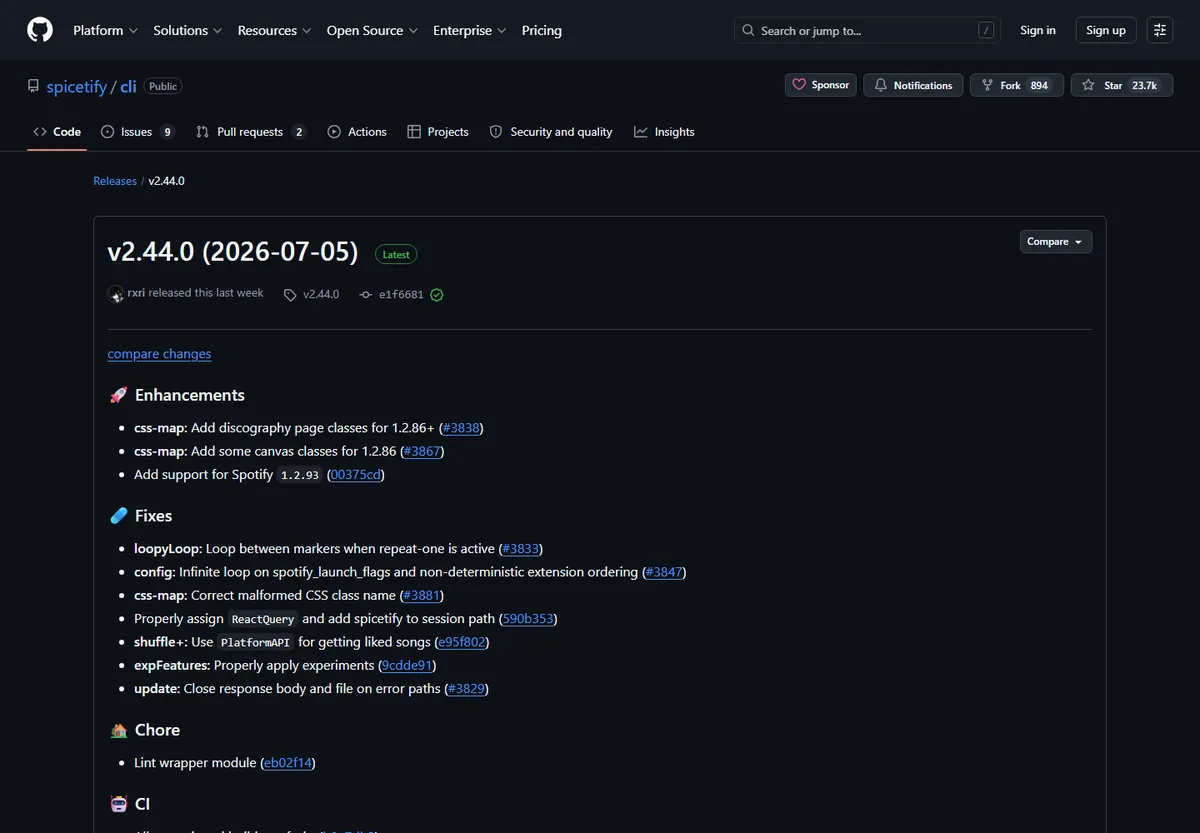
The stable CLI release verified for this page is v2.44.0. A pre-release may exist, but it should not be treated as the default stable download unless the official project clearly marks it as such.
- 1
Check compatibility
Compare the Spotify desktop version with the official Spicetify compatibility and release information.
- 2
Reapply the clean baseline
Run backup apply once after Spotify is fully closed.
- 3
Escalate with evidence
If Marketplace is still missing, keep the exact terminal output and use the focused error or release guidance instead of repeating installers.
Fix PATH, permission, blank-panel, and error cases
Use the error shape to choose the next check. Avoid changing several variables at once because it makes a recovered Marketplace state difficult to reproduce.
- Keep one installation method for the active Spicetify executable whenever possible.
- Use the same terminal and user context that owns the Spotify desktop installation.
- Record the Spotify version, Spicetify version, operating system, and exact command output before asking for support.
- Never claim that a community customization is official just because it appears in Marketplace.
| Message or state | Check next | Avoid |
|---|---|---|
| spicetify is not recognized | Open a new terminal and inspect PATH or duplicate installations | Running Marketplace installers repeatedly |
| Marketplace item is missing after reinstall | Run backup apply, verify the active CLI, and check Spotify compatibility | Installing a third-party copy |
| Marketplace opens to an empty panel | Close Spotify, reapply, and test the official source/network path | Adding more extensions before the panel is stable |
| Something went wrong | Save the complete output, check network access and the exact source, then use the relevant official issue or guide | Disabling security tools as a generic fix |
| Only one theme or extension disappeared | Open the existing theme or extension troubleshooting path | Treating one broken item as a Marketplace-wide failure |
Platform notes for Windows, macOS, and Linux
The diagnosis is the same on every desktop platform, but the shell, Spotify path, and package manager can change the exact command or permission check.
| Platform | What to verify | Useful boundary |
|---|---|---|
| Windows | PowerShell PATH, Spotify desktop installation, and whether the terminal sees the active executable | Use the official PowerShell Marketplace installer when reinstalling |
| macOS | The shell PATH, Intel versus Apple Silicon package, and the desktop application path | Use the official Marketplace instructions for the shell and architecture |
| Linux | The package manager or shell installer that owns Spicetify, file permissions, and Spotify package path | Do not mix package-manager and manual installations without checking which executable wins |
| All desktop platforms | Spotify must be closed, the CLI must be supported, and the official source must be reachable | Web Player and mobile Spotify are outside Spicetify Marketplace scope |
FAQ: Spicetify Marketplace not showing
Why is Spicetify Marketplace not showing in Spotify?
The usual causes are an incomplete apply, a missing Marketplace layer, a Spotify update that replaced modified resources, an inactive PATH, or an unsupported Spotify version. Close Spotify, check the CLI, run spicetify backup apply, and only then consider reinstalling Marketplace.
Do I need to reinstall Marketplace every time Spotify updates?
Not necessarily. First check compatibility and run spicetify backup apply after closing Spotify. Reinstall Marketplace only when the sidebar remains missing and the base CLI/apply workflow is healthy.
How do I fix the Marketplace button not showing after reinstalling it?
Verify that the terminal is using the intended Spicetify executable, close Spotify completely, run backup apply, and check the official release guidance. If the installer succeeded but the button remains absent, preserve the terminal output instead of running multiple installers.
What does a blank Marketplace panel mean?
A blank panel can come from stale Spotify resources, an incomplete apply, a network/source problem, or an incompatible client. Reapply once, test the official source, and then isolate network or version issues.
Can I use Spicetify themes or extensions without Marketplace?
Yes. Marketplace is optional. The CLI can apply manually configured themes, extensions, and custom apps when their files and configuration are correct.
Does Spicetify Marketplace work in Spotify Web Player or on mobile?
No. Spicetify targets the supported Spotify desktop client. The Web Player and mobile applications do not use the local desktop resources that Marketplace modifies.
Official sources used
- Official Spicetify Marketplace documentation — Marketplace installation, sidebar behavior, item management, and troubleshooting.
- Official Spicetify Getting Started documentation — Supported desktop setup and the relationship between the CLI and Spotify.
- Official Spicetify Marketplace repository — Source and release context for the Marketplace layer.
- Official Spicetify CLI releases — Version compatibility and release notes; stable v2.44.0 was verified on August 11, 2026.