
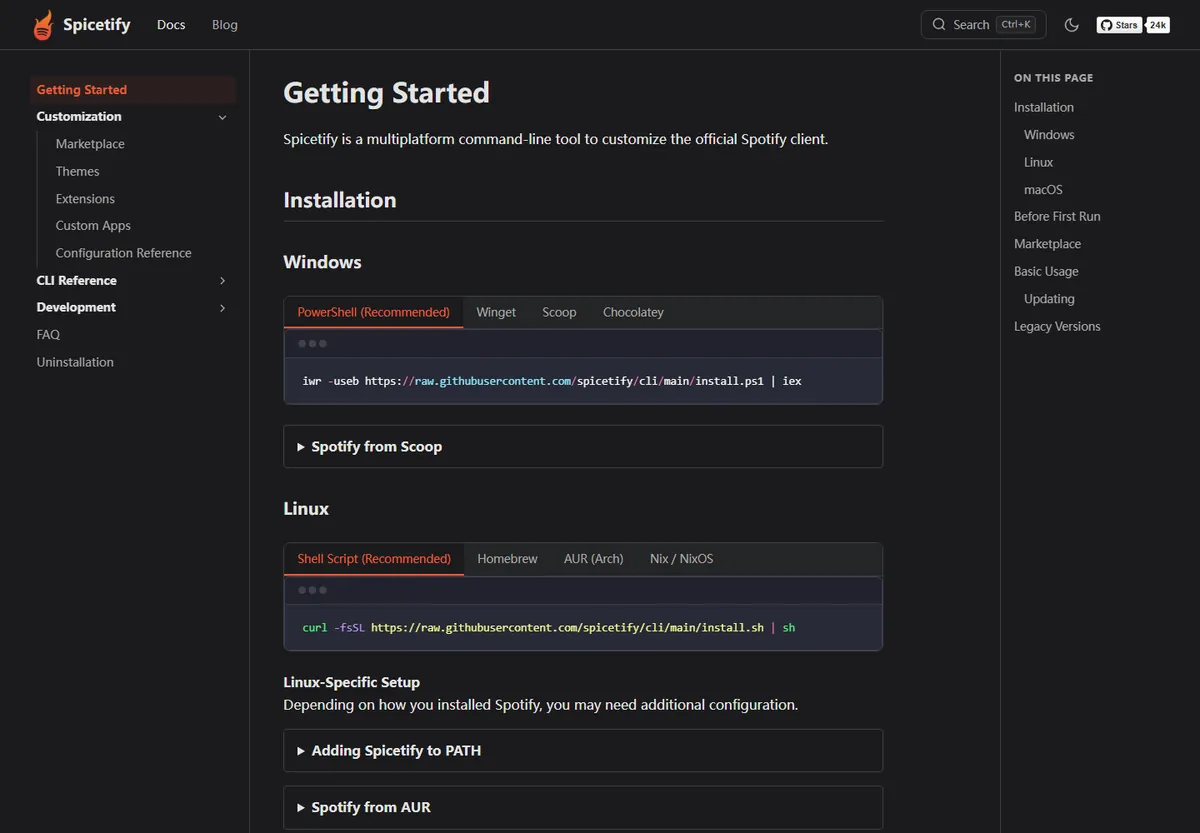
This Spicetify download guide points to the official installer command from spicetify.app/docs/getting-started. It fetches the CLI from the Spicetify project and avoids repacked installers. For an offline copy or a specific CPU architecture, use the v2.45.3 archive on the official spicetify/cli GitHub release page.
Spicetify is a command-line customisation tool for the Spotify desktop client. It is not Spotify itself, does not include music, and does not turn Spotify songs into MP3 files. Install Spotify first, open it once, then close it before the first backup and apply step.
Spicetify Download Guide: Choose an Official Source
Start with a first-party source and keep the download decision simple.
The official project publishes source code, release notes, and precompiled CLI archives through the Spicetify GitHub organization. The release page is github.com/spicetify/cli/releases. The project documentation at spicetify.app explains the install scripts and the commands used after the CLI is installed. This site links to those destinations but does not host a modified executable.
Choose the automated script for the shortest supported path. Choose a GitHub archive when a proxy, offline workstation, package policy, or architecture requirement means that you need to inspect the binary yourself. End either route with spicetify -v.
Spicetify does not distribute a random all-in-one EXE, MSI, or Spotify Premium bundle. If a download page hides the GitHub or spicetify.app source, close it and use the official links above.
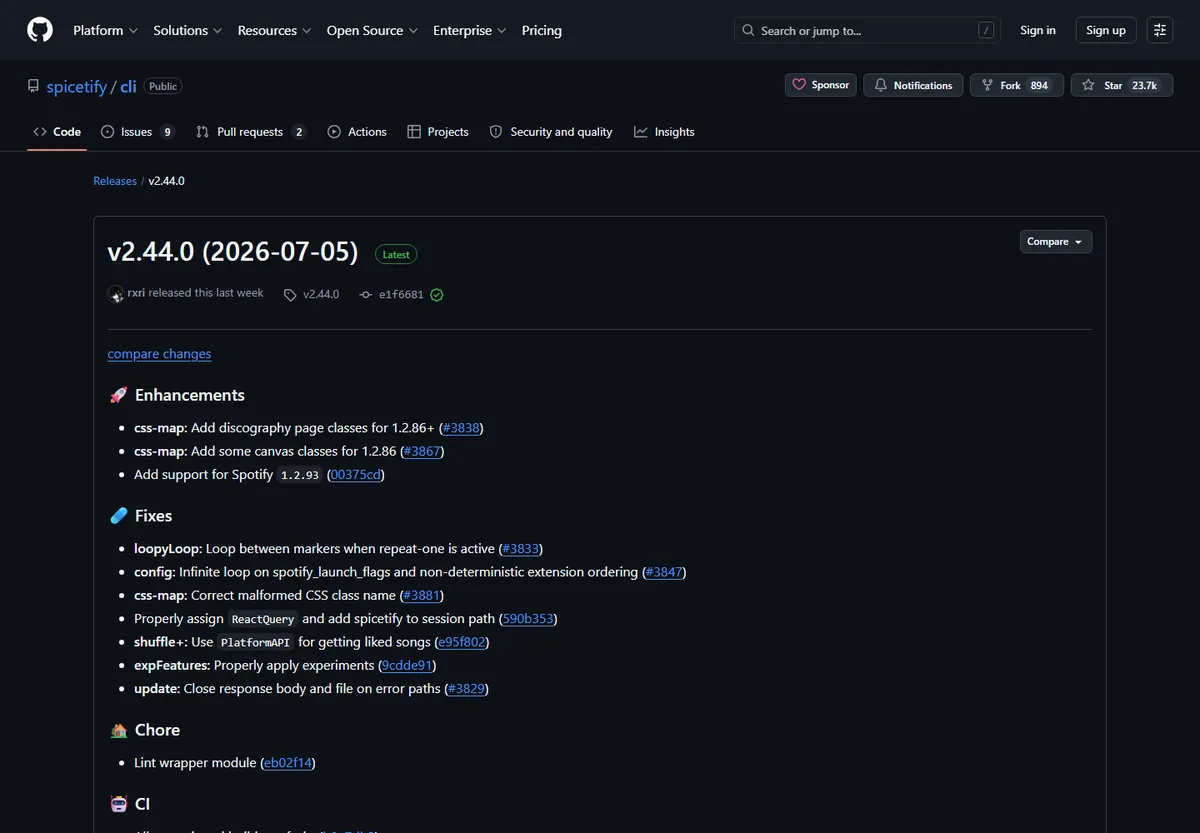
Latest Spicetify Download: v2.45.3
The GitHub Releases API identifies v2.45.3 as the current release checked on October 9, 2026.
GitHub published v2.45.3 on October 3, 2026. Its release notes include fixes for legacy fixed-width grid layouts and context-menu preprocessing, plus compatibility notes for current Spotify desktop builds. Windows and macOS are listed through Spotify 1.3.3, while Linux is listed through Spotify 1.2.96. Read the release notes again after a Spotify update.
| Platform | Official asset | Size at check | Choose it when |
|---|---|---|---|
| Windows x64 | spicetify-2.45.3-windows-x64.zip | 7.41 MB | Intel or AMD Windows 10/11 PC |
| Windows ARM64 | spicetify-2.45.3-windows-arm64.zip | 6.88 MB | ARM-based Windows laptop or tablet |
| Windows x32 | spicetify-2.45.3-windows-x32.zip | 7.33 MB | Legacy 32-bit Windows only |
| macOS Apple Silicon | spicetify-2.45.3-darwin-arm64.tar.gz | 6.91 MB | M-series Mac |
| macOS Intel | spicetify-2.45.3-darwin-amd64.tar.gz | 7.29 MB | Intel Mac |
| Linux amd64 | spicetify-2.45.3-linux-amd64.tar.gz | 7.22 MB | Most 64-bit desktop Linux systems |
Choose the Right Platform and Architecture
Windows users normally have two practical choices. The PowerShell script is easiest because it downloads the matching release and configures the command path. A manual ZIP is useful when your organization blocks script execution or when you need to review the archive before extraction. Microsoft Store Spotify can work, but its files may need to be reapplied after the app closes; use the compatibility notes in the Windows guide if the command cannot find Spotify.
Linux has the widest range of packaging layouts. Ubuntu, Debian, Fedora, Arch, and Zorin users should confirm whether Spotify came from a native package, Flatpak, Snap, or another launcher. The binary can be correct while the Spotify path is wrong, so use the Linux guide for path and permission fixes.
- Intel or AMD Windows: choose Windows x64.
- Qualcomm or other ARM Windows: choose Windows ARM64.
- Apple M-series: choose darwin-arm64; Intel Mac: choose darwin-amd64.
- Most 64-bit Linux PCs: choose linux-amd64 and then check the Spotify package path.
- Use the x32 Windows asset only when the operating system itself is 32-bit.
Official Spicetify Download Commands
The install scripts are the recommended download path.
Install Spotify first, sign in, and open it for at least a minute. Spotify creates local application and preference files during that first session. Close Spotify before the first Spicetify apply command. Running the installer while Spotify is still changing files can make the initial backup incomplete.
Use PowerShell on Windows and Terminal on macOS or Linux. Paste the command exactly as published in the official documentation. If remote scripts are blocked, use the matching GitHub archive and add its persistent folder to PATH.
iwr -useb https://raw.githubusercontent.com/spicetify/cli/main/install.ps1 | iex
First Spicetify Download and Install: 5 Steps
A successful download is only the first part of setup. The CLI needs a clean Spotify baseline so that it can create a backup and apply custom resources. Verify the command, make the backup, and only then add themes or extensions.
- 1
Install the official Spotify desktop client
Download Spotify from its official desktop source, sign in, and let the client finish its first run. Do not use a phone, browser tab, or unofficial bundle for this step.
- 2
Open Spotify once, then close it
Leave the desktop client open for about 60 seconds so its local files exist. Close every Spotify window before Spicetify creates the backup.
- 3
Run the platform installer
Paste the PowerShell or shell command shown above. Wait for the script to finish, then open a new terminal if it changed your PATH.
- 4
Check the downloaded CLI
Run spicetify -v. The output should identify v2.45.3 or the release you intentionally selected from GitHub.
- 5
Create a backup and apply
Run spicetify backup apply. This preserves the original client resources before themes, extensions, or Marketplace changes are applied.
Verify the Archive and Recover a Failed Download
When you download a ZIP or TAR.GZ manually, keep the original file until the binary has been checked. GitHub release pages can show attestations and checksums for the published subjects. A checksum does not prove that a random mirror is safe; it is useful only when you compare the file with a value published by the official project.
A network error does not mean that Spicetify itself is broken. GitHub API rate limits, corporate proxies, TLS inspection, and blocked raw.githubusercontent.com are common causes. Switch to the release page for a manual archive, or ask your network administrator for the allowed source. Do not solve a timeout by downloading a repacked executable from an unknown site.
Get-FileHash .\spicetify-2.45.3-windows-x64.zip -Algorithm SHA256
- HTTP 403 or API rate limit: open the release page and download the asset directly.
- TLS or proxy failure: check the system clock and enterprise proxy policy.
- Command not found after extraction: add the persistent extraction folder to the user PATH, then open a new terminal.
- Spotify not found: confirm that the desktop client is installed and follow the platform-specific path guide.
- Checksum mismatch: discard the file and return to github.com/spicetify/cli/releases.
Do You Need to Redownload Spicetify After Spotify Updates?
Usually no. A Spotify update can replace modified client files without removing the Spicetify CLI.
Start with the existing installation. Close Spotify and run spicetify backup apply so the current configuration is applied to the new client files. If the CLI reports an incompatibility, run spicetify update to check for a newer release. Only download a fresh archive when the installed binary is outdated, damaged, or missing from PATH.
The official v2.45.3 notes list separate compatibility ceilings for Windows/macOS and Linux. If Spotify has moved beyond that range, wait for an official update instead of forcing an old patch onto a changed bundle.
spicetify backup apply
Marketplace, Music Downloads, and Project Limits
Spicetify Marketplace is an optional customization project. It provides a catalog for themes, extensions, custom apps, and CSS snippets after the CLI is working. Install the CLI first, verify spicetify -v, and then follow the Marketplace guide if you want in-client browsing. Mixing Marketplace installation with a broken first-time setup makes errors harder to isolate.
Spicetify does not download Spotify songs, playlists, or ordinary MP3 files. It changes the appearance and behavior of the desktop client; it does not remove DRM, unlock Premium features, or provide an Android APK. Keep those questions separate from the legitimate Spicetify download workflow and read the song-download FAQ for a clear explanation.
When you are ready to customize Spotify, continue with the platform guide for your computer. Those guides cover package paths, permissions, Microsoft Store behavior, Homebrew, AUR, Flatpak, and recovery.
- CLI first, Marketplace second: verify the base install before adding customizations.
- No song downloader: protected Spotify audio remains inside Spotify's own offline feature.
- Keep backups: spicetify backup apply gives you a restore point before changes.
- Use official sources: spicetify.app and github.com/spicetify/cli are the project references.
Spicetify Download Guide FAQ
Where is the official Spicetify download?
Use the install command in the official Getting Started documentation or choose a matching archive from the official spicetify/cli GitHub Releases page. This site links to those sources and does not host repacked binaries.
What is the current Spicetify version?
The latest version checked on October 9, 2026 is v2.45.3, published by GitHub on October 3, 2026. Check the release page again when Spotify updates because compatibility can change.
Which Spicetify file should I download for Windows?
Most Intel and AMD Windows computers use spicetify-2.45.3-windows-x64.zip. Snapdragon and other ARM devices use windows-arm64. Use x32 only for a 32-bit Windows installation.
Do I need to download Spicetify again after every Spotify update?
Usually no. Close Spotify and run spicetify backup apply first. Run spicetify update or download a newer archive only when the installed CLI is incompatible, damaged, or missing.
Can Spicetify download songs or MP3 files?
No. Spicetify customizes the Spotify desktop client and does not export songs, bypass DRM, or unlock Premium downloads. Spotify offline listening remains an in-app feature.
Official sources used
- Spicetify Getting Started — Official install commands, first-run setup, and supported update guidance.
- Spicetify CLI Releases — Official tags, release notes, archive names, assets, and attestations.
- Spicetify Marketplace documentation — Official Marketplace installation and customization reference.