
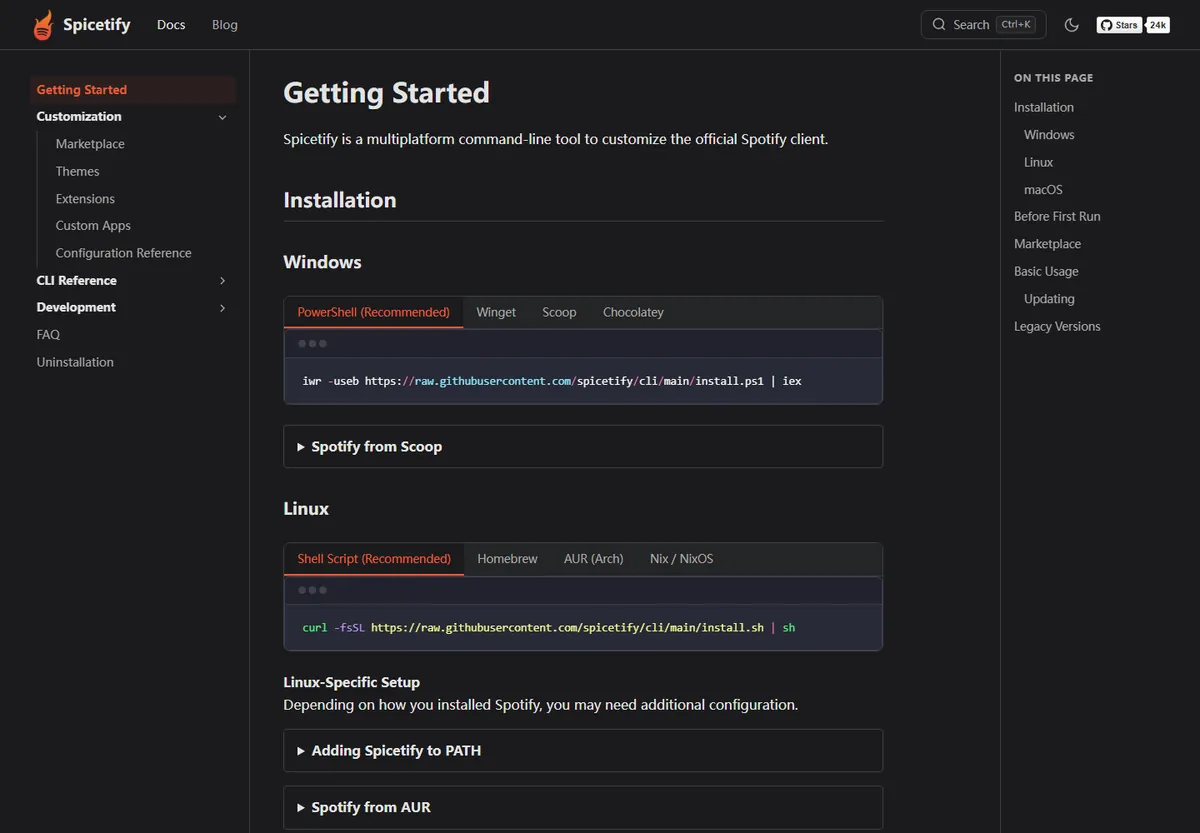
Spicetify is not a separate music service and it is not a browser extension. It is a command-line customization layer for the installed Spotify desktop application on Windows, macOS, and Linux. The CLI backs up Spotify resources, applies supported changes, and loads optional themes, extensions, custom apps, and CSS snippets.
The simplest mental model is: Spotify remains the player, Spicetify is the customization engine, and Marketplace is an optional catalog for community additions. It does not download songs, unlock Premium, remove account rules, or replace Spotify's own offline listening system.
What is Spicetify in plain English?
It changes the desktop client's presentation and selected behavior without becoming a new streaming app.
Spicetify is an open-source CLI maintained in the spicetify/cli project. After installation, you run commands in PowerShell, Terminal, or another shell to inspect the active configuration, create a backup, apply changes, restore clean resources, or update the CLI. The official Spotify desktop client still handles login, playback, library data, downloads, subscriptions, and communication with Spotify services.
Because it works against local desktop resources, Spicetify is different from a Chrome extension or a website skin. It does not customize Spotify Web Player pages. It also is not a forked Spotify application: you continue opening the official desktop client, while Spicetify changes supported files and loads configured additions around that client.
The project gives users a repeatable configuration layer instead of requiring scattered manual CSS and JavaScript edits. Commands, paths, themes, extensions, and recovery steps can be documented and reproduced, which makes a customized setup easier to maintain than an untracked collection of file changes.
How does Spicetify work with Spotify desktop?
The CLI prepares a clean backup, writes configuration, and reapplies supported customizations after changes.
A normal setup starts with the official Spotify desktop app already installed and opened at least once. Spicetify then detects the client and preference paths, creates a backup of the resources it needs, and applies the selected configuration. The visible result may be a new color theme, a custom sidebar app, keyboard behavior, queue controls, or other interface changes.
The backup matters because Spotify updates can replace modified resources. When that happens, Spicetify may appear to have stopped working even though the CLI is still installed. The first recovery action is usually to close Spotify and run a fresh backup-and-apply workflow, not to download random installers or reinstall every theme.
Spicetify keeps the core CLI separate from optional additions. Verify the command and clean apply first, then enable Marketplace, themes, extensions, or snippets one at a time. If a change causes a blank window or broken navigation, that sequence helps identify which layer introduced the problem.
- 1
Install the official Spotify desktop client
Open it once, sign in, let it create local preferences, and close it completely.
- 2
Install Spicetify from an official source
Use the current Getting Started command or the matching official GitHub release asset.
- 3
Create a clean backup and apply
Verify the CLI before introducing optional themes, extensions, custom apps, or snippets.
- 4
Add Marketplace only after the CLI works
Test one addition at a time and keep the source and recovery path recorded.
What can Spicetify customize?
The range goes from visual themes to small workflow features and full custom apps.
Themes can change colors, spacing, typography, artwork treatment, and other CSS-controlled presentation. Extensions add JavaScript behavior such as keyboard shortcuts, alternate shuffle logic, track filtering, or display modes. Custom apps add larger pages or panels inside the client, while snippets make narrower CSS adjustments.
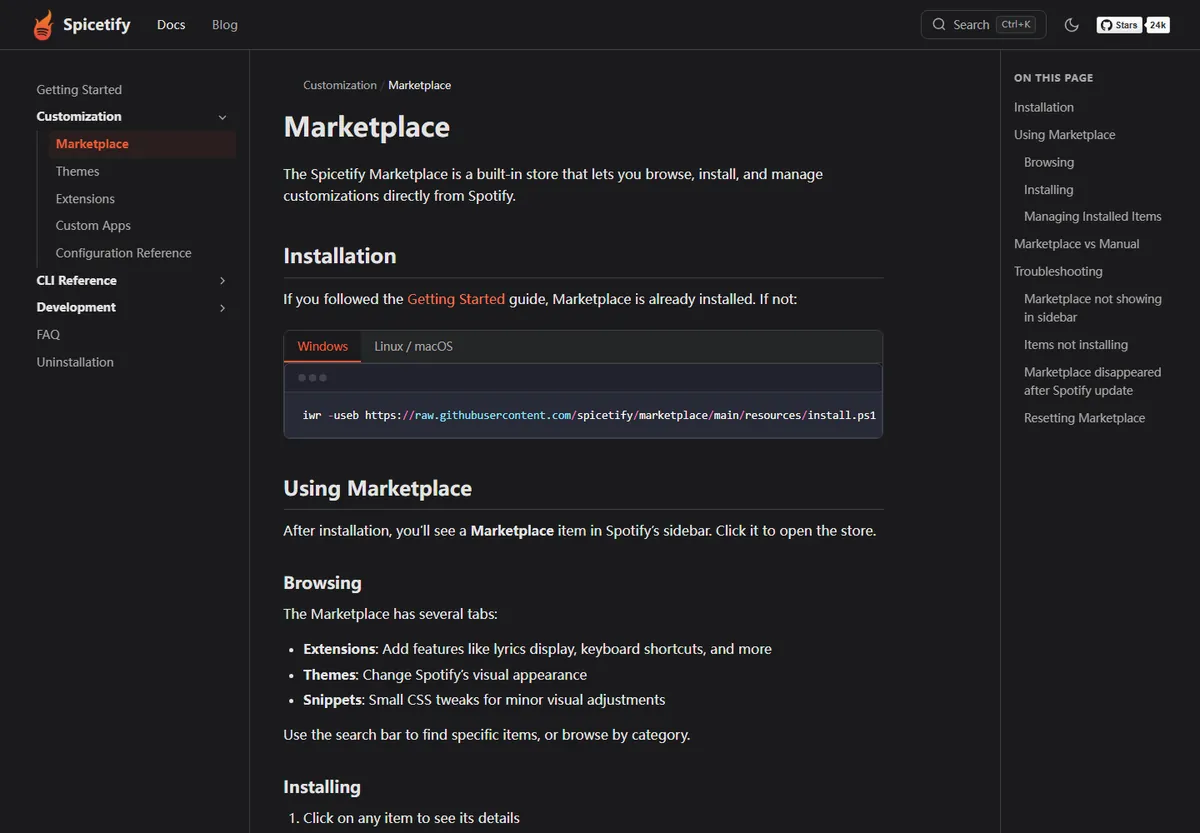
Marketplace provides an in-client way to browse and manage many additions, but it is not the Spicetify CLI itself. The CLI must work first. Marketplace entries can be community-maintained, so popularity is not the same as an official security review. Read the description, source repository, recent activity, and reported issues before enabling code.
Customization quality depends on Spotify version compatibility. Spotify changes class names and internal UI structure, which can temporarily break a theme or extension even when the core CLI still launches. A careful setup keeps the active collection manageable and updates every layer from its original source.
| Layer | Purpose | Typical example | Maintained by |
|---|---|---|---|
| Spicetify CLI | Core backup, configuration, apply and restore | spicetify backup apply | Official project |
| Theme | Visual presentation | Colors, spacing, artwork layout | Official or community author |
| Extension | Focused behavior | Shortcuts, shuffle, filtering | Official or community author |
| Custom app | Larger in-client feature | New page or panel | Usually community author |
| Marketplace | Catalog and management UI | Browse and install additions | Marketplace project |
What does Spicetify look like in daily use?
Most of the time it feels like Spotify with a chosen interface and a few extra controls.
After a successful apply, you open Spotify normally. There is no separate Spicetify player window that must stay running. A theme can make the client look dramatically different, while a small extension may add only one button or shortcut. Some users install Marketplace and explore many additions; others keep a minimal setup with one theme and two dependable extensions.
Full App Display is a useful example of the boundary. It can present an artwork-focused listening screen inside the Spotify client, but playback, the account, and the audio stream still belong to Spotify. Spicetify changes the experience around those functions rather than becoming the service that supplies them.
A stable daily workflow includes knowing the commands used, keeping a record of enabled additions, and testing Spotify after each change. That discipline is more important than installing a large collection at once. A small documented configuration is faster to restore after an update.

What Spicetify cannot do
Clear limits prevent the tool from being confused with downloaders, cracked clients, or subscription bypasses.
Spicetify does not export Spotify tracks as MP3 files, rip playlists, decrypt protected streams, or turn Spotify offline downloads into ordinary audio files. Spotify's offline feature remains controlled by the official application and the user's subscription. Any third-party extension claiming otherwise should not be presented as a normal or official Spicetify capability.
It also does not grant Premium, change account entitlements, or make an unsupported account feature legitimate. UI customization can hide or rearrange elements, but appearance is not the same as changing rights on Spotify's servers. The account still follows Spotify's terms, regions, subscription status, and service behavior.
Finally, Spicetify cannot guarantee that every theme or extension will survive every Spotify release. It depends on an evolving desktop client. Compatibility notes, release history, source review, clean backups, and the ability to restore are essential parts of using it responsibly.
| Claim | Reality |
|---|---|
| Spicetify downloads songs | No. It does not export Spotify streams or playlists as MP3 files. |
| Spicetify unlocks Premium | No. Account entitlements remain controlled by Spotify. |
| Spicetify replaces Spotify | No. It customizes the official desktop client. |
| Every add-on is official | No. Many Marketplace items are community-maintained. |
| A setup never breaks | No. Spotify updates can require reapply, updates, or add-on fixes. |
Is Spicetify safe, and what happens after updates?
The core project is transparent, but installation sources and community additions still require judgment.
The official CLI is open source, so its installer scripts, code, release history, and issue tracker can be inspected. Use spicetify.app and github.com/spicetify as starting points. Avoid repacked binaries, shortened download links, copied commands without source context, and packages that claim to unlock music or account features.
Marketplace themes and extensions may come from many maintainers. Treat them like other third-party code: check the repository, recent commits, permissions, issue reports, and whether the project is still maintained. Add one item at a time and keep a path back to a clean configuration.
The latest verified CLI release for this page is v2.44.0, published July 5, 2026, with official release assets for Windows, macOS, and Linux. Future Spotify or Spicetify updates can change compatibility, so recheck official release notes instead of assuming an old screenshot remains current.
Checked July 20, 2026: GitHub lists Spicetify v2.44.0, published July 5, 2026. The existing site version, release date, asset names, sizes, and official links already match, so no stale download fields required repair.
Who should use Spicetify?
It suits users who want desktop customization and are comfortable following reversible technical steps.
Spicetify is a good fit when you use Spotify desktop regularly, want more control over appearance or workflow, and can follow command-line instructions carefully. You do not need to be a developer, but you should be willing to read exact commands, close Spotify when required, verify sources, and troubleshoot one layer at a time.
It may not be a good fit if you use only the web player or mobile apps, need an officially supported enterprise setup, or expect customizations never to break after Spotify updates. People looking only for offline music should use Spotify's supported offline feature rather than installing a customization CLI for a job it does not perform.
For a first setup, begin with the official installer and a clean apply. Confirm Spotify launches before adding Marketplace. Then choose one well-documented theme or extension, test it, and keep the update and uninstall guides available. That sequence provides customization without turning recovery into guesswork.
- Use the official Spotify desktop client on Windows, macOS, or Linux.
- Prefer reversible customization over permanent manual file edits.
- Review community code before enabling themes, extensions, or custom apps.
- Keep update, restore, and uninstall steps available before experimenting.
Frequently asked questions about Spicetify
Is Spicetify an app or an extension?
It is primarily a command-line tool. It customizes the official Spotify desktop app and can load themes, extensions, custom apps, and snippets. It is not a browser extension or replacement music player.
What does Spicetify do?
It backs up supported Spotify desktop resources, applies configuration, changes visual styling, and loads optional behavior or pages supplied by extensions and custom apps.
Does Spicetify work on mobile or the web player?
No. Its normal target is the installed Spotify desktop client on Windows, macOS, and Linux, not mobile apps or Spotify Web Player.
Can Spicetify download songs or unlock Premium?
No. It is not an MP3 downloader, playlist ripper, DRM bypass, or Premium unlocker. Spotify controls playback rights and offline access.
Is Spicetify Marketplace the same as Spicetify?
No. The CLI is the core customization tool. Marketplace is an optional project for browsing and managing themes, extensions, custom apps, and snippets.
Will Spicetify stop working after a Spotify update?
It can require a fresh backup and apply, a newer CLI release, or an update to a theme or extension. Start with official update and compatibility guidance rather than reinstalling everything.
Official sources used
- Official Getting Started documentation — Defines Spicetify as a multiplatform CLI and documents supported installation paths.
- Official Marketplace documentation — Explains the relationship between Marketplace, themes, extensions, custom apps, and snippets.
- Official Spicetify CLI repository — Provides source code, issues, project history, and official ownership context.
- Spicetify v2.44.0 release — Confirms the latest verified version, release date, compatibility notes, and assets.